
This tutorial assumes you've already logged in to RoundCube webmail
Now let's learn how to save draft email messages
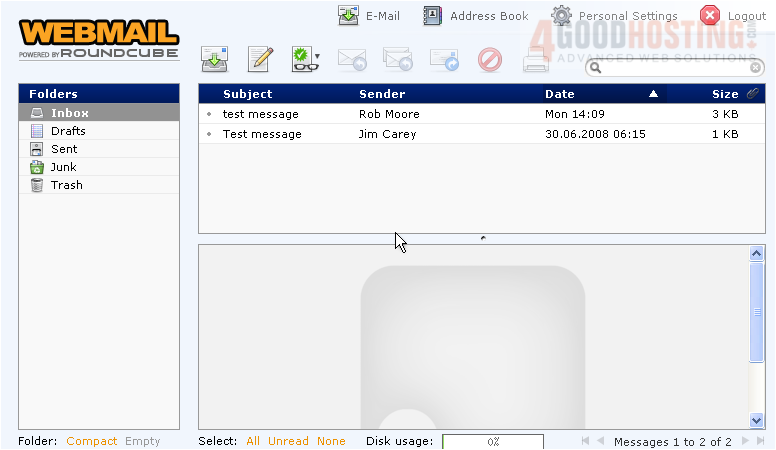
1) Click the Create Message icon here
2) Let's start composing a message
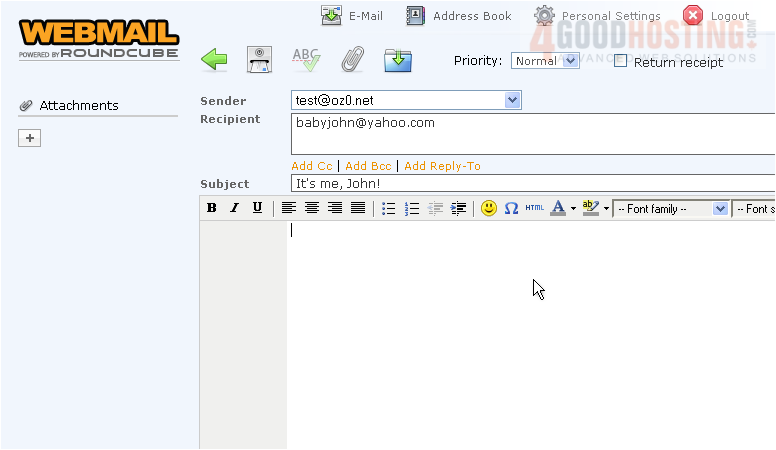
While composing an email, you may find that you'll want to save your work and come back to it later
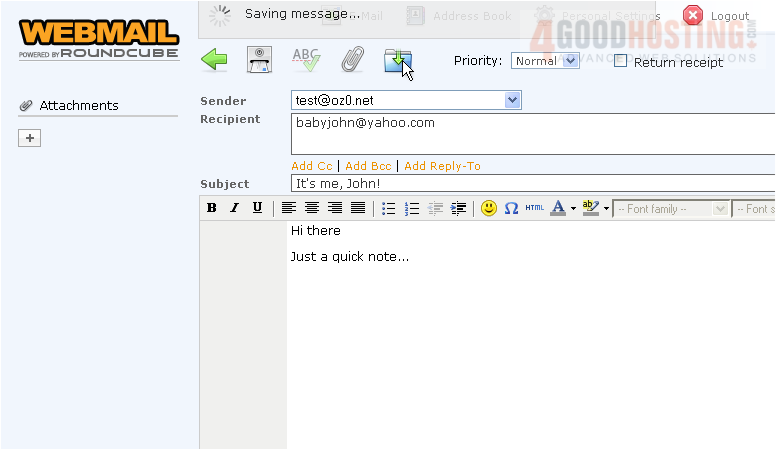
3) You can do that by clicking the Save this Draft icon here
4) Let's return to the main E-Mail page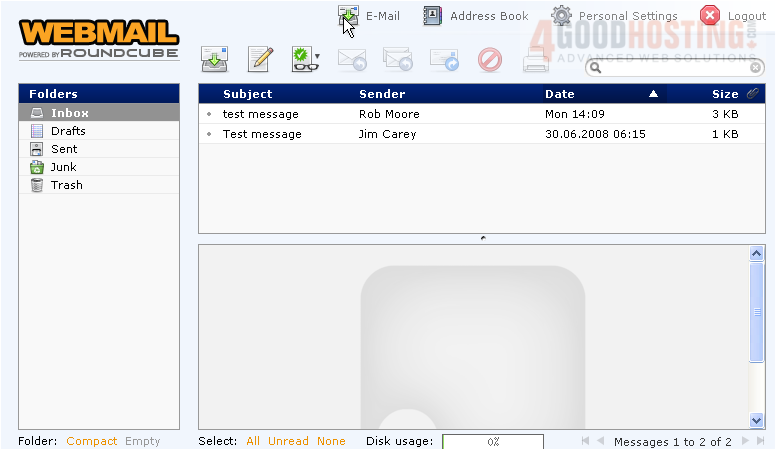
5) To find your saved draft messages, click the Drafts folder
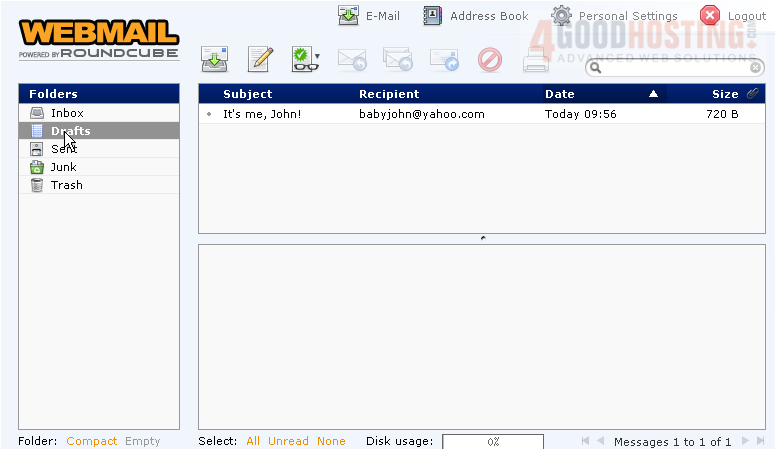
6) There it is! To continue composing the message, simply click the message.....
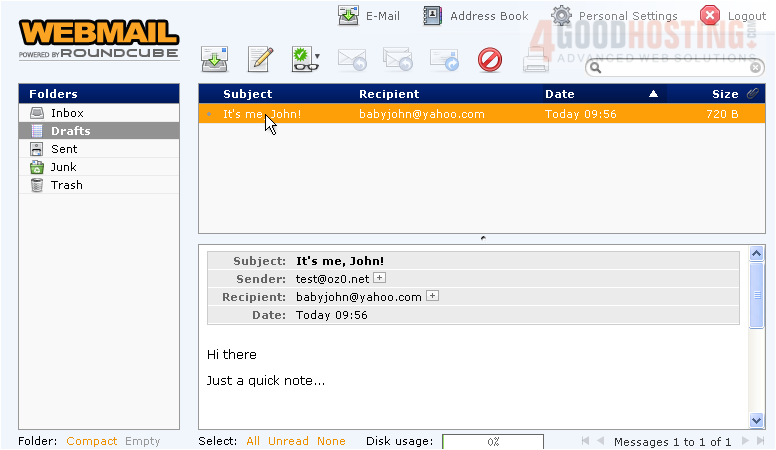
7) ..... then click the Compose icon
8) You can then continue to compose your email
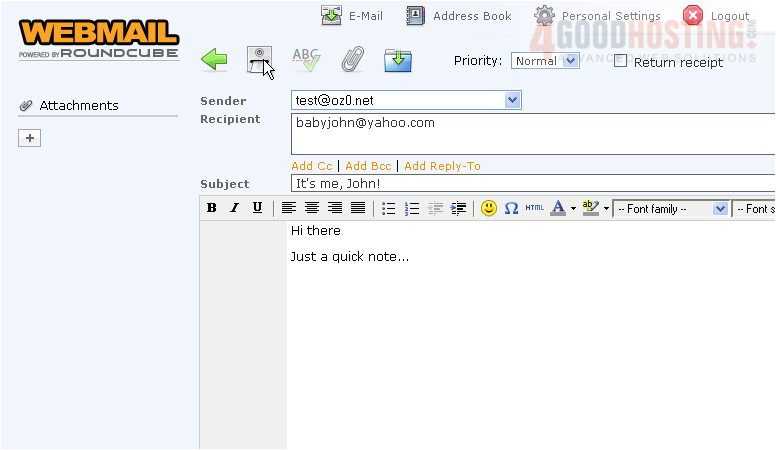
This is the end of the tutorial. You now know how to save messages as drafts in RoundCube, so you can complete them at a later time

 WGS AI Assistant