
This tutorial assumes you've already logged in to RoundCube webmail
Now let's learn how to reply to or forward messages that we've received
1) Select the message you want to reply to
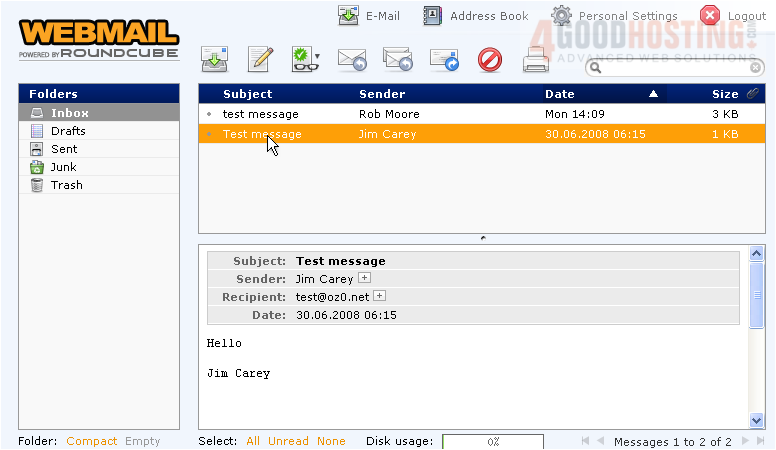
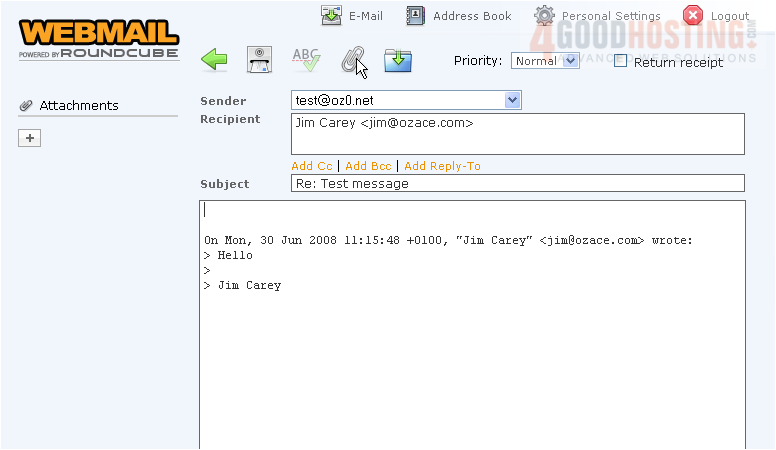
2) To send your reply to the sender of the email, click the Reply icon here
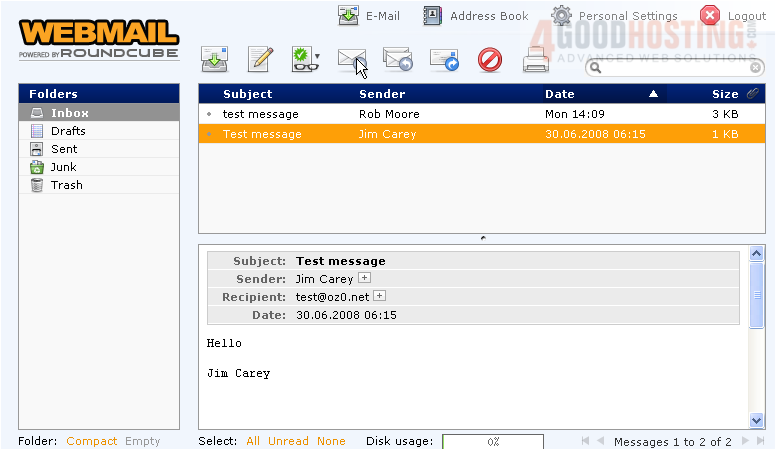
3) To send your reply to the sender of the email AND any other people sent the message to or copied, click the Reply ALL icon
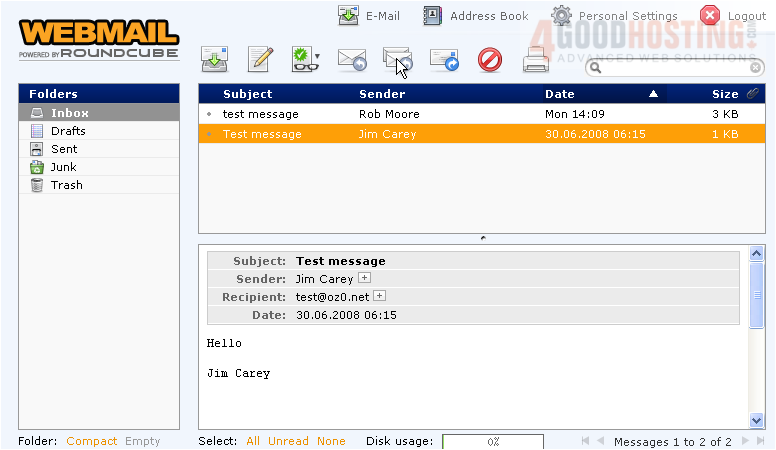
4) To forward the message to another address altogether, click the Forward icon
Note: Whether you're replying to the sender, replying to all, or forwarding a message, you can always include additional emails in the recipient list
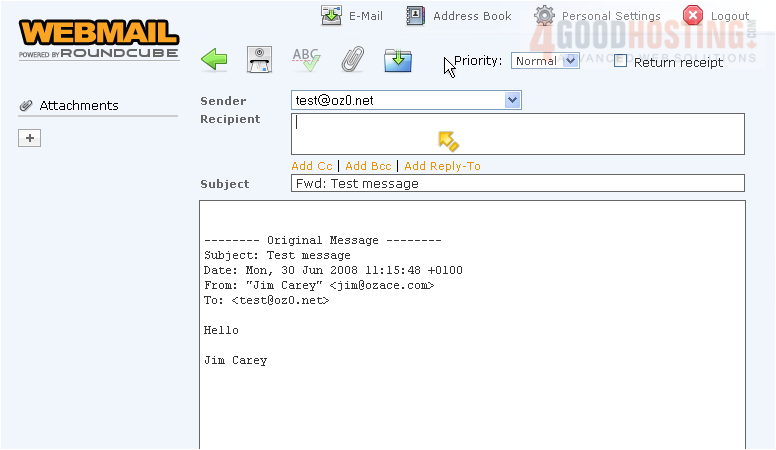
5) When ready, click the Send Email icon
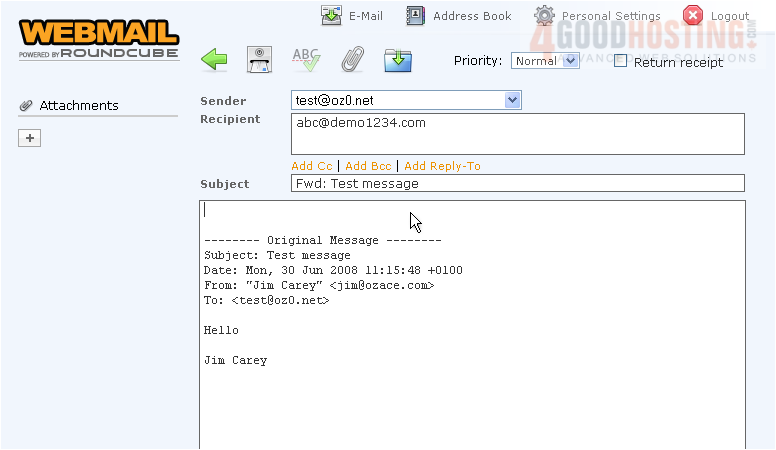
This is the end of the tutorial. You now know how to reply to or forward email messages with RoundCube

 WGS AI Assistant