
This tutorial assumes you've already logged in to Horde webmail. Now let's learn how to open an email message.
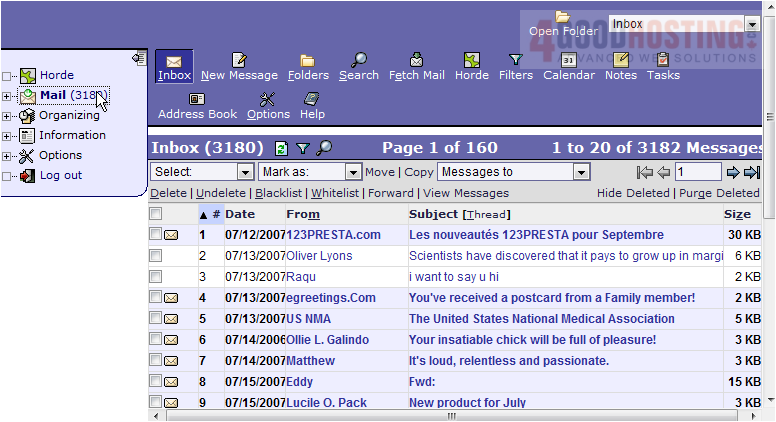
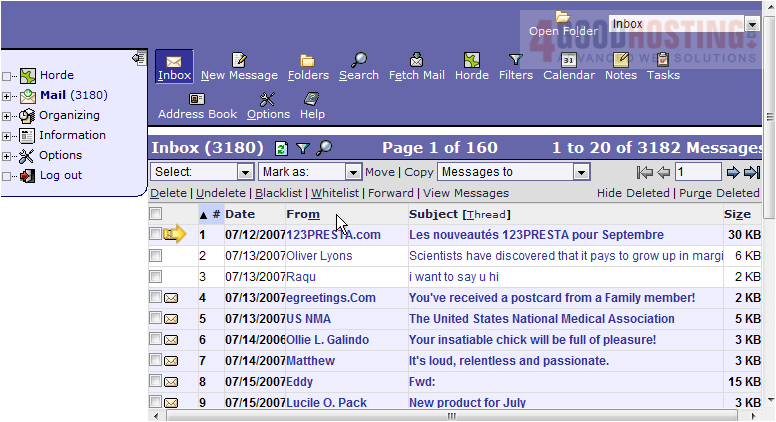
1) Click the Mail link in the left margin. Here we see the listing of all mail currently in our Inbox. Highlighted emails indicate they have not been seen yet. To open an email, simply click on the name in the From column or in the Subject column.
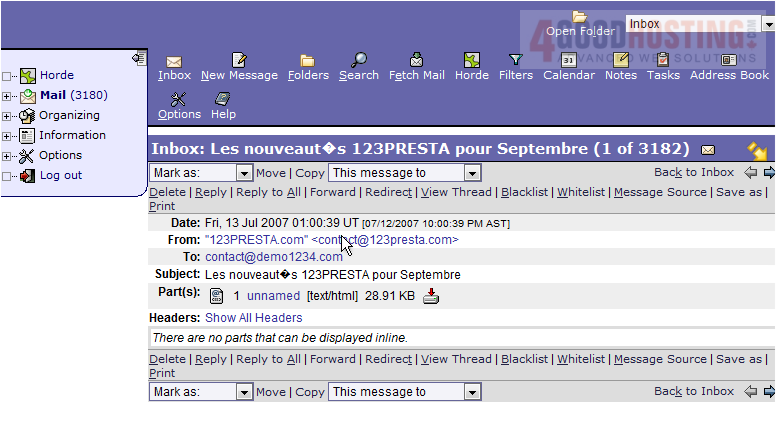
2) That's all there is to it! To go back to the listing of emails, click the Mail link in the left margin again.
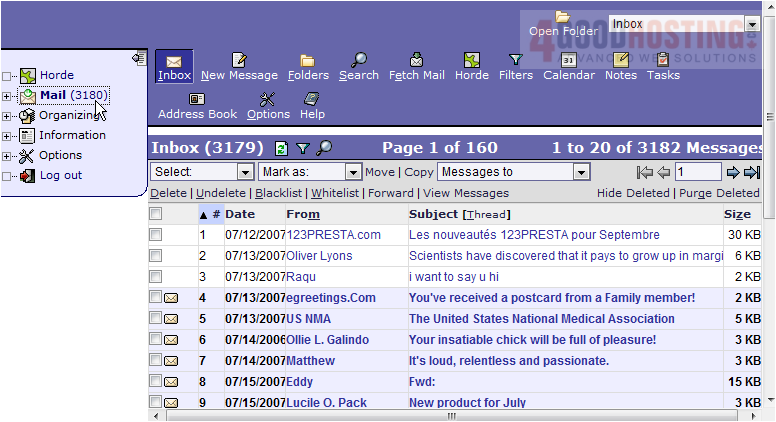
3) You'll see that the email we just viewed is no longer bold... as it has been read.
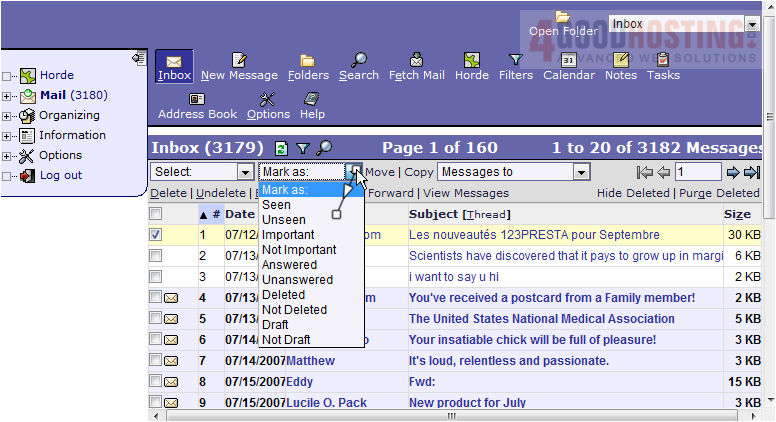
4) It is also possible to mark an email you've already seen (or read), as unseen (or unread). Let's go ahead and do that now. Click the check box next to the email we opened...

5) Then select Unseen in this drop down box.
6) As we can see, the email is highlighted once again meaning it is Unseen.
This is the end of the tutorial. You now know how to open an email message in Horde

 WGS AI Assistant