
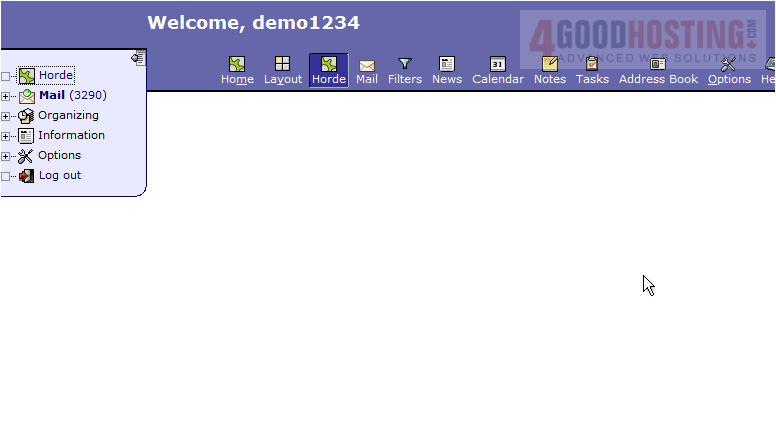
This tutorial assumes you've already logged in to Horde webmail. Now let's learn how to configure our global options.
1) Click the Options icon in the top navigation bar.
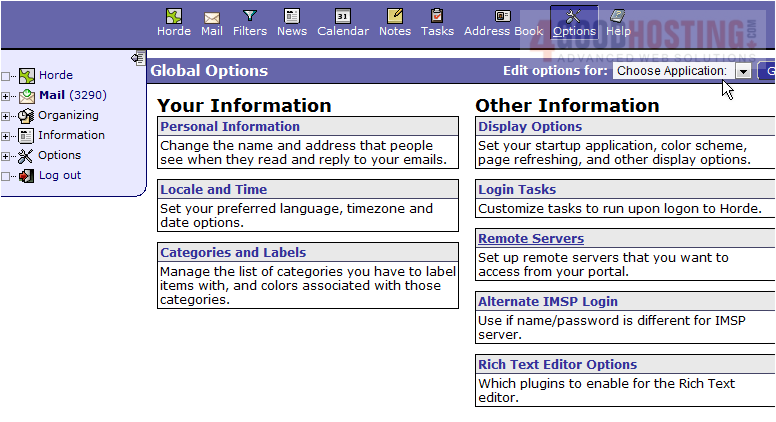
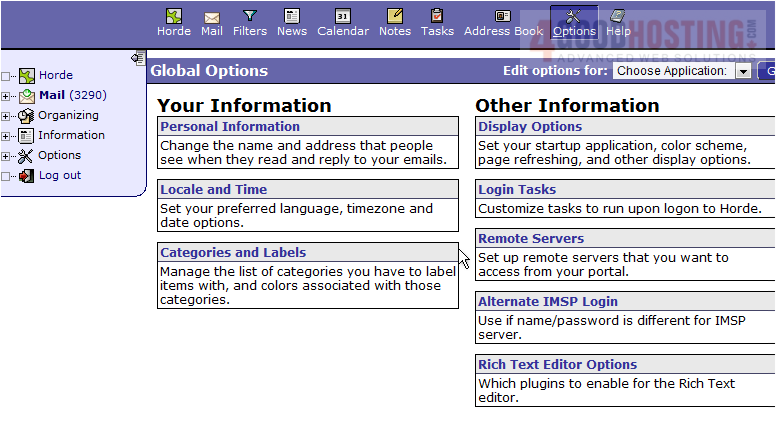
2) This is the Options page. There are many different options that can be configured here. Let's take a look at a few of them. Click the Personal Information link.
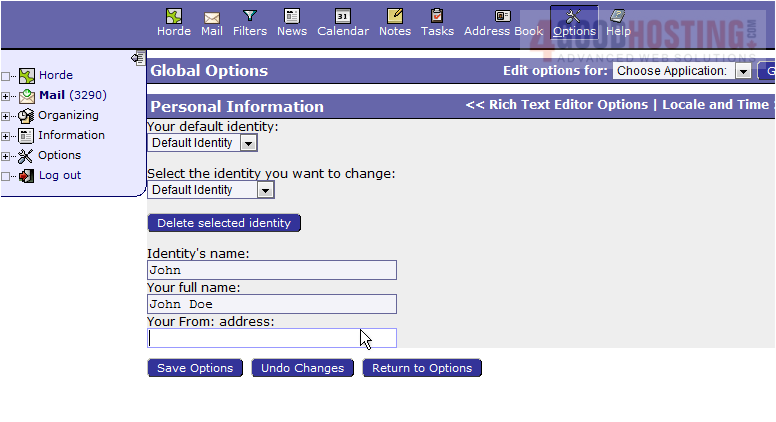
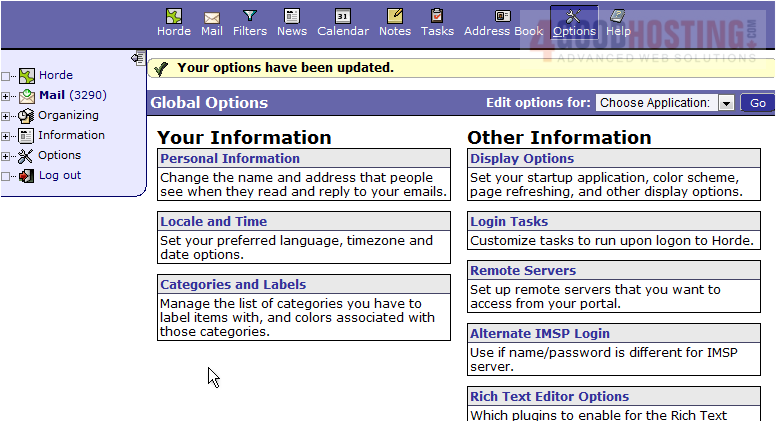
3) Enter Identity's name here, as well as your full name, and your email address. When finished, click Save Options.
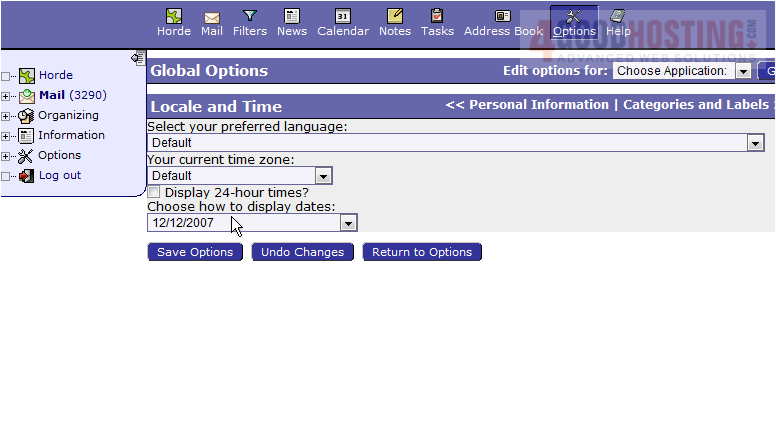
4) Now click the Locale and Time link.
5) You can set your Preferred Language, Time Zone and date display here. Click Return to Options
6) Click the Display Options link
7) There are several Display Options here we can set including the color scheme and menu mode display.
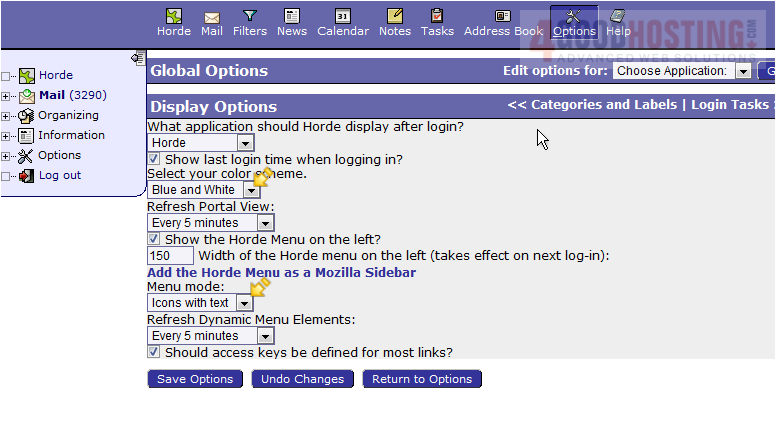
This is the end of the tutorial. You should now know how to change several of the Global Options in Horde

 WGS AI Assistant