
Your system's services are typically all started automatically when a server boots up. In addition, WHM has a monitoring system that will automatically restart a service if it crashes. You'll rarely need to restart the services manually, but WHM does provide you with the tools to do so.
Let's see how to configure what services are enabled and which are monitored by WHM.
1) Locate the Service Configuration category.
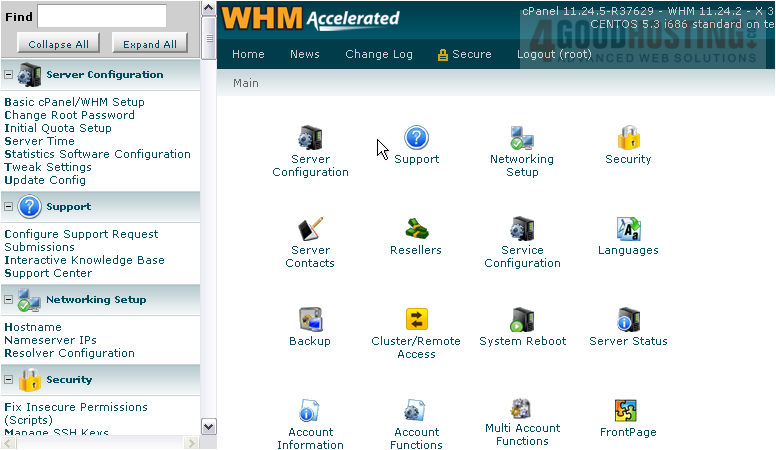
2) Go to the Service Manager.

3) Use the Enabled column of checkmarks to enable or disable the services, and the Monitor column to control which services are monitored by WHM.
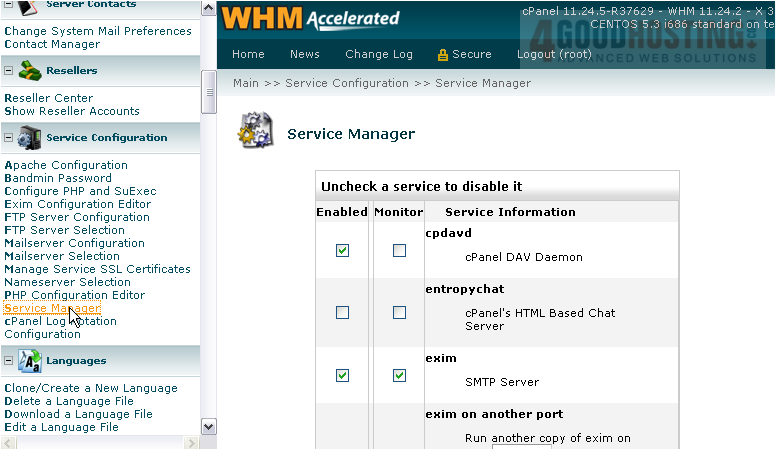
Each service should list a brief explanation of its purpose.
4) Let's tell WHM to monitor the nameserver. Put a checkmark next to named.
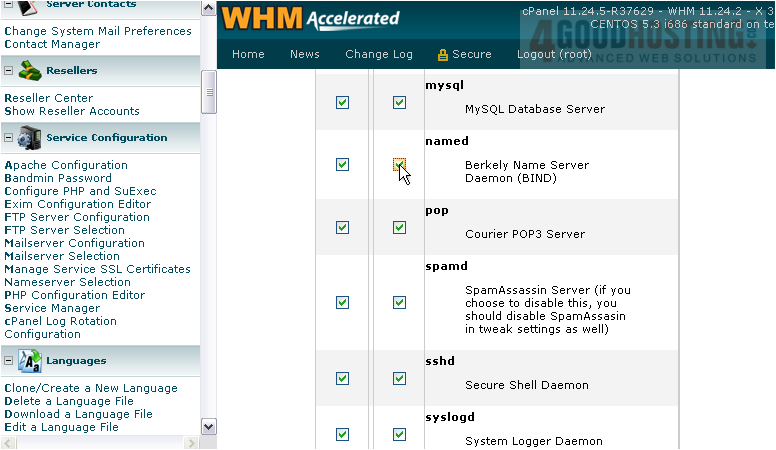
You may notice that many service names -- such as named -- end with the letter "D". This typically stands for daemon, which refers to a program that runs constantly in the background until needed. That's exactly what our services will be doing.
5) When you're done here, click Save.

Wait for the changes to save....
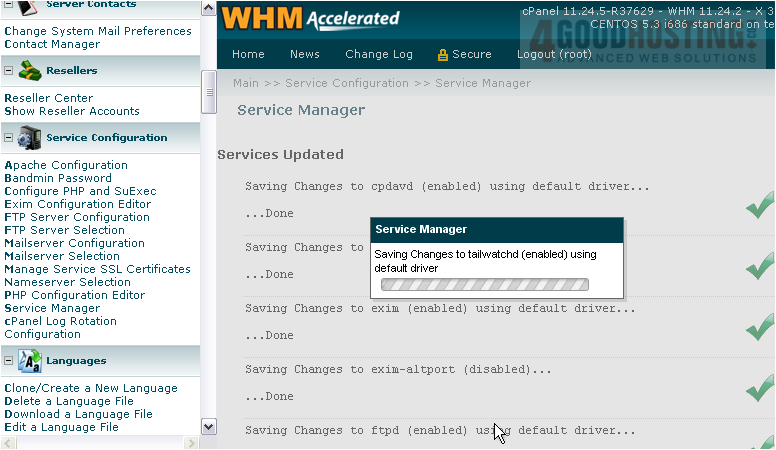
...Done.
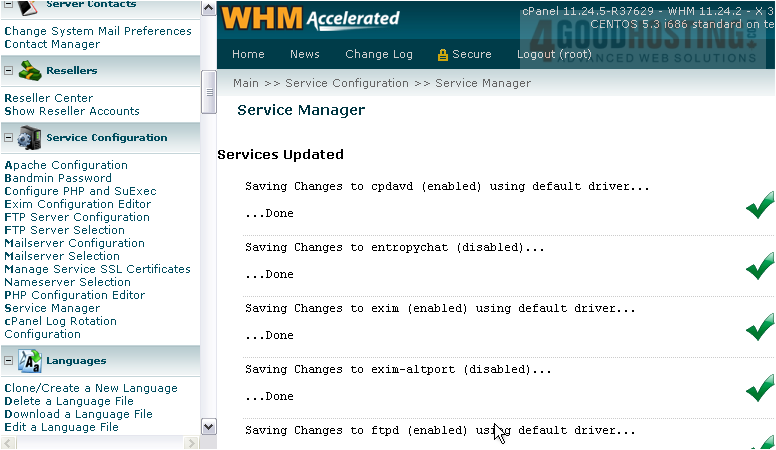
This is the end of the tutorial. You now know how to set which services are enabled and monitored by WHM.

 WGS AI Assistant