
Portal Home  /  Knowledgebase  /  WebsitePanel end-user series  /  How to create an ODBC DSN (Data Source Name) in…

How to create an ODBC DSN (Data Source Name) in WebsitePanel

Guide from WebsitePanel end-user series — written for Canadian customers. Billing always in CAD.

WebsitePanel end-user series

This tutorial assumes you are already logged in to WebsitePanel

Now let's learn how to create an ODBC DSN (Data Source Name)

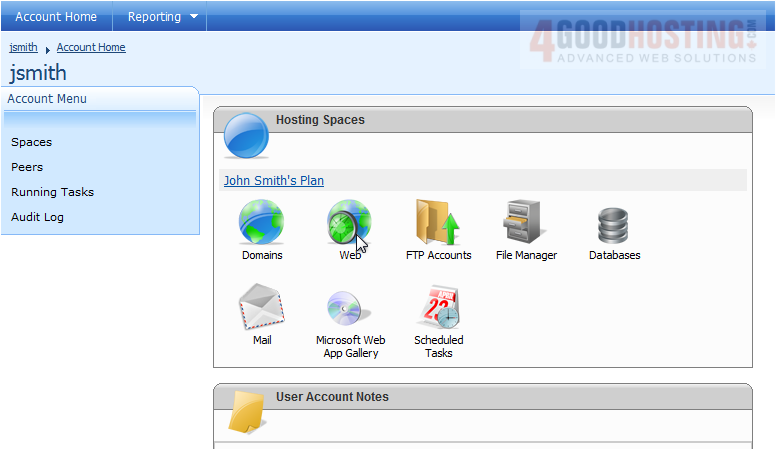
1) Click the plan you want to add an ODBC DSN to

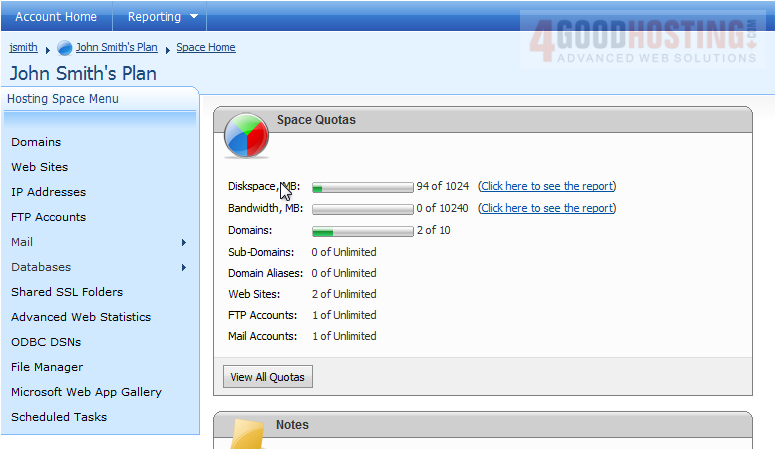
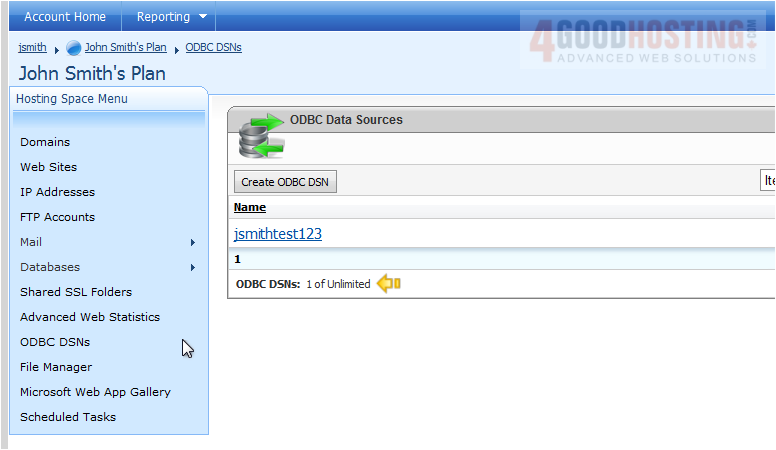
2) Click ODBC DSNs
 

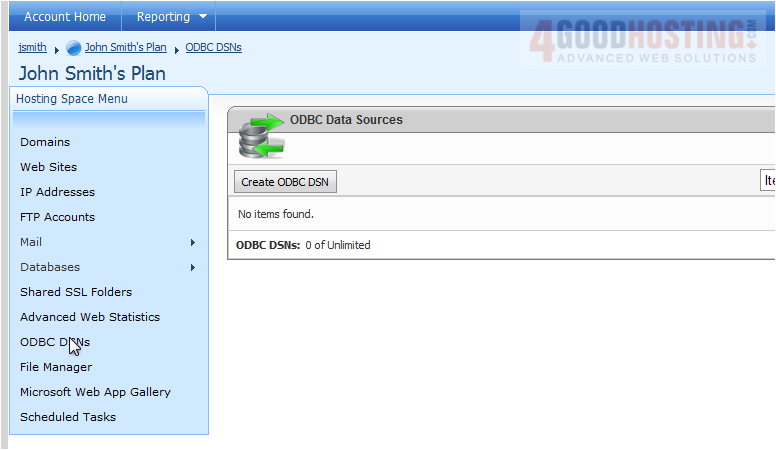
3) Click Create ODBC DSN
 

4) Enter a Data Source Name
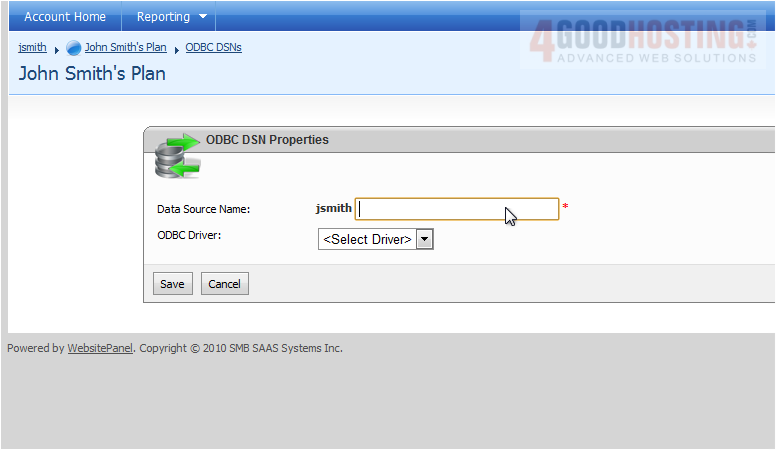
 

5) Select an ODBC Driver
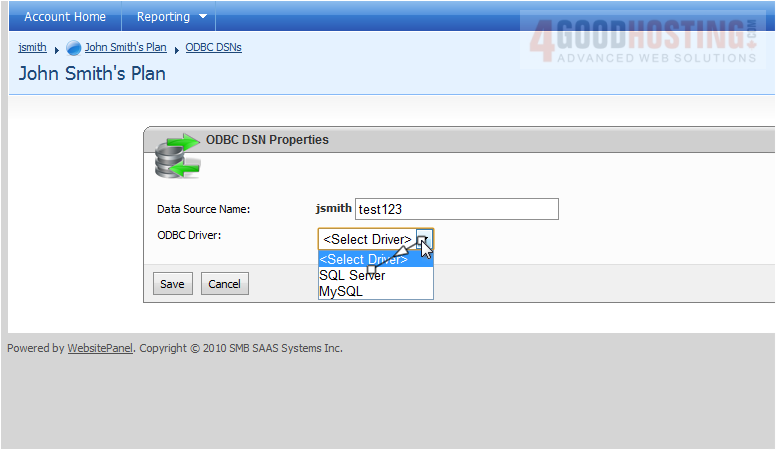
 

6) Select the database
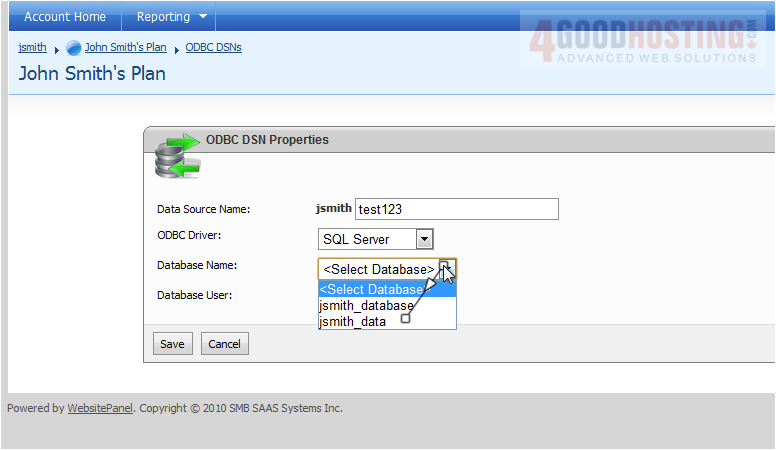
 

7) Select the user
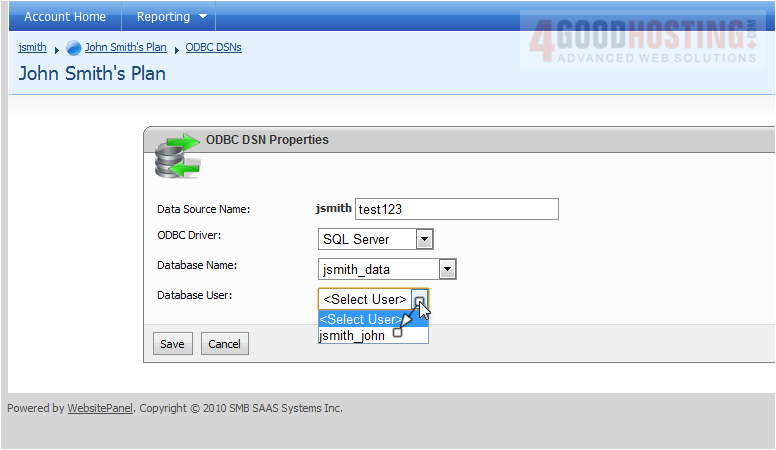
 

8) Click Save
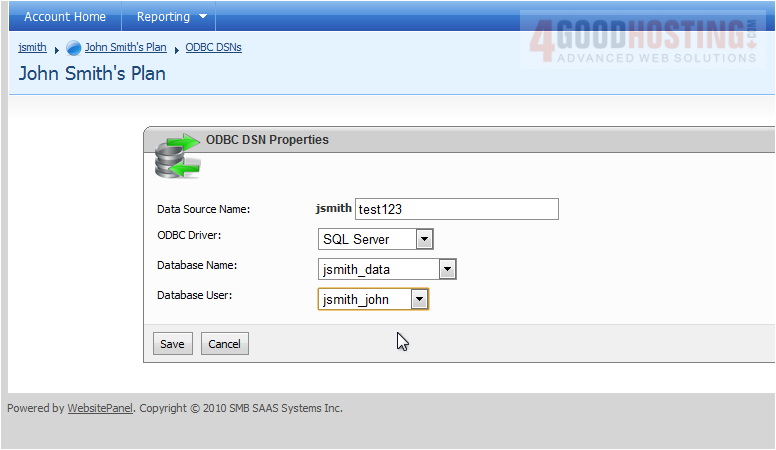


Success! Our ODBC DSN has now been added


You can also see how many of your allowed ODBC DSNs you've used up


This is the end of the tutorial. You now know how to create an ODBC DSN in WebsitePanel

Was this answer helpful?

🇨🇦 Canadian support that answers

Chat or ticket — Vancouver & Toronto team, same timezone as most of our customers. Billing always in CAD.

Open a support ticket

Live chat

Quick questions while you’re working through this guide.

Start chat

More in this category

Browse other guides in WebsitePanel end-user series.

WebsitePanel end-user series →