
Generally, most websites can be hosted on the same shared IP address. You may need to use dedicated IPs if, for example, you or your customers wanted to use Anonymous FTP or SSL.
In order to do this, you will need to have at least one unused IP assigned to your reseller account. Both a subscription's IP address as well as its system login credentials can be changed in the same place.
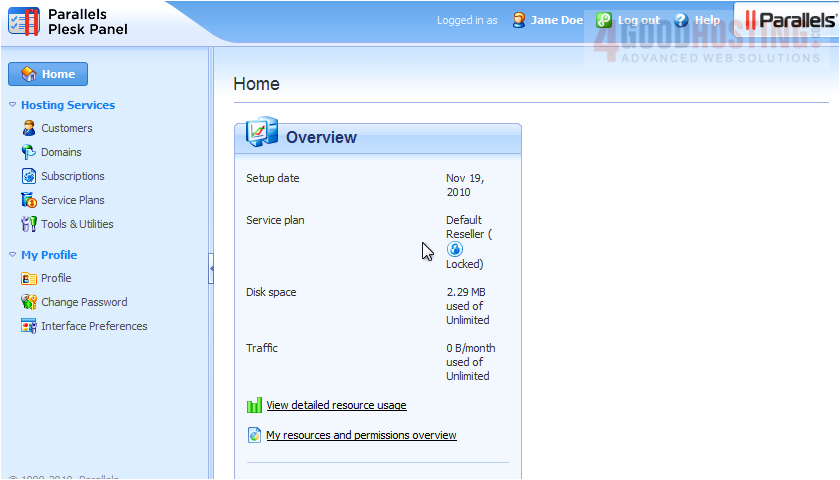
1) Go to Subscriptions.
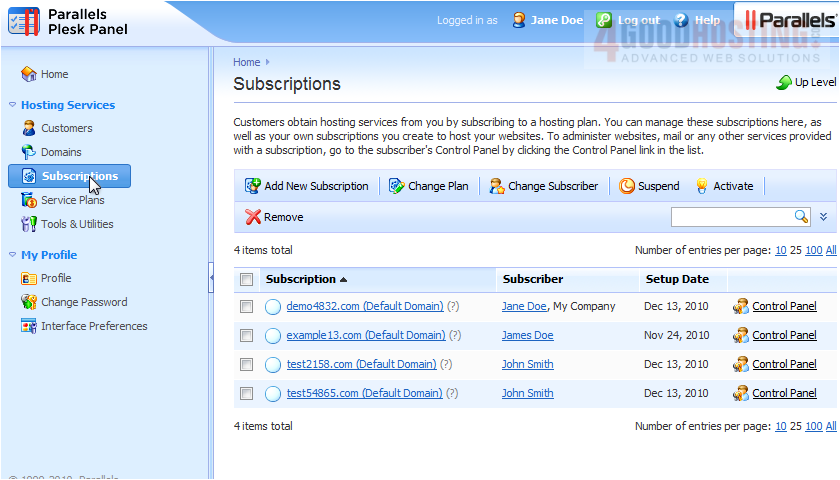
2) Select the subscription whose settings you would like to change.
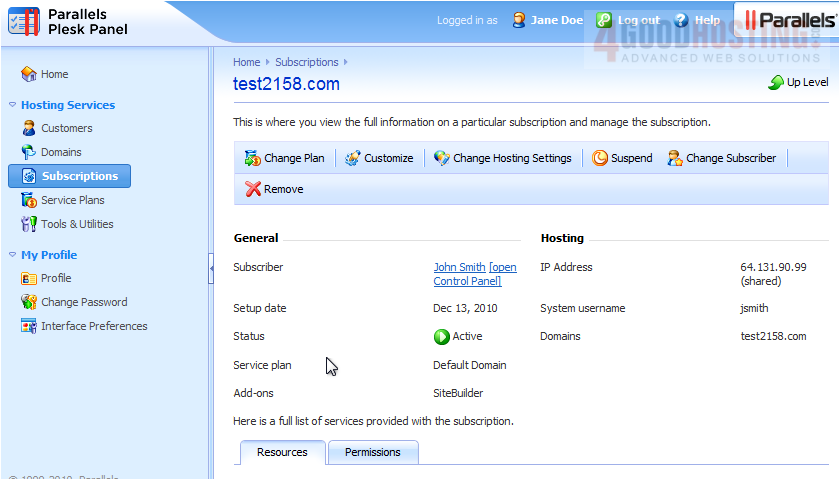
3) Click Change Hosting Settings.
4) Select the IP address from the menu.
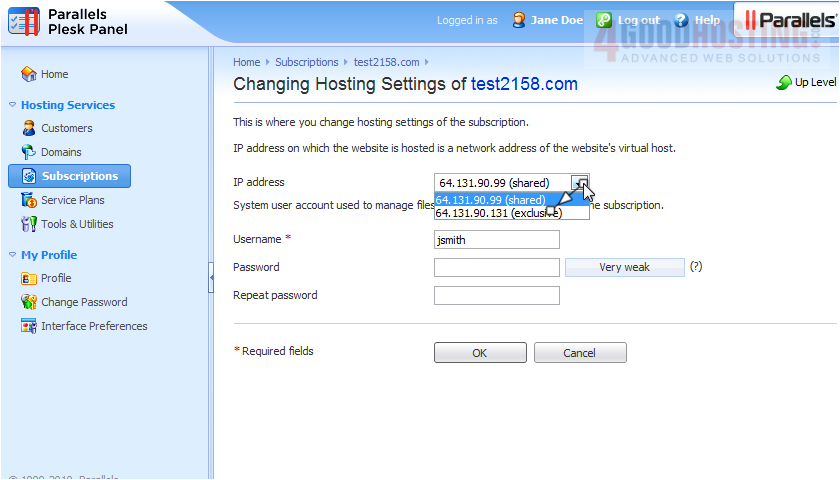
We'll leave the username and password alone, but these are the fields you would use to modify them.
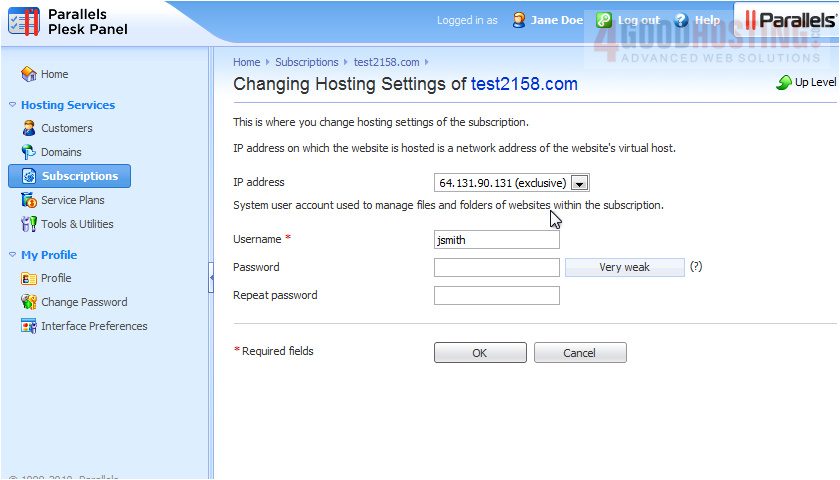
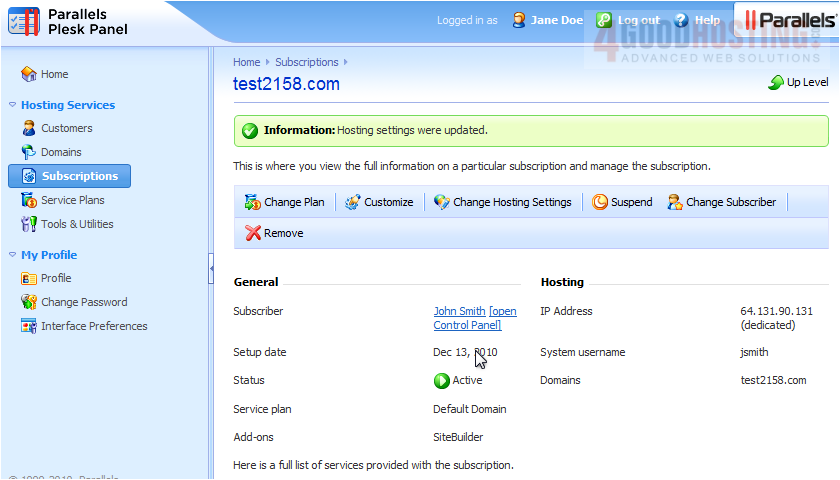
5) Click OK.
That's it! Now you know how to change a subscription's IP address and system login info.

 WGS AI Assistant