
If you need to change a subscription's expiration date, follow these steps from your reseller control panel.
1) Go to Subscriptions.
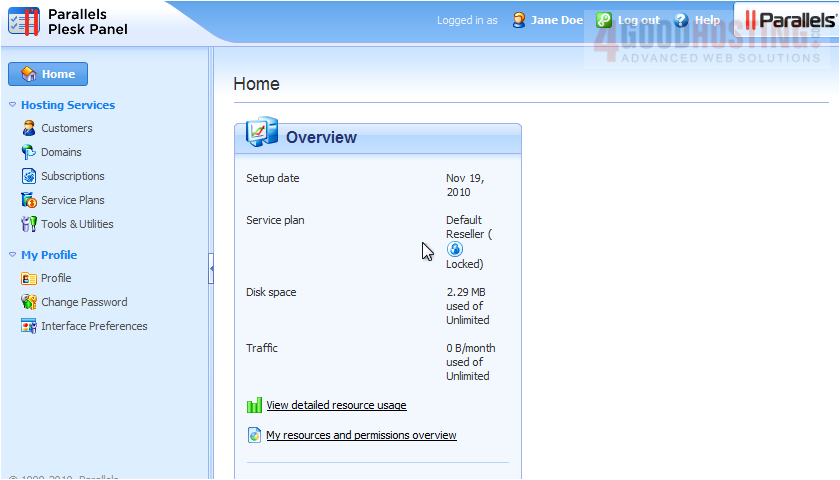
2) Choose a subscription.
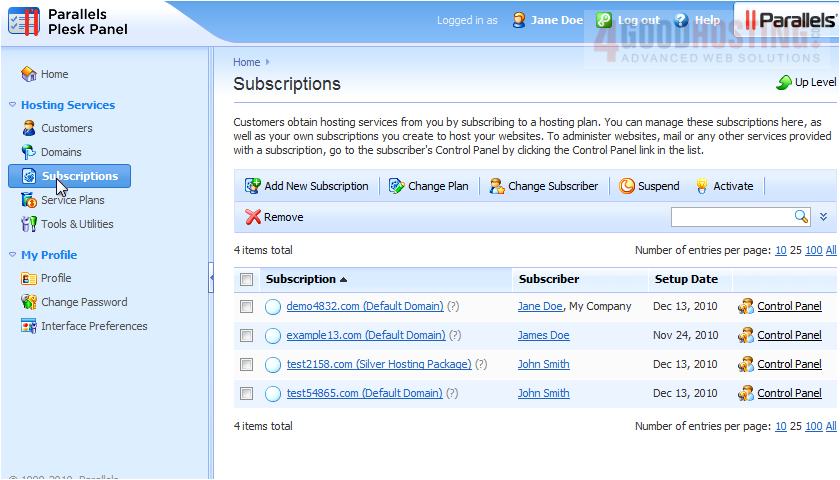
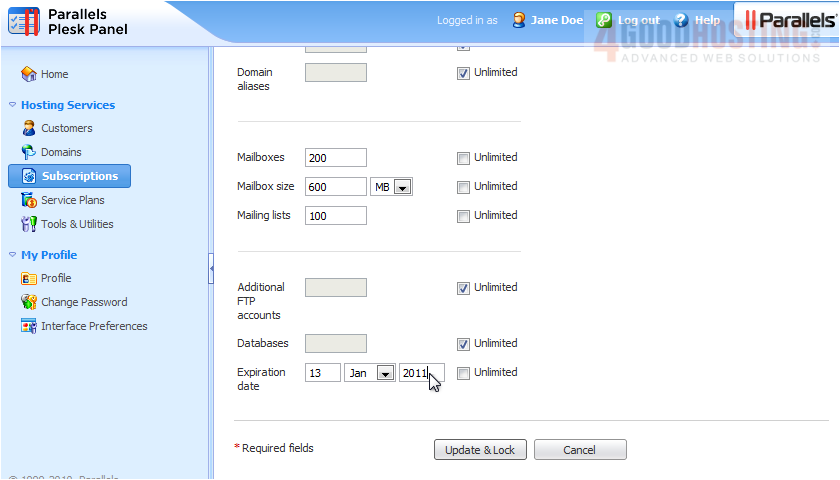
3) Click Customize.
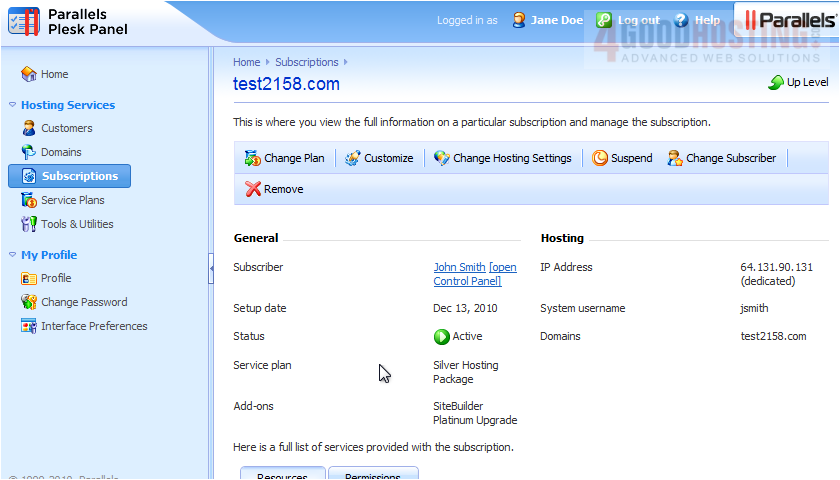
4) Scroll down to the bottom of the page.

5) Set the new expiration date here.
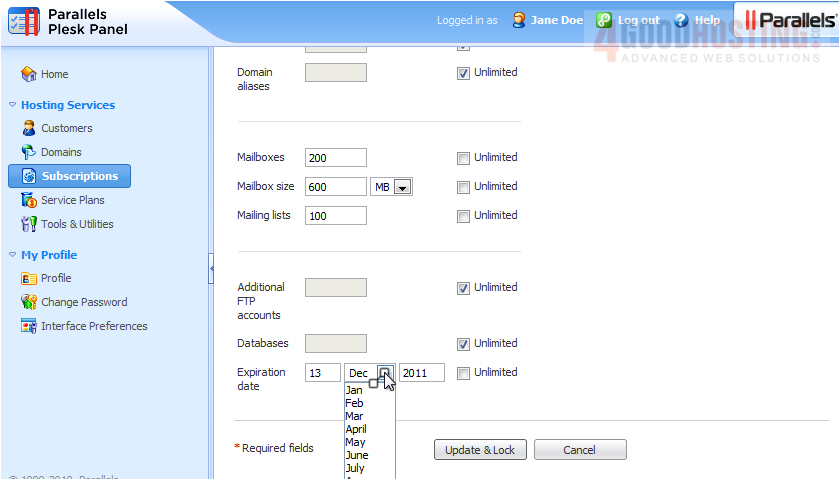
6) Click Update & Lock.
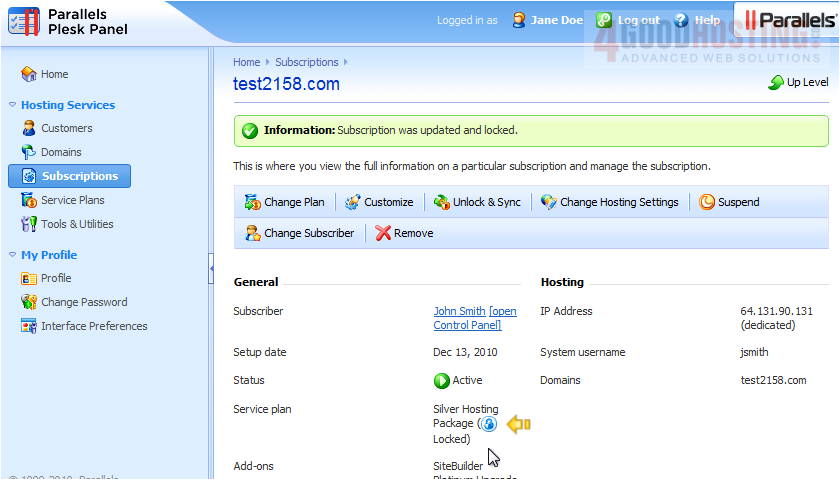
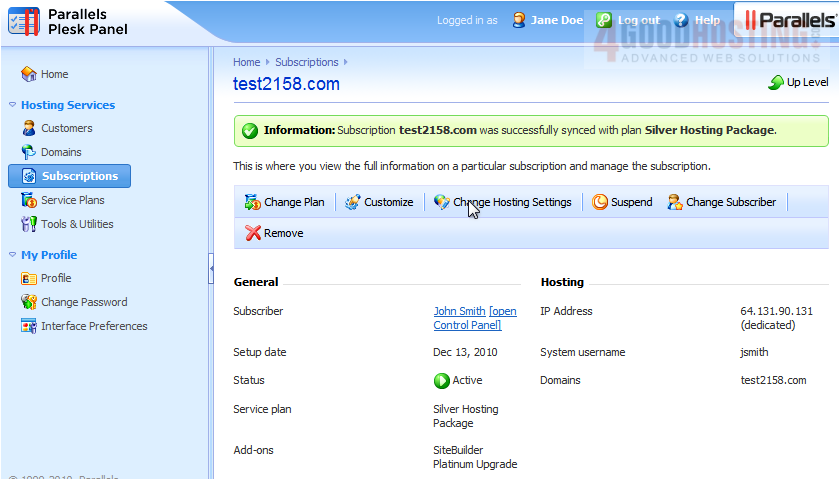
7) The subscription's expiration date has been changed successfully. Because we submitted the Customize form, the subscription has now been locked from synchronization with the Service Plan, as indicated by this lock icon. However, if we Unlock & Sync this subscription...
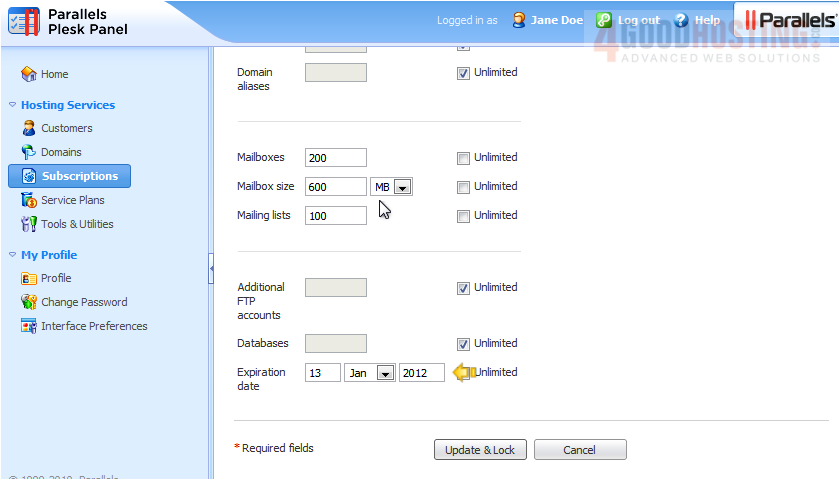
8) ...Then return to the Customize page...
We'll find that the Expiration date has remained set to the custom date we entered, even though the subscription was synchronized with its plan. So, this is how you would change a subscription's expiration date while leaving it unlocked for plan synchronization.

 WGS AI Assistant