
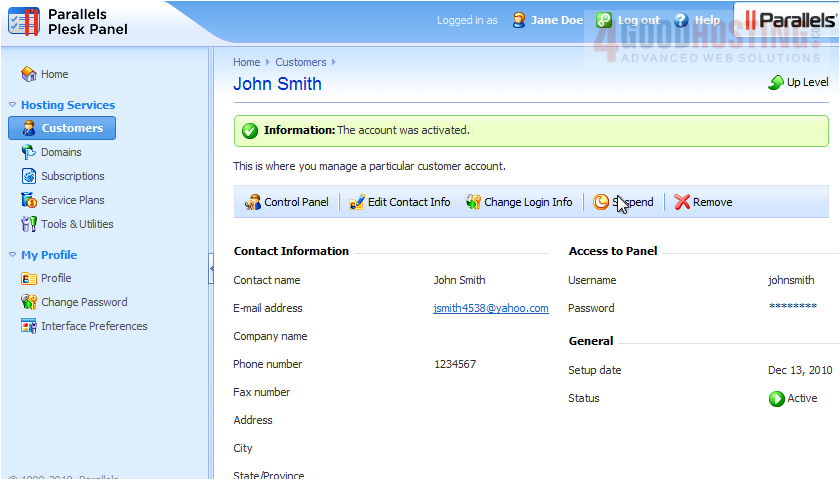
When you suspend a customer account, access to the Panel is blocked for suspended customers and Control Panel users that they created. The customer's subscriptions are suspended, too, meaning that their websites, FTP and mail services will no longer be accessible to the internet users.
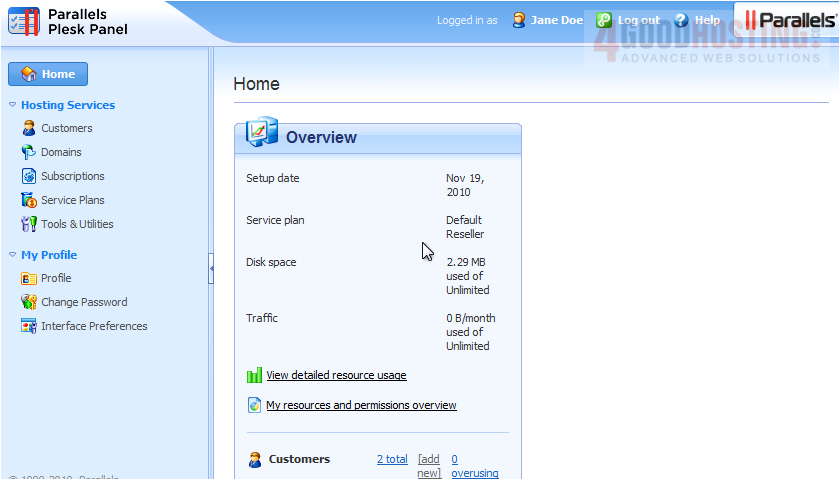
1) To suspend a customer, click Customers.
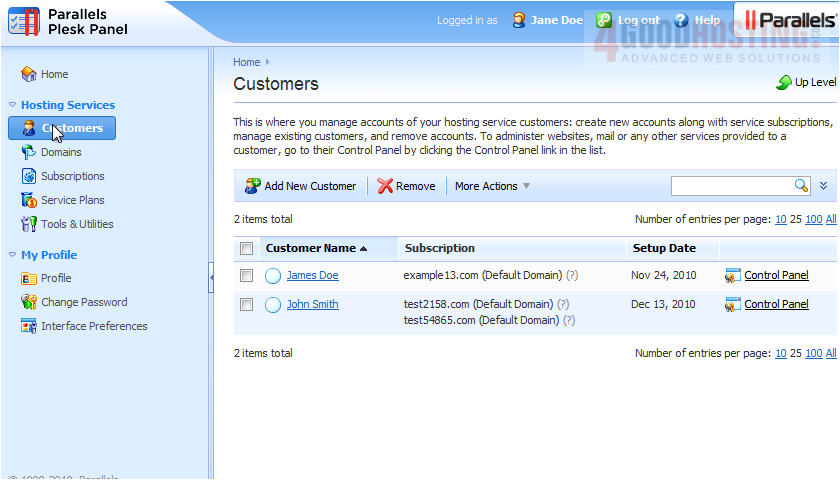
2) Now choose the customer.
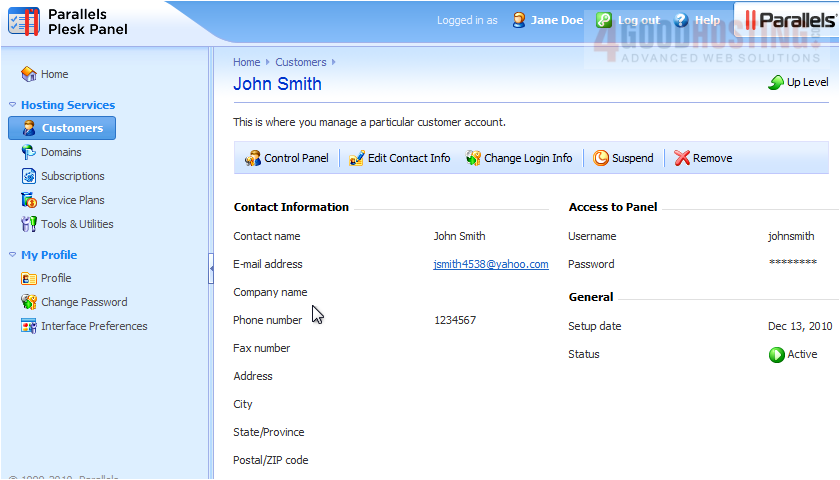
3) And click Suspend.
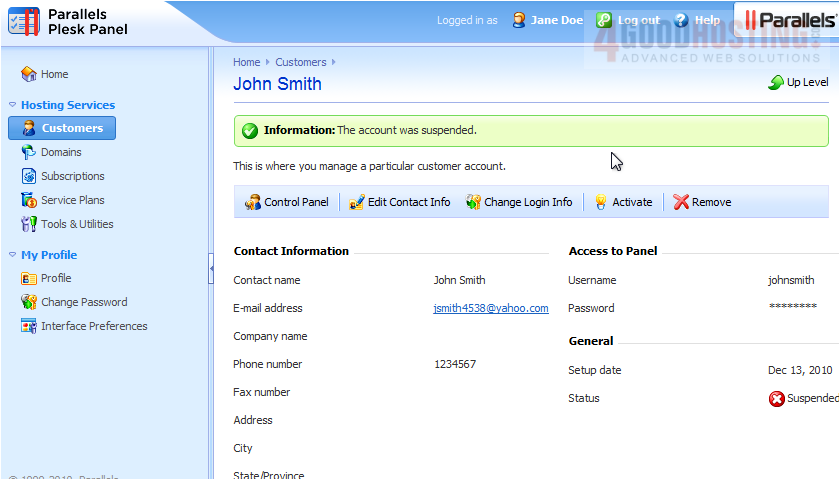
4) To re-activate a suspended account, click Activate.
5) Return to Customers.
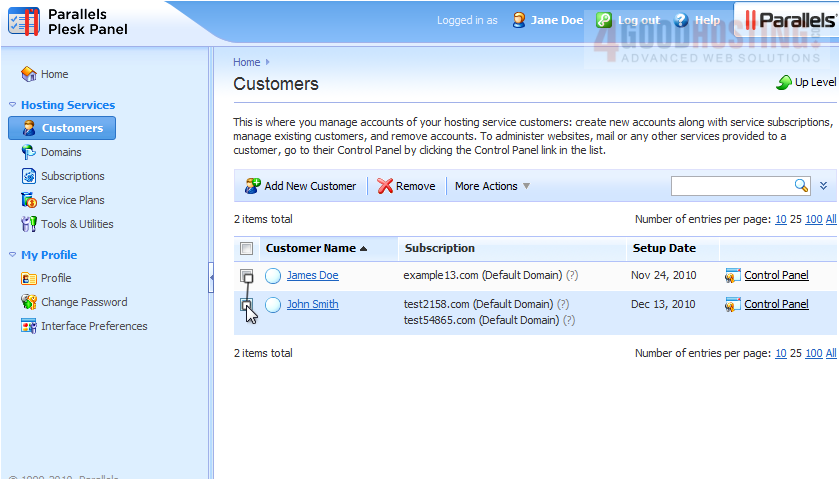
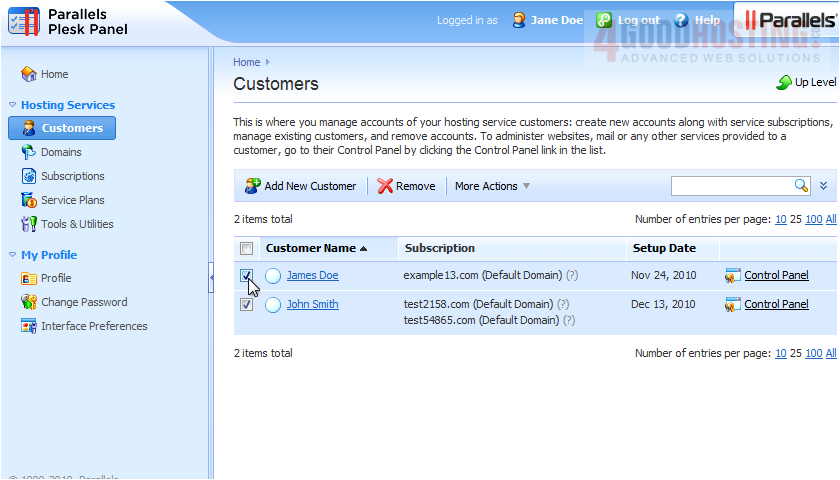
6) To suspend multiple customers, select each one here.
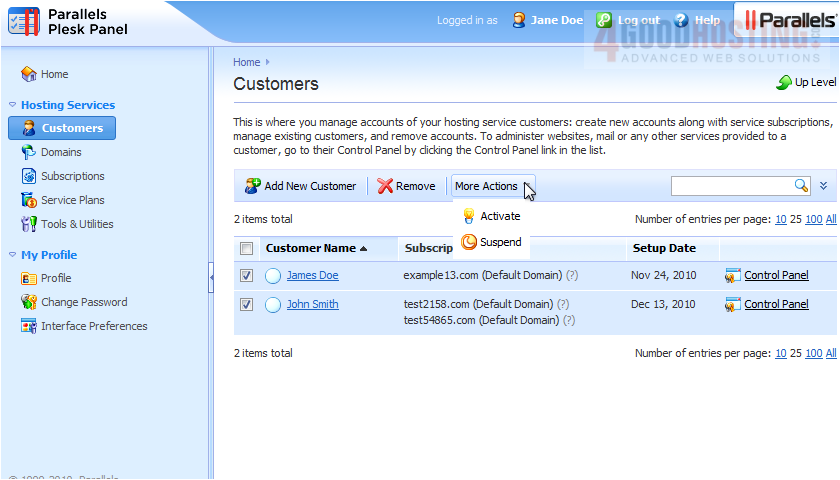
7) Go to More Actions.
8) Choose the appropriate action here, either activate or suspend.
To suspend only a single subscription instead of all subscriptions under one customer, follow these steps.
9) Click Subscriptions.
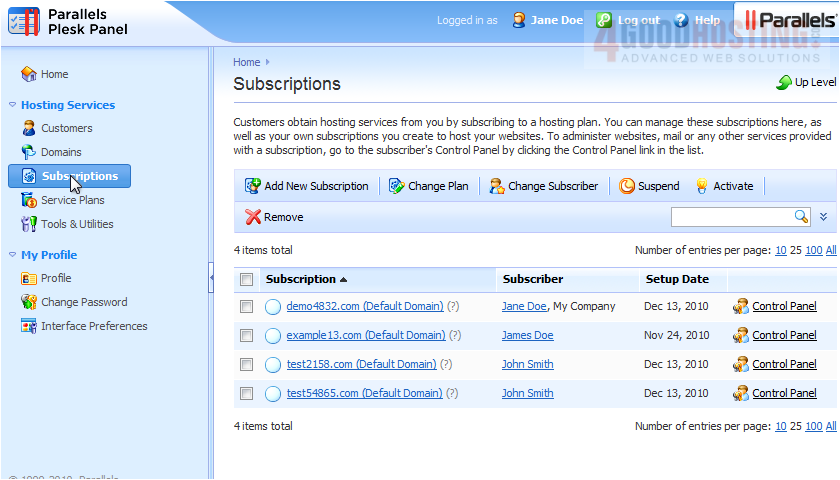
10) Select the subscription here, then click Suspend.
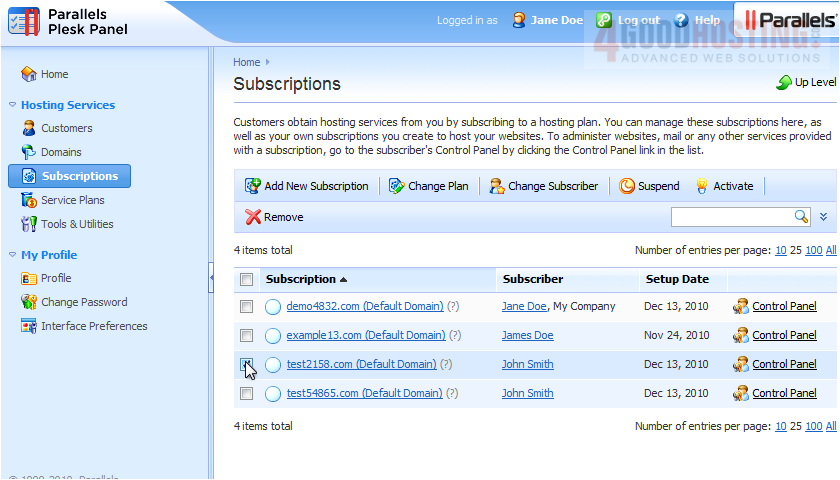
You can suspend multiple subscriptions in this way as well.
11) To re-activate, select the subscription, and click Activate.
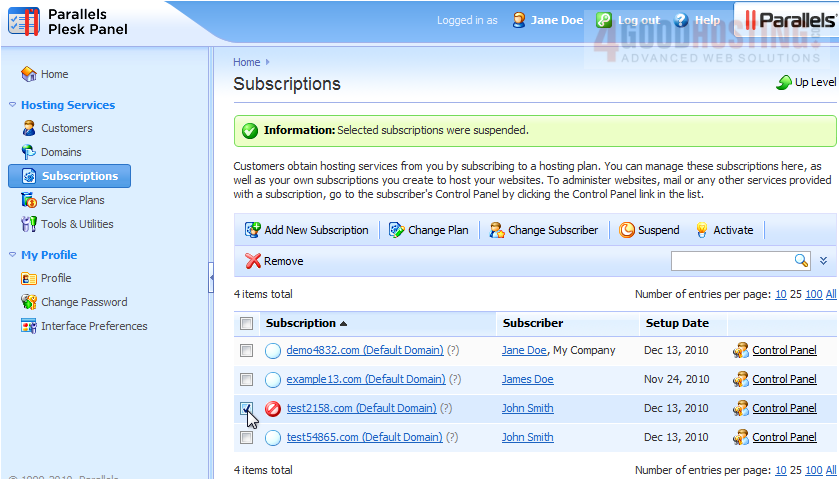
That's it! Now you know how to activate and suspend customers and subscriptions in Plesk.

 WGS AI Assistant