
Portal Home  /  Knowledgebase  /  Parallels Plesk Panel 10 reseller series  /  How to change a customer's Login Info in…

How to change a customer's Login Info in Plesk

Guide from Parallels Plesk Panel 10 reseller series — written for Canadian customers. Billing always in CAD.

Parallels Plesk Panel 10 reseller series

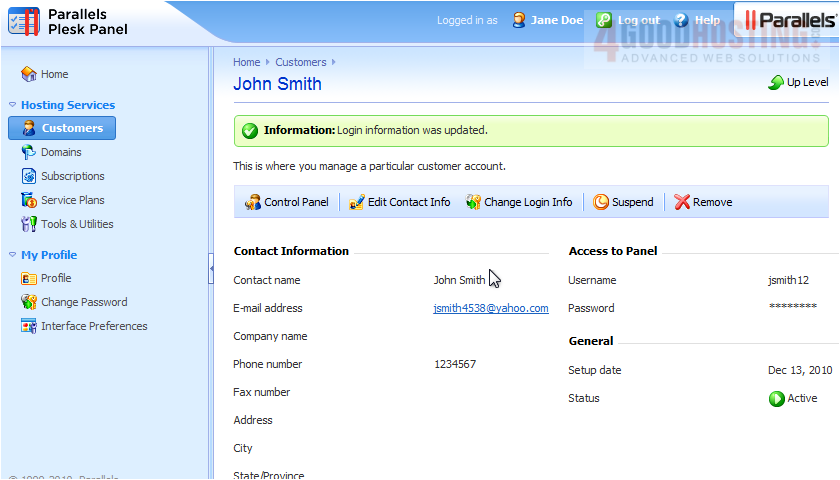
If you need to change a customer's login information in Plesk, follow these steps.

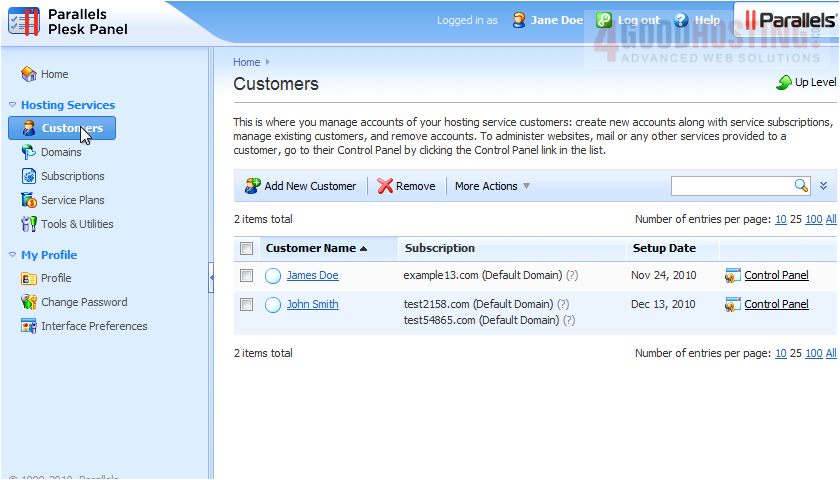
1) First, go to Customers.
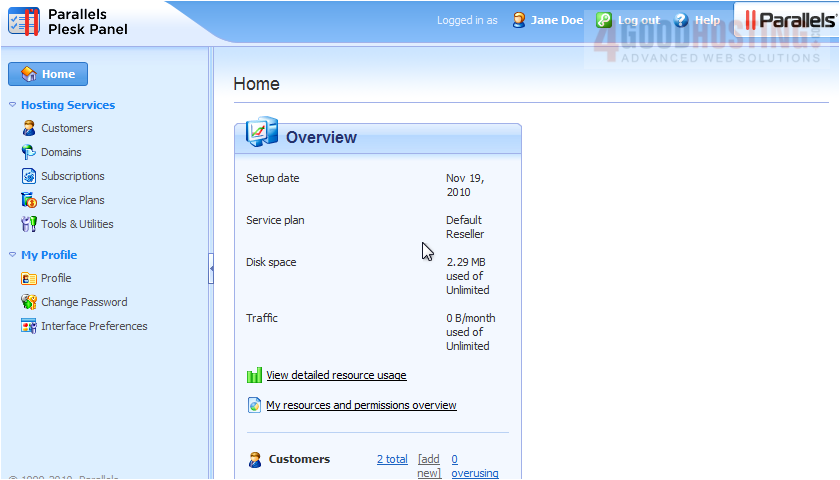

2) Click on a customer's name.

3) Click Change Login Info.


4) Type the new information in these boxes.
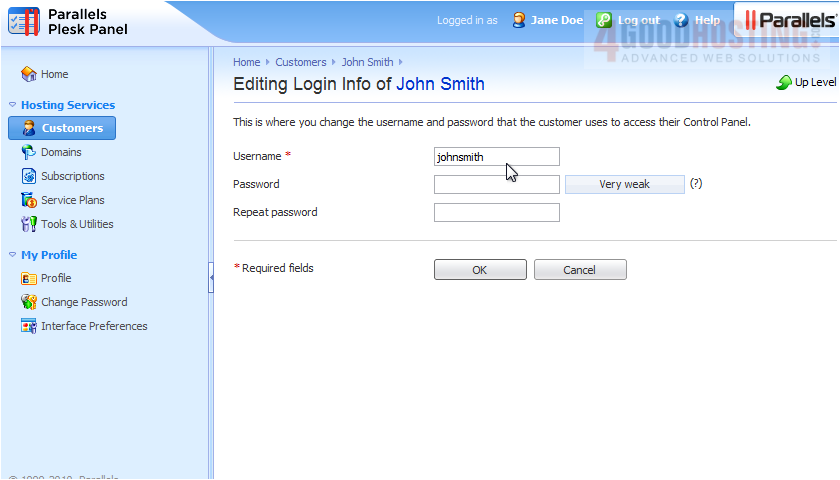

5) Click OK.
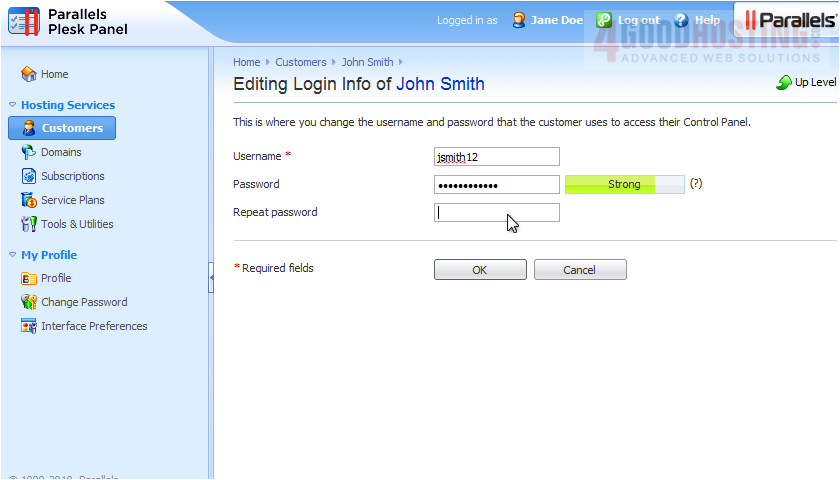


That's all you have to do! The credentials that the customer uses to log in to his Plesk account have been updated. Note that this will not change the system login info for any of this customer's subscriptions.

Was this answer helpful?

🇨🇦 Canadian support that answers

Chat or ticket — Vancouver & Toronto team, same timezone as most of our customers. Billing always in CAD.

Open a support ticket

Live chat

Quick questions while you’re working through this guide.

Start chat

More in this category

Browse other guides in Parallels Plesk Panel 10 reseller series .

Parallels Plesk Panel 10 reseller series →