
The Panel notifies you and your customers of disk space and bandwidth overage by sending e-mail notifications. It can also send notifications when new user accounts are created, new domains are added, and hosting accounts expire.
1) To set this up, go to Settings.
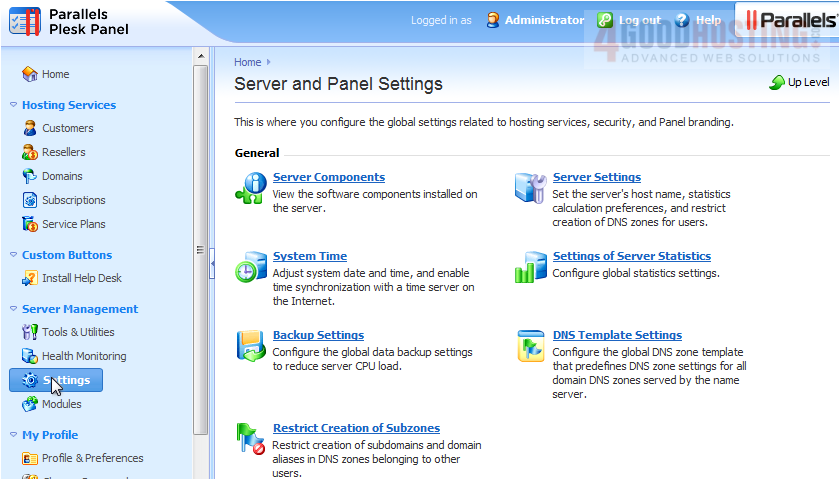
2) Click Notifications.
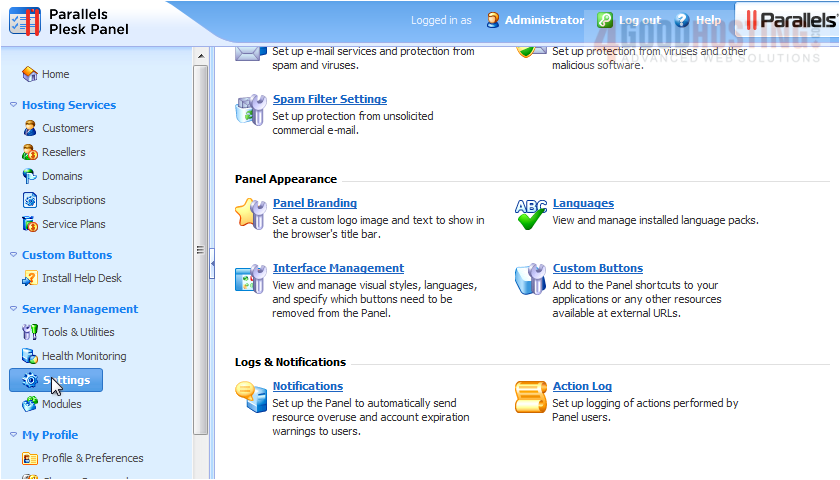
This page displays a list of events, next to which are three checkboxes: one for each Administrator, Reseller, and Customer.
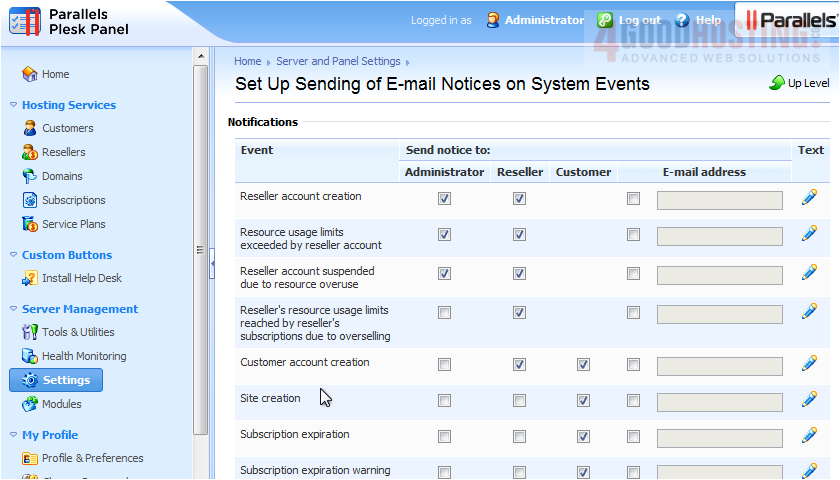
3) For each event, choose who should receive an e-mail.
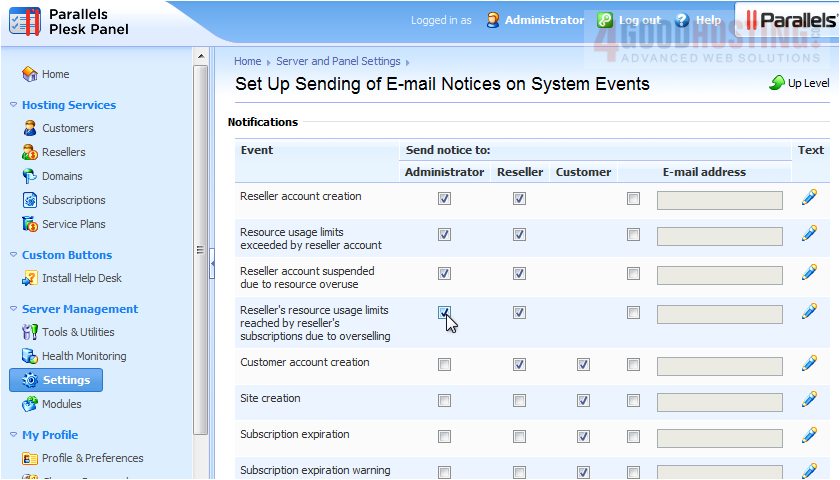
4) You can also specify an e-mail address that should receive this notification.
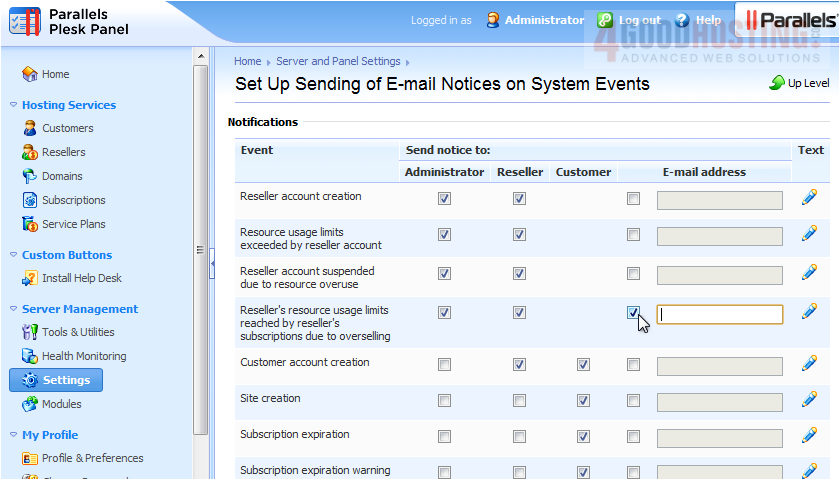
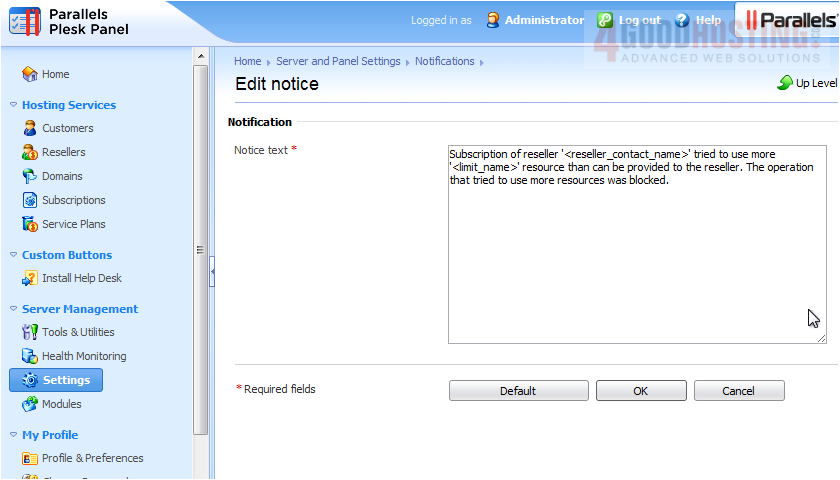
5) Click the pencil icon to edit the message text for each notification.
6) Make your changes and click OK, or choose Default to revert to the original message.
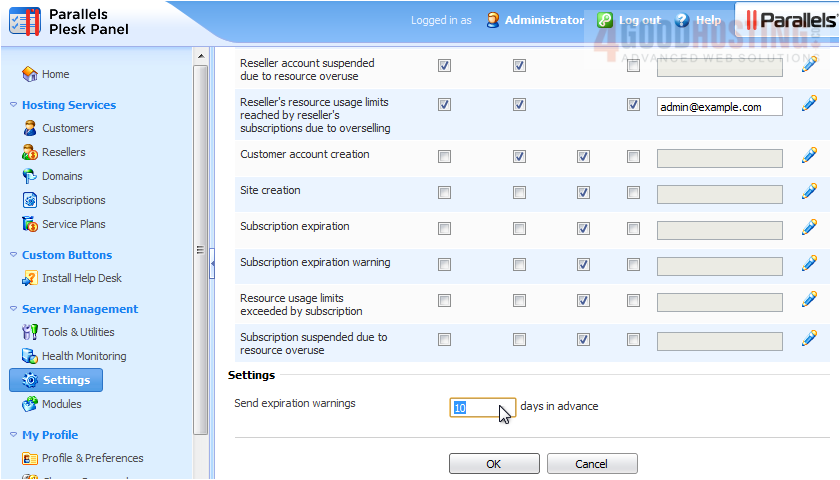
7) Here you can set the number of days in advance to send expiration warnings.
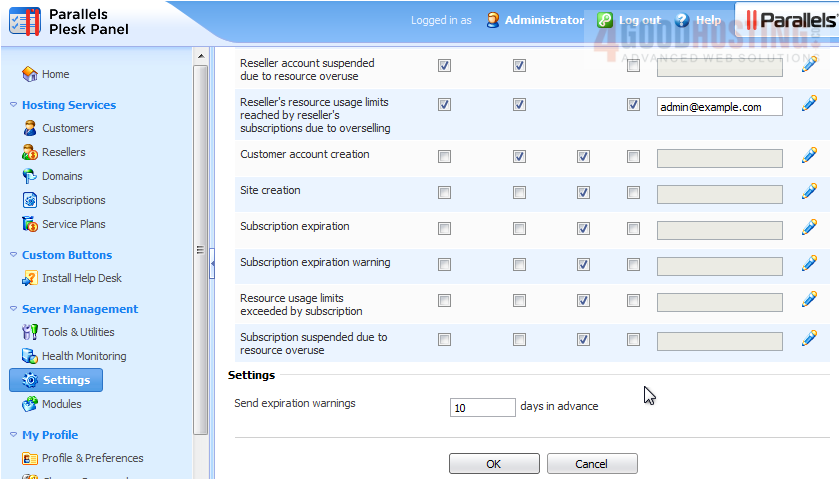
8) Click OK to save your changes.
This is the end of the tutorial. Now you know how to set up e-mail notifications in Plesk.

 WGS AI Assistant