
This demo assumes you've already logged in to cPanel
Now let's learn how to create a MySQL database
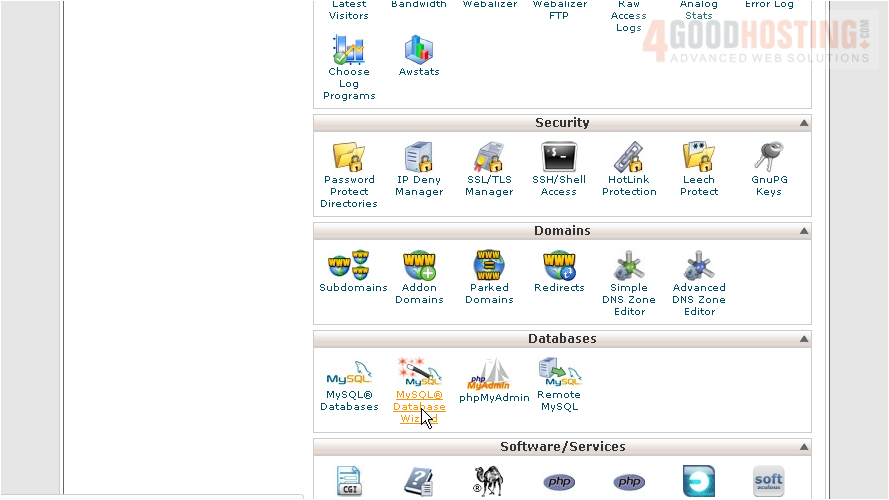
1) Click MySQL Database Wizard
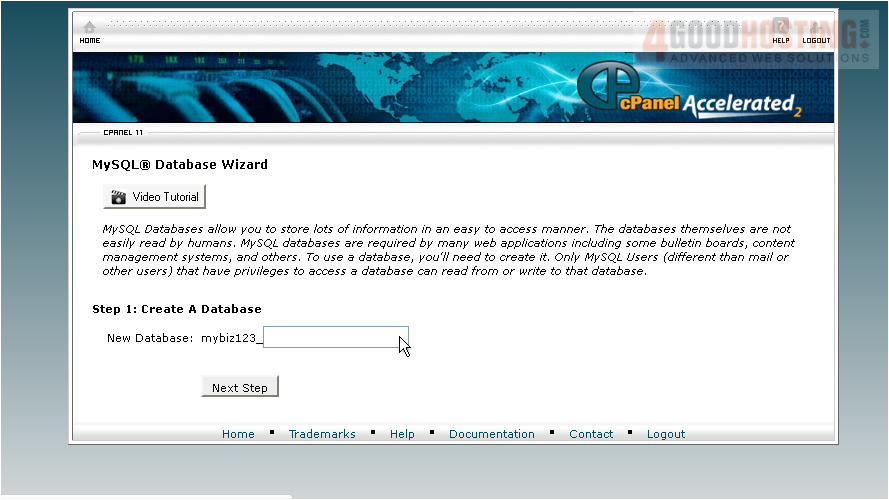
2) Enter a name for the new database
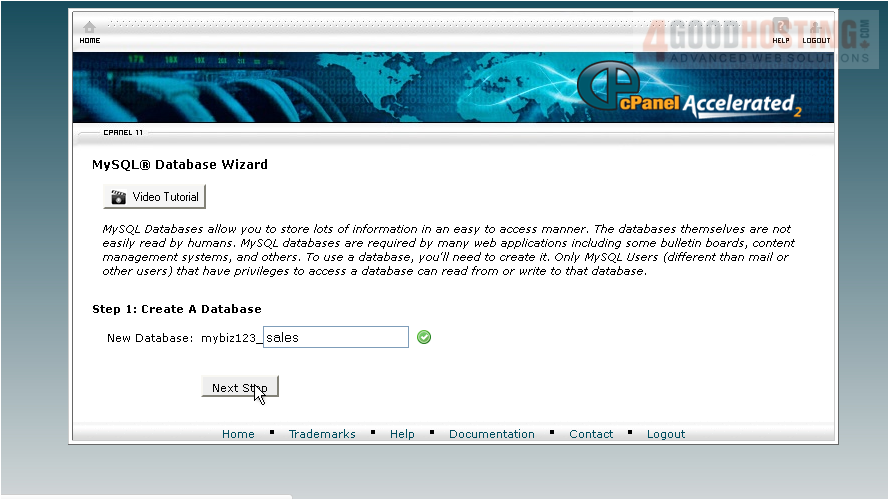
3) Click Next Step
4) Now we have to create a user for this database... enter a username here
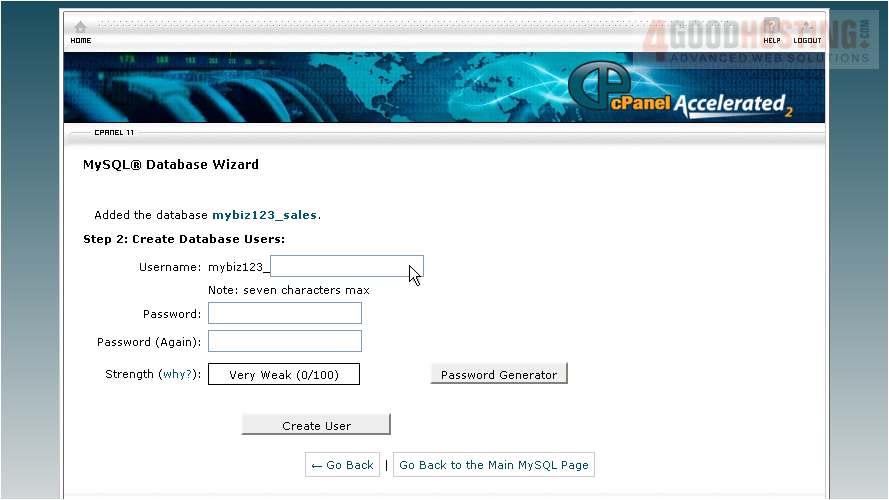
5) Then enter and confirm a password
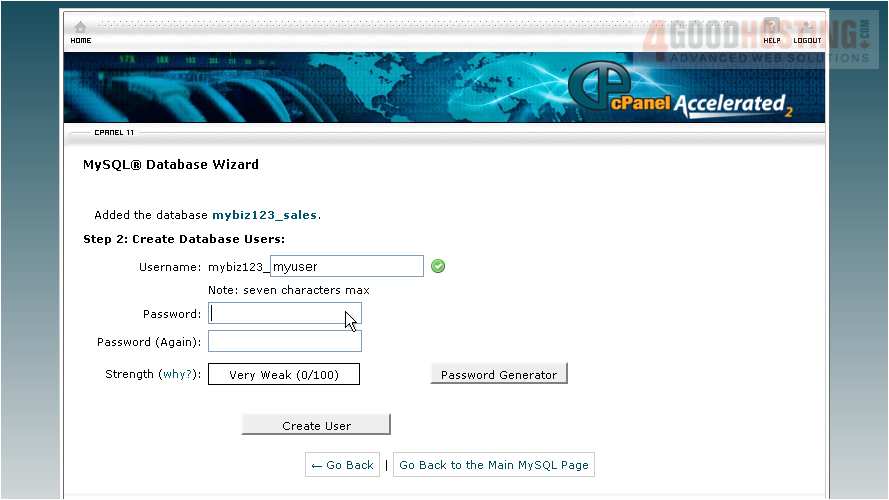
6) When ready, click Create User

7) Check here to assign All Privileges to the user...
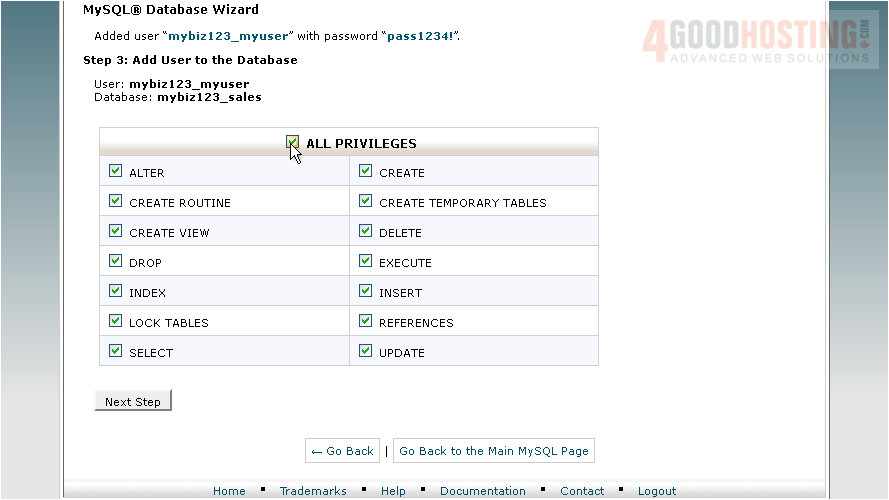
8) ... then click Next Step
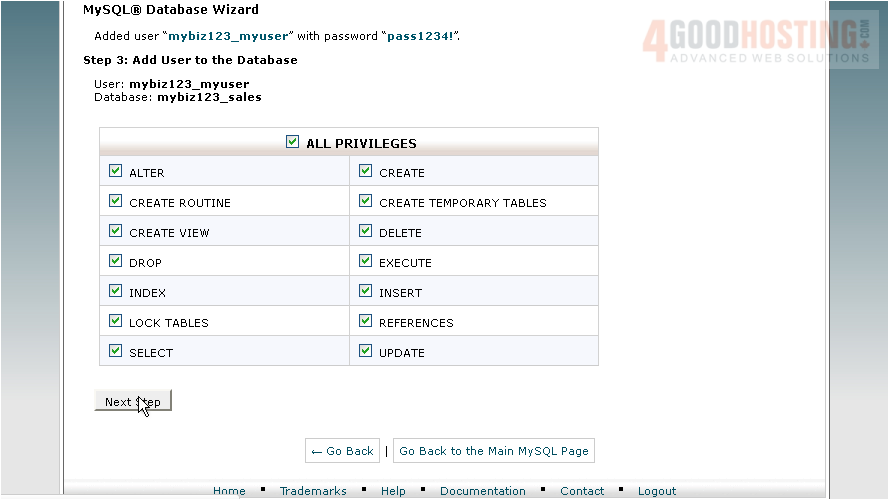
That's it! The MySQL database has been created, and the new user added to the database. The database name, username and password will all be needed for scripts that need to connect to the database
This is the end of the tutorial. You now know how to create and setup MySQL databases

 WGS AI Assistant