
If you've previously installed any of the scripts in Softaculous manually or using another auto installer, you can synchronize them to work with Softaculous.
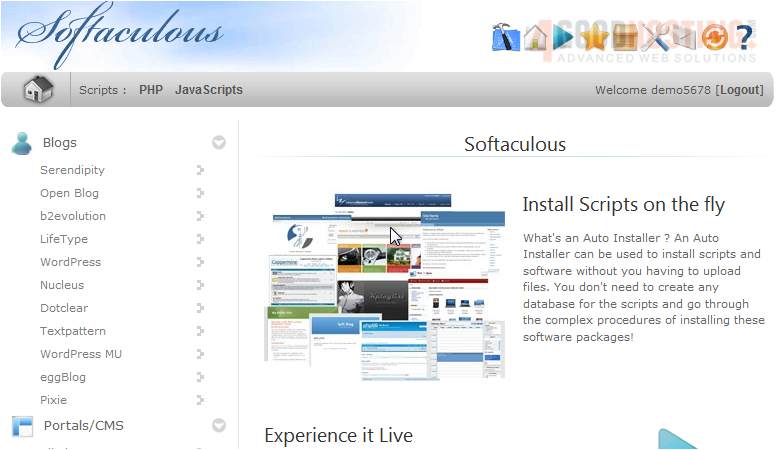
1) Click this orange icon.
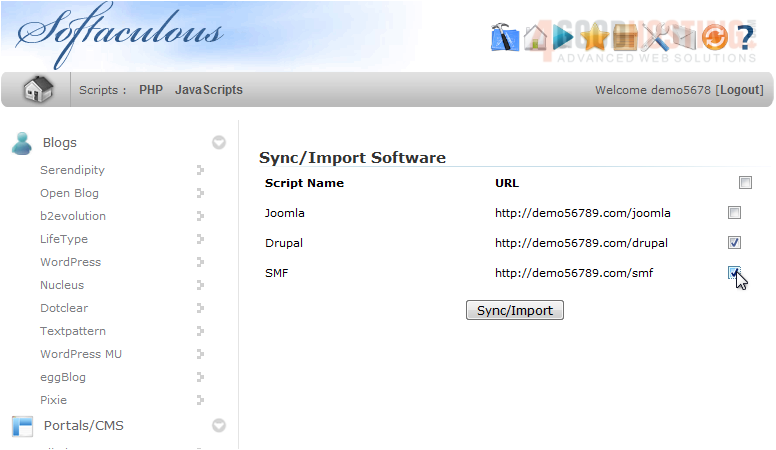
This page shows a list of all scripts that can be synchronized.
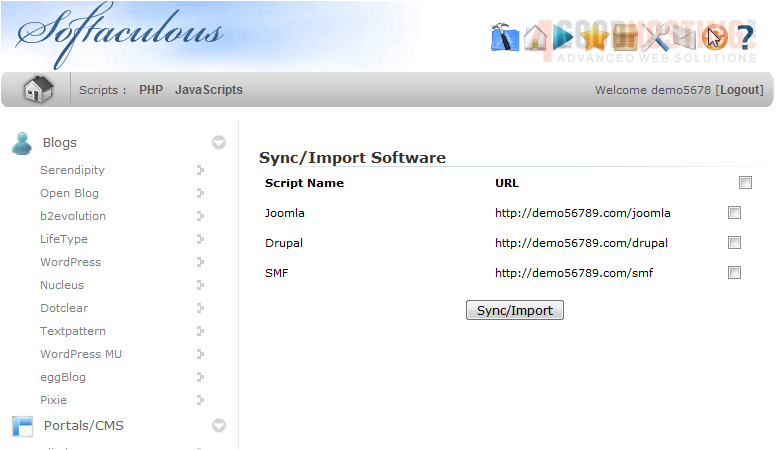
2) Check this box to select all scripts.

3) Click again to deselect all boxes.
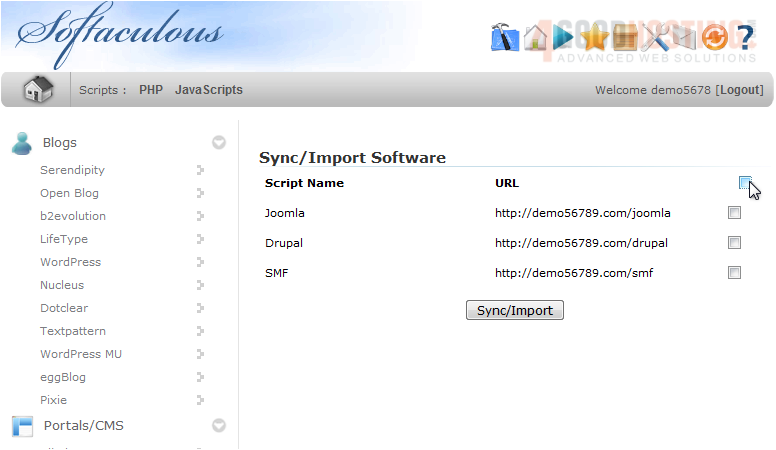
4) You can also check the boxes next to the scripts you want to sync.
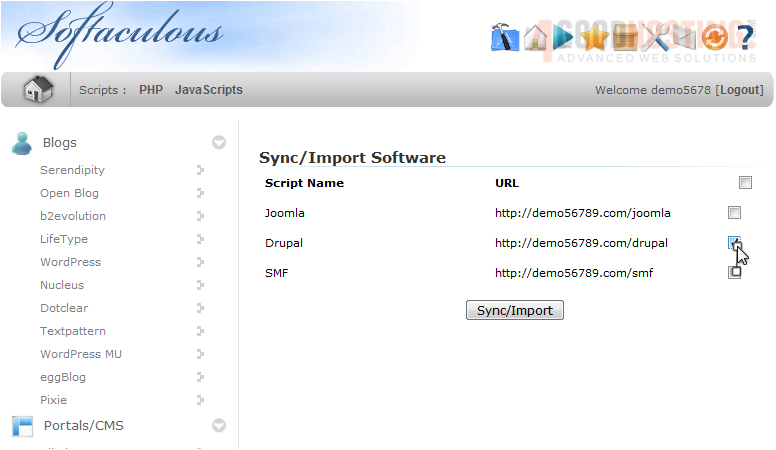
5) Click Sync/Import.
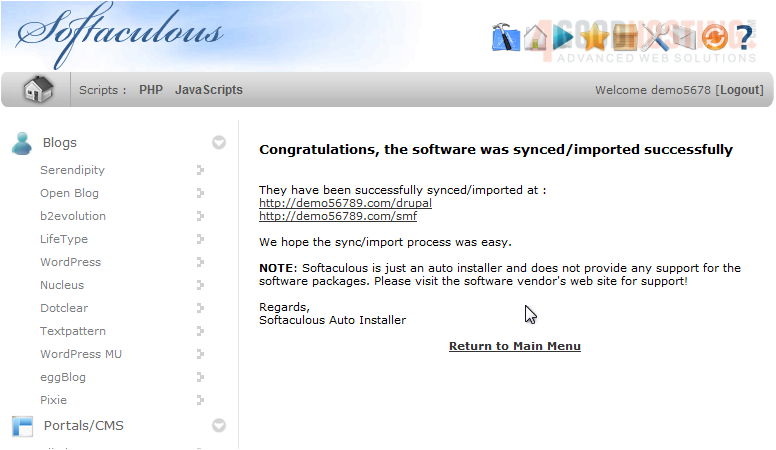
After a moment, your scripts will be synchronized.
6) Use these links to view each software that was imported.
That's it! You now know how to synchronize Softaculous with other auto installers.

 WGS AI Assistant