
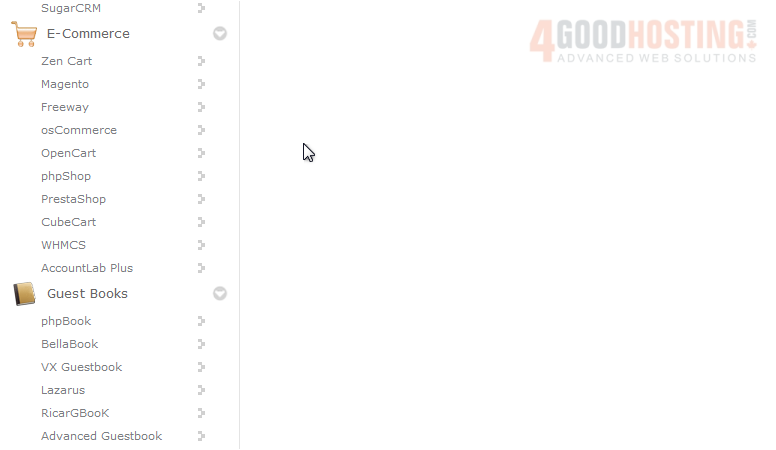
1) Scroll down until you find WHMCS in the menu on the left.
2) Click WHMCS.
This Overview page shows you information about the software before installing.

3) Click Install.
The default settings here should work for most purposes.
If you have multiple domains on one account, you can select where to install.
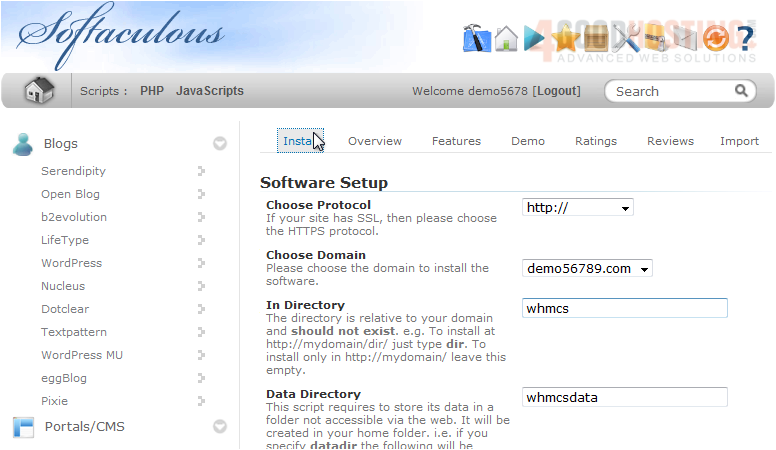
The next two boxes let you set the directory and data directory which will be created upon installation.
Under Settings, you can set the Company Name and Email.
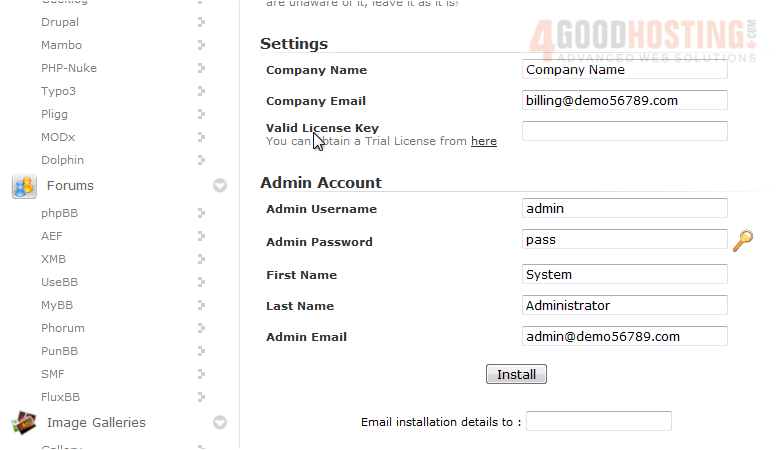
Before you can use WHMCS, you must have a valid license key.
4) Click this link to get a trial license.
5) Type your First and Last Name in these boxes.
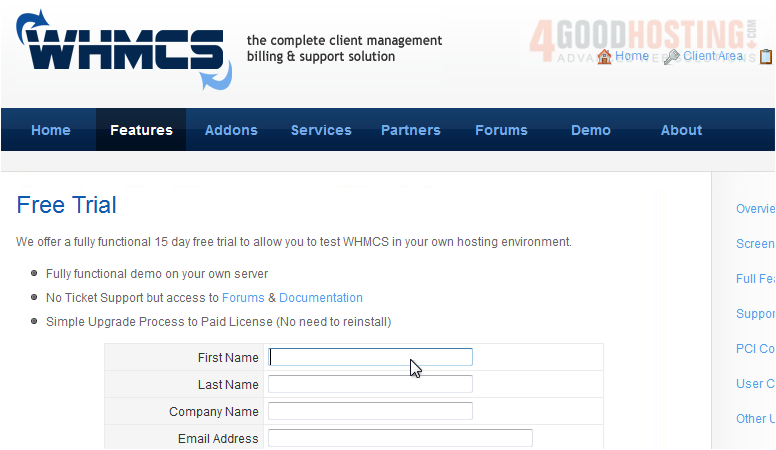
6) Now enter your Company Name, if you have one.
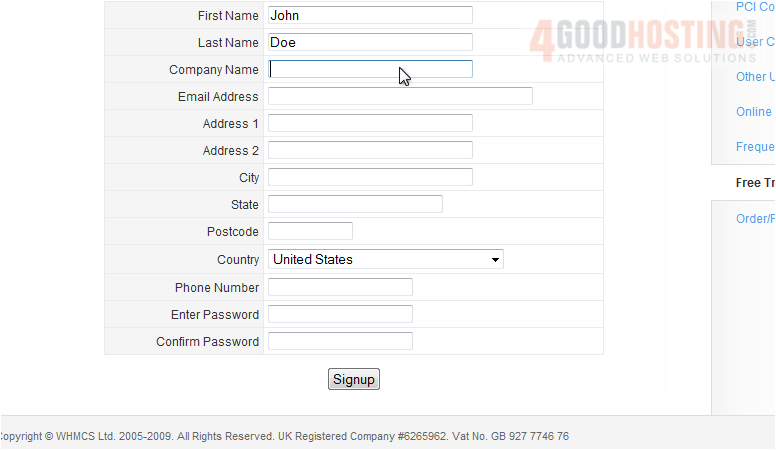
7) Continue to fill out the form as completely as possible.
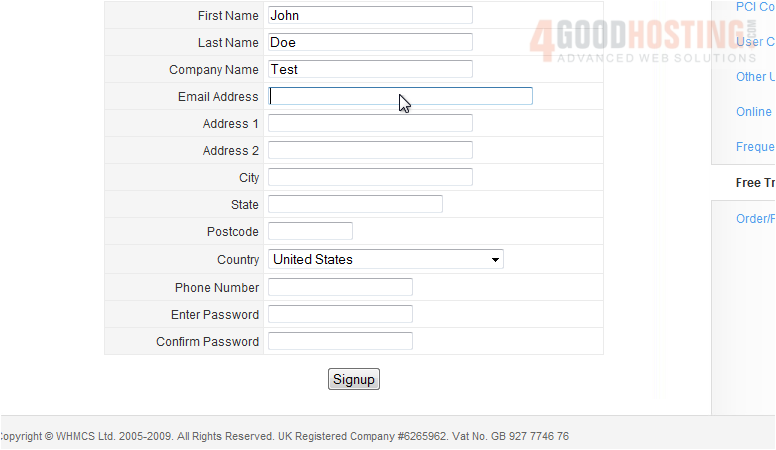
8) Click Signup.
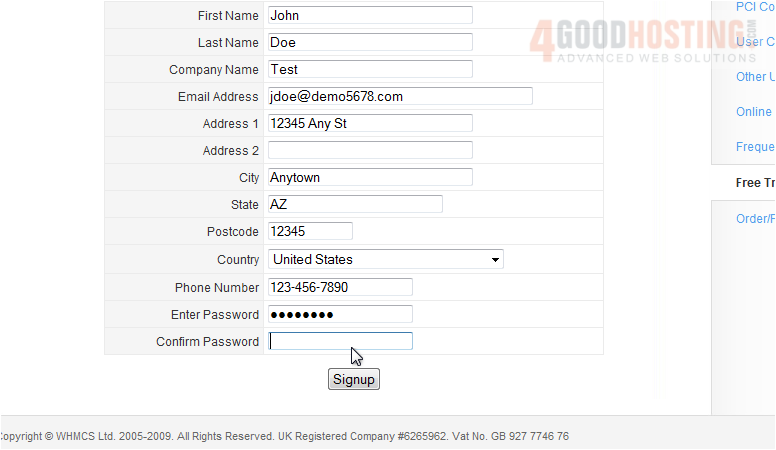
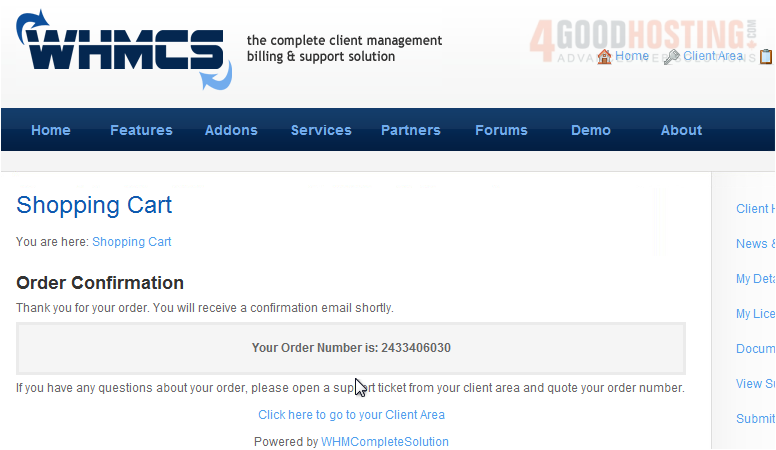
The trial key will have been mailed to the email address you provided while signing up. Go to your email and find the message containing the key before continuing.
9) Copy your trial key here.
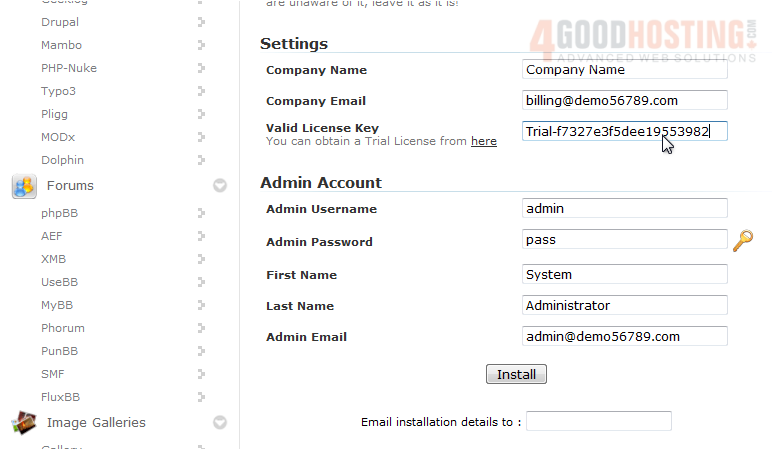
Enter the Username, Password, First and Last Name, and Email for the admin account.
10) Click Install.
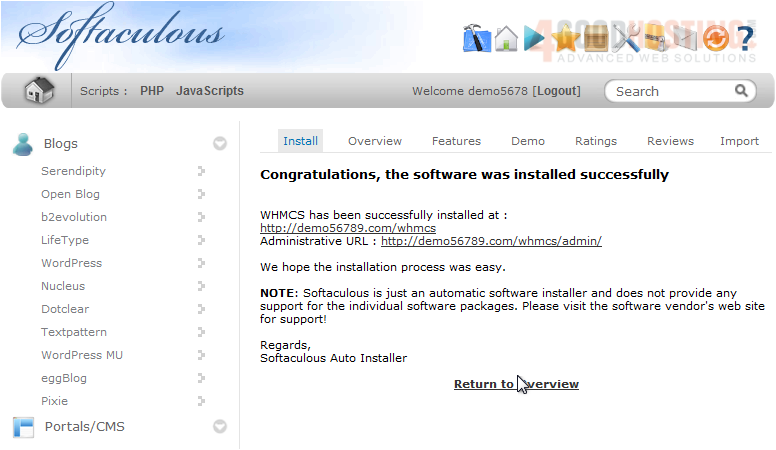
After a moment, the software will be installed.
11) To view your new site, click this link.
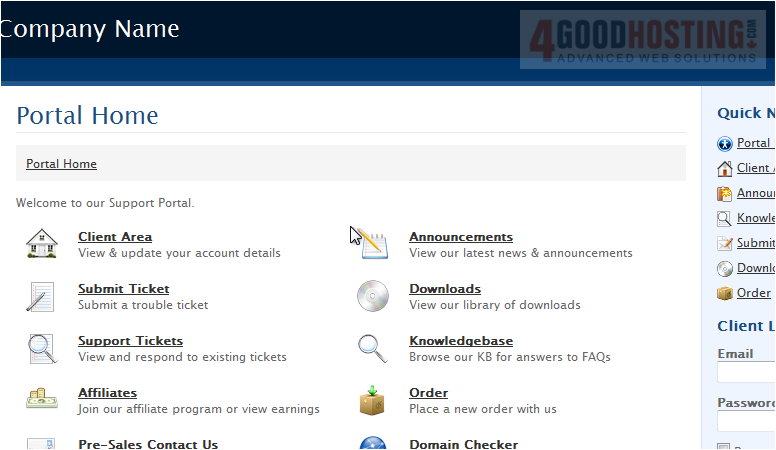
Here is our new installation of WHMCS. If you used a trial key, you will be able to test out the software for 15 days before you must purchase a license.

 WGS AI Assistant