
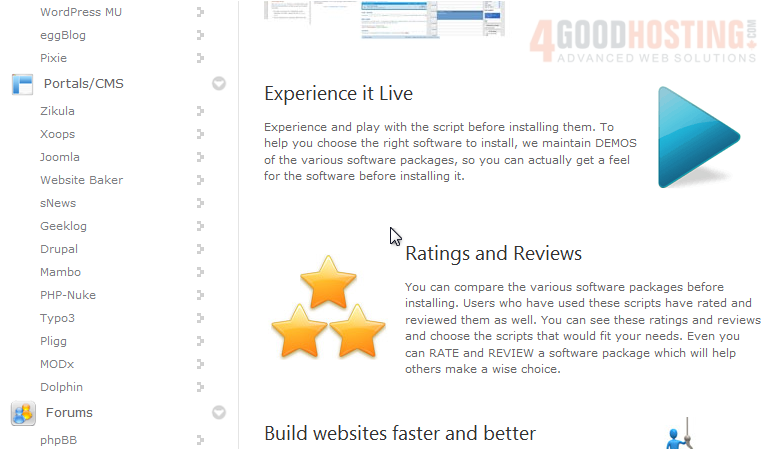
MODx is a content management system, so scroll down until you find the CMS group in the menu.
1) Select MODx.
You will be taken to the software's Overview page where you can view information about it before installing.
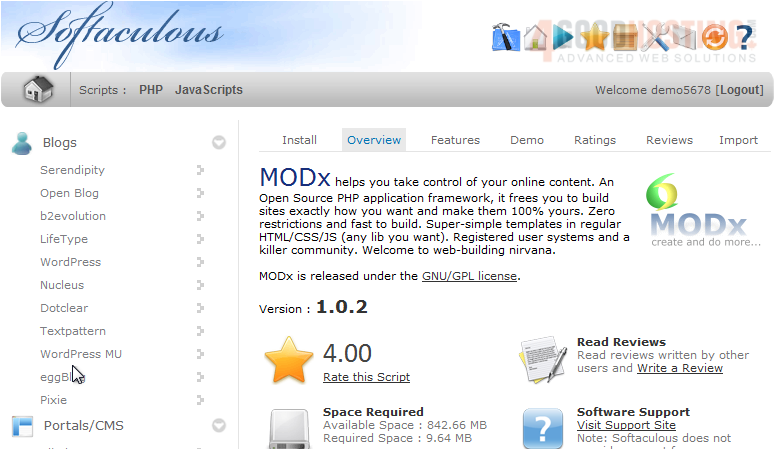
2) Go to Install.
All the defaults for these options should be fine for most purposes, but we'll take a look at them anyway.
If you have multiple domains on your account, you can choose where to install MODx.
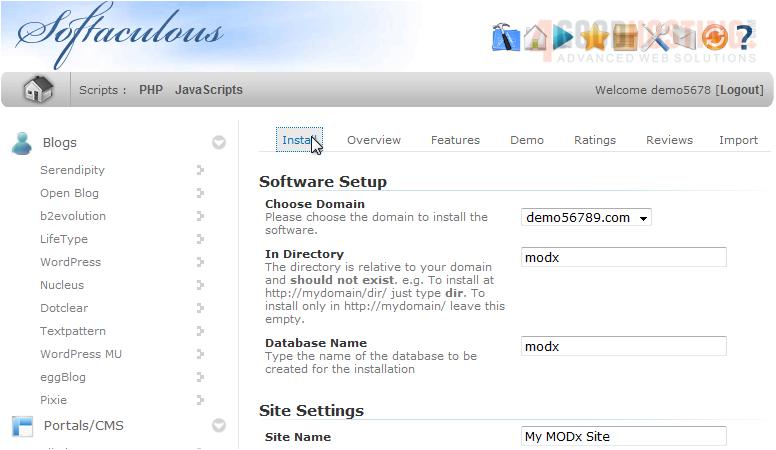
The next two boxes allow you to set the directory and database name which should not exist on the server yet.
Set the Site Name here. This can be changed later from the software's admin panel.
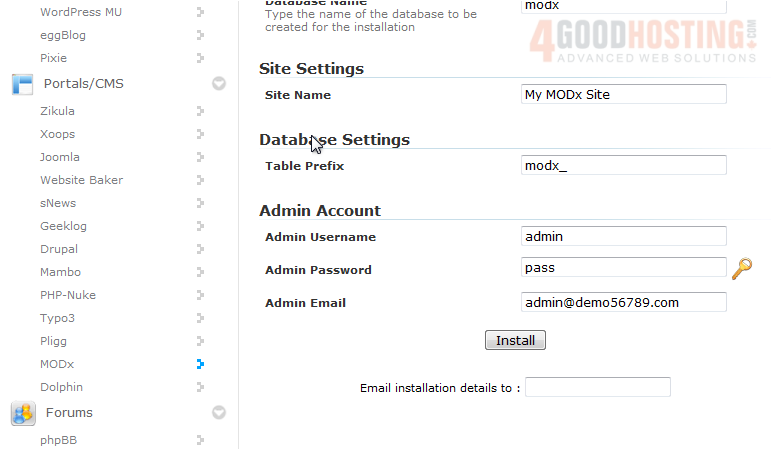
Enter a username, password and admin email for the admin account.
3) Click Install.
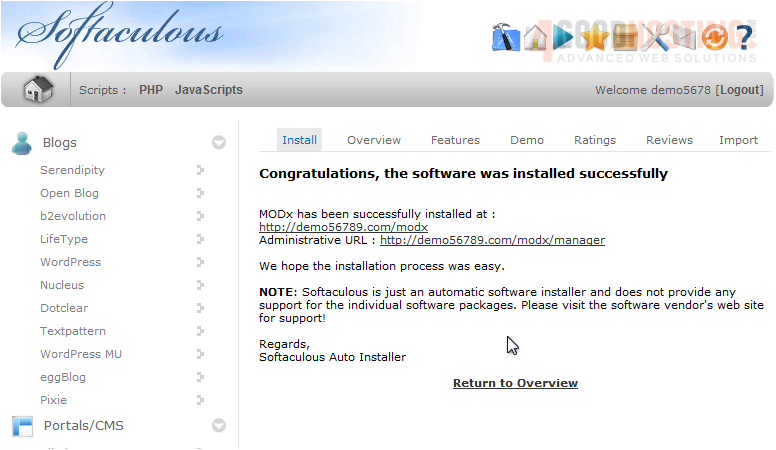
After a moment, the software will be installed.
4) To view your new site, click this link.
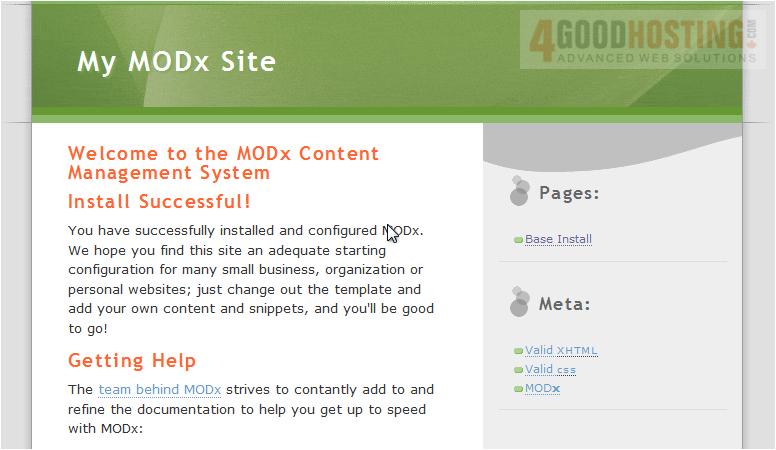
Here is our new installation of MODx which is ready to be used.

 WGS AI Assistant