
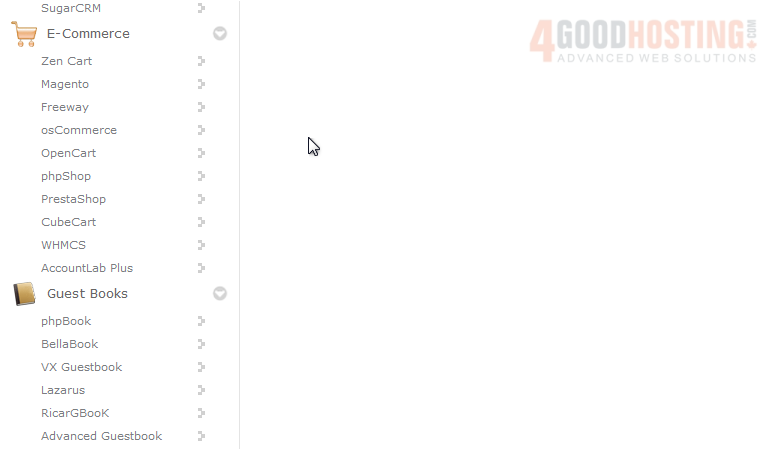
1) Scroll down until you find Cube Cart in the menu on the left.
2) Click Cube Cart.
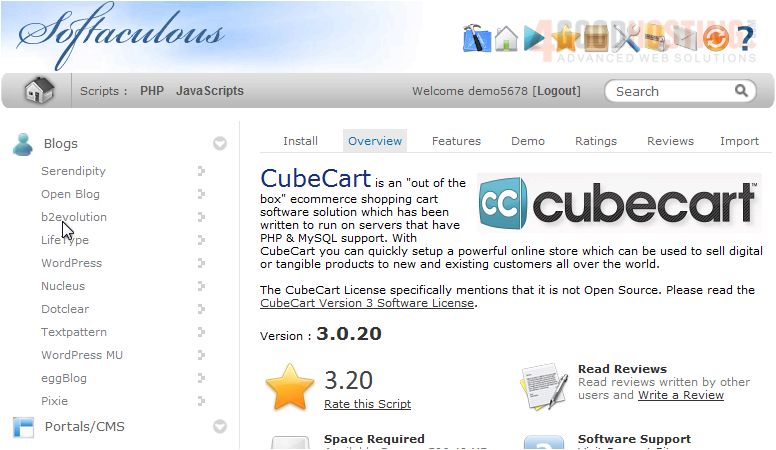
This Overview page shows you information about the software before installing.
3) Click Install.
The default settings here should work for most purposes.
If you have multiple domains on one account, you can select where to install.
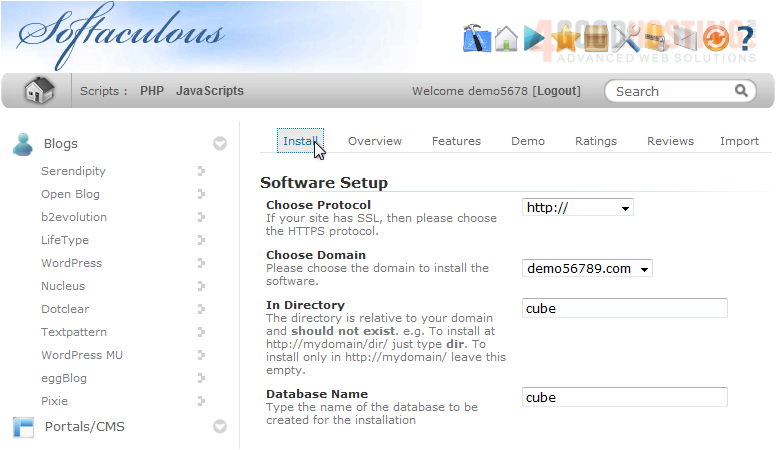
The next two boxes let you set the directory and database name which will be created upon installation.
Under Store Settings, you can set the Store Name, Owner and Address that will be displayed.
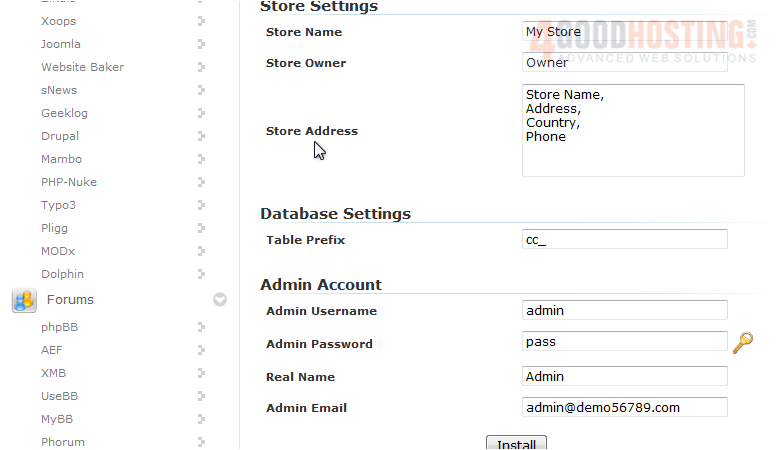
Enter the admin username, password, real name, and email.
4) Click Install.
After a moment, the software will be installed.
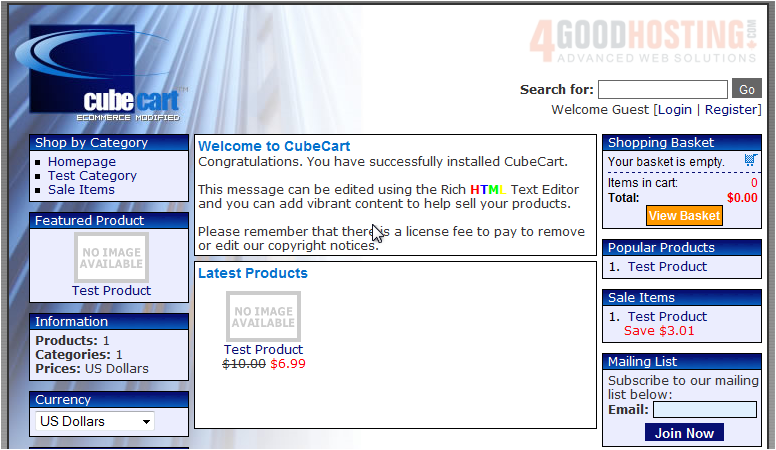
5) To view your new site, click this link.
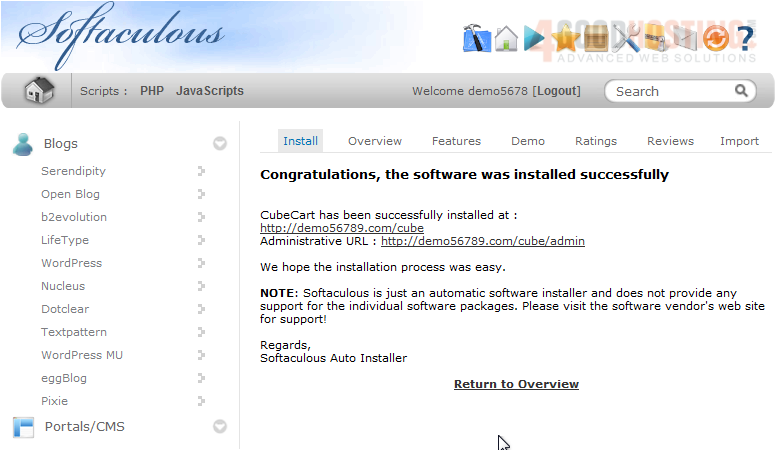
This concludes the demonstration. You now know how to install Cube Cart in Softaculous.

 WGS AI Assistant