
This demo assumes you've already logged in to WebHost Manager (WHM)
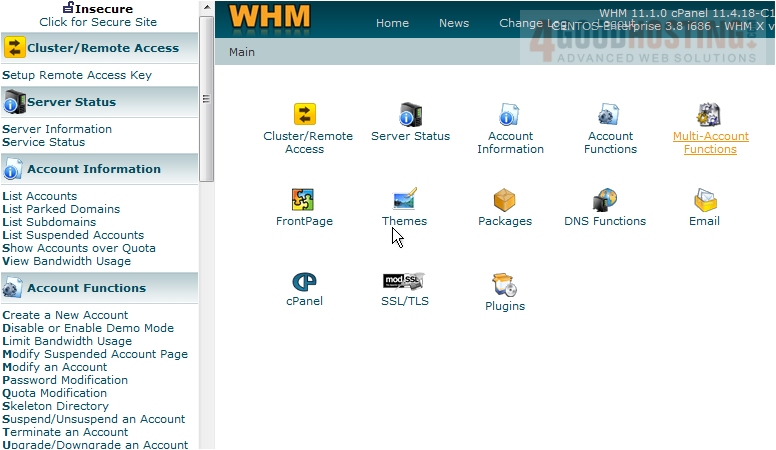
Now let's learn how to use the Multi-Account Functions
1) Click the Multi-Account Functions link
There are 2 tools available in Multi-Account Functions. You can modify or upgrade multiple accounts at the same time, or you can terminate (or delete) multiple accounts at the same time
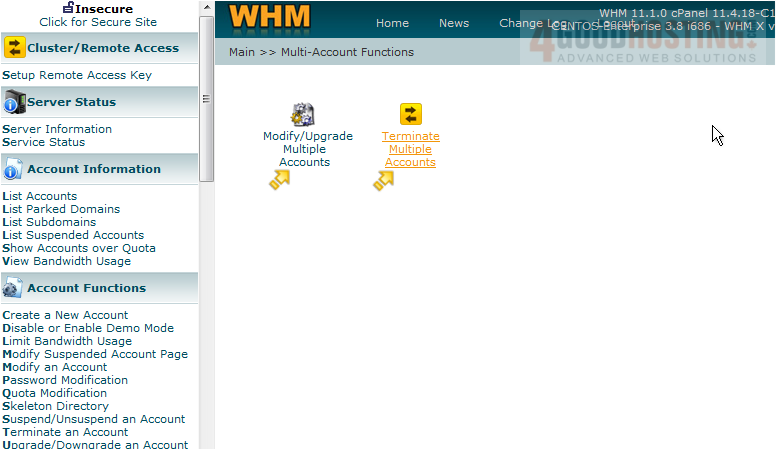
In both cases, using these multi-account functions instead of performing the tasks one account at a time may save you a lot of time depending on how many accounts you need to change or delete
2) Let's click the Modify/Upgrade Multiple Accounts link
On the left, is a list of all accounts in this reseller plan. On the right, are some selection tools that may make it easier selecting accounts when there are dozens or even hundreds to choose from
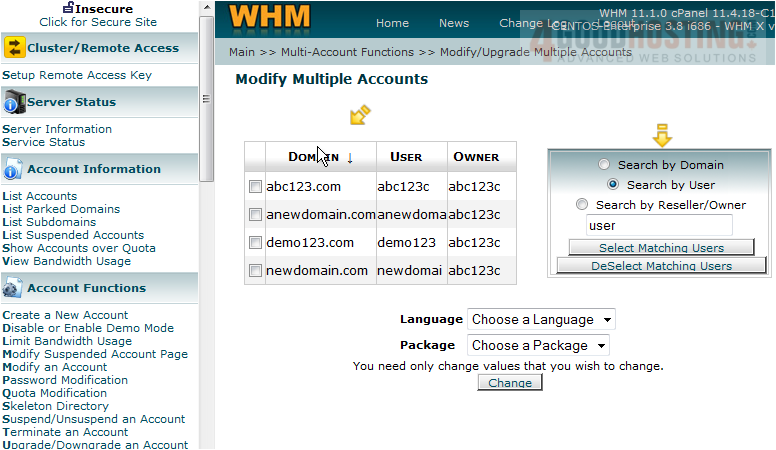
3) Let's go ahead and select two accounts in this list
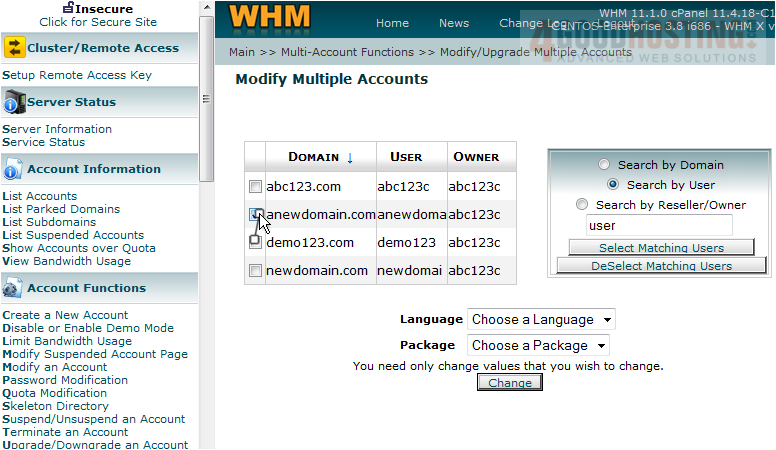
4) Now let's select a new package for both of these accounts
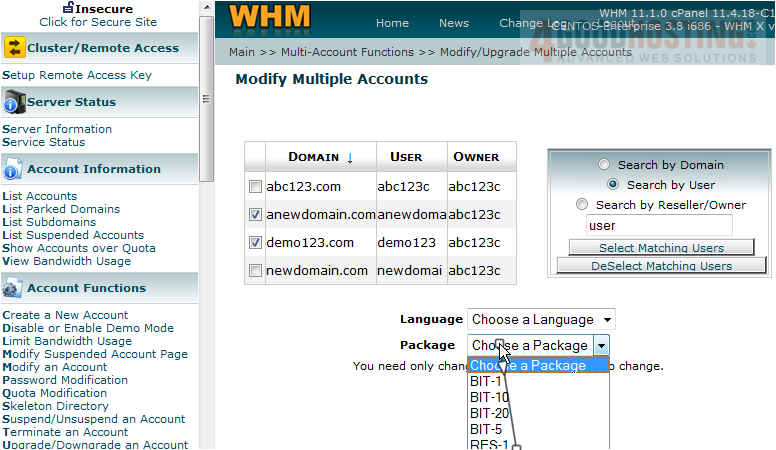
5) Then click the Change button
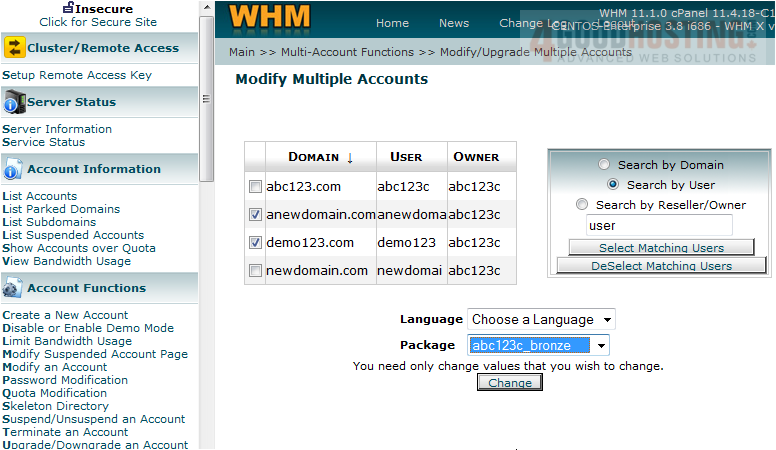
That's it! Both accounts have been changed to the bronze package
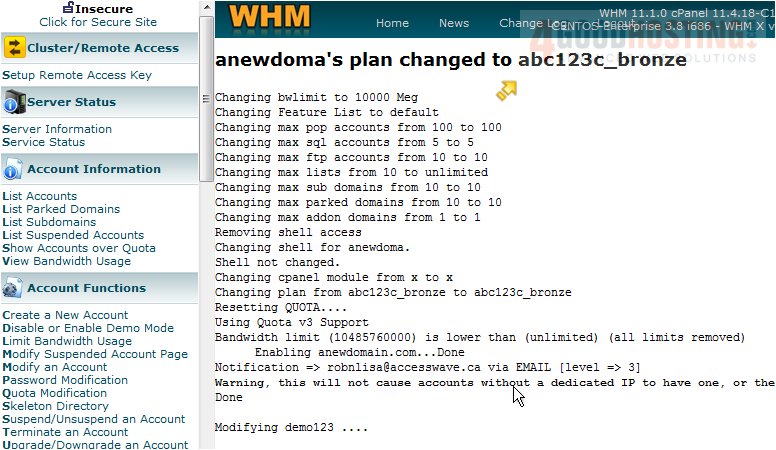
6) Scroll down to see the end of the output screen

7) Click the Multi-Account Functions link
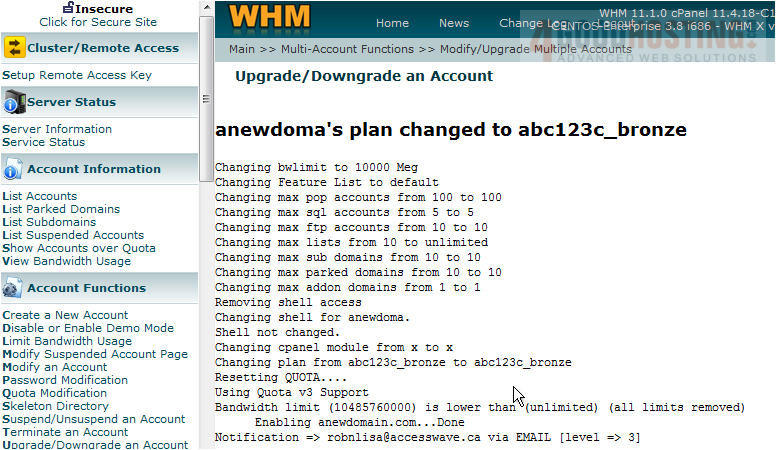
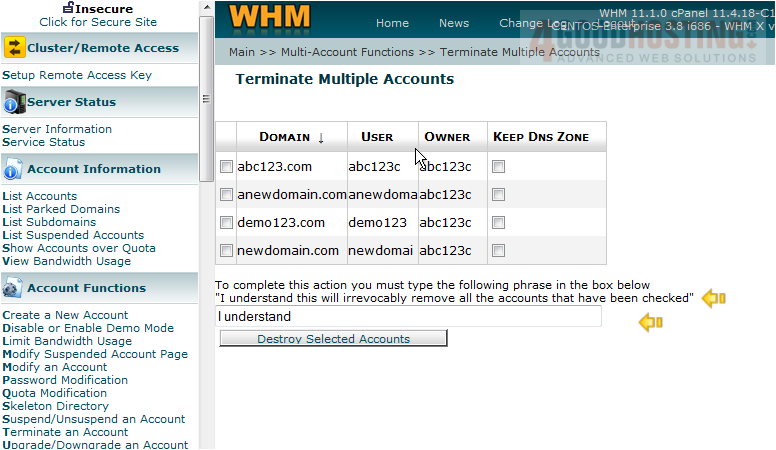
8) Then click the Terminate Multiple Accounts link

From here you can terminate (or delete) several accounts at one time. Be very careful with this as terminating accounts is a permanent action. Also, be sure never to delete your main reseller account which is also listed here (abc123.com). In order to delete multiple accounts at once, you'll have to type this phrase into the text box before clicking the Destroy Selected Accounts button
This is the end of the tutorial. You now know how to use the Multi-Account functions in WHM

 WGS AI Assistant