
This demo assumes you've already logged in to WebHost Manager (WHM)
Let's learn how to use the Mail Troubleshooter feature in WHM
1) Click the Email link
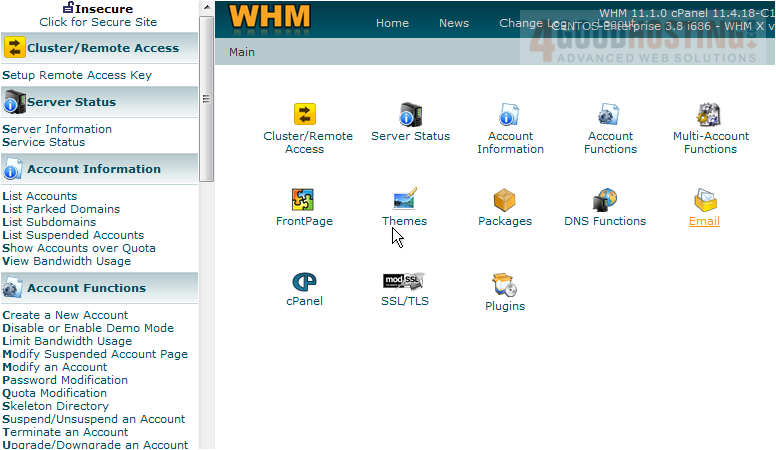
2) Then click the Mail Troubleshooter link
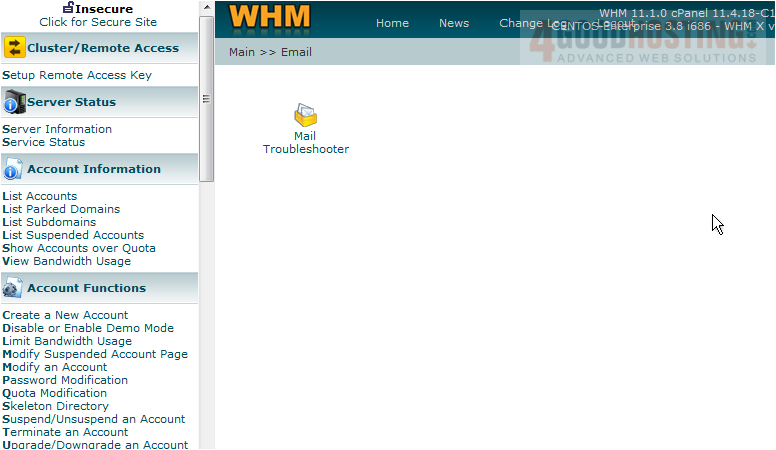
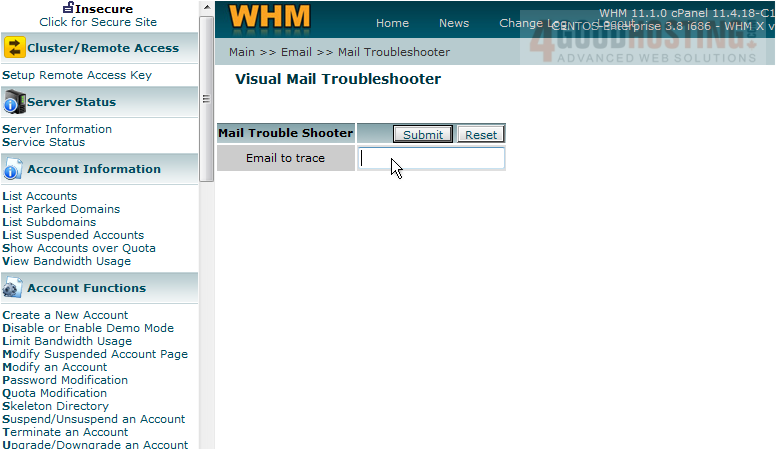
This is where you can test any email address by tracing it's route from this server
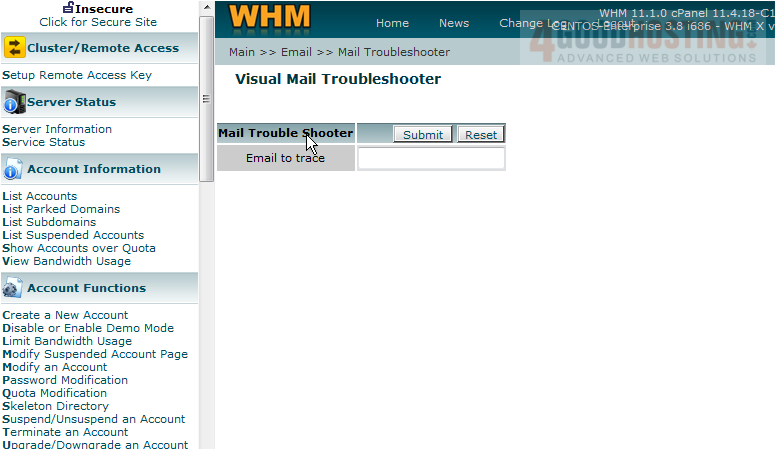
Let's trace an email address that would be on this server
3) Enter an email address here

4) Then click the Submit button
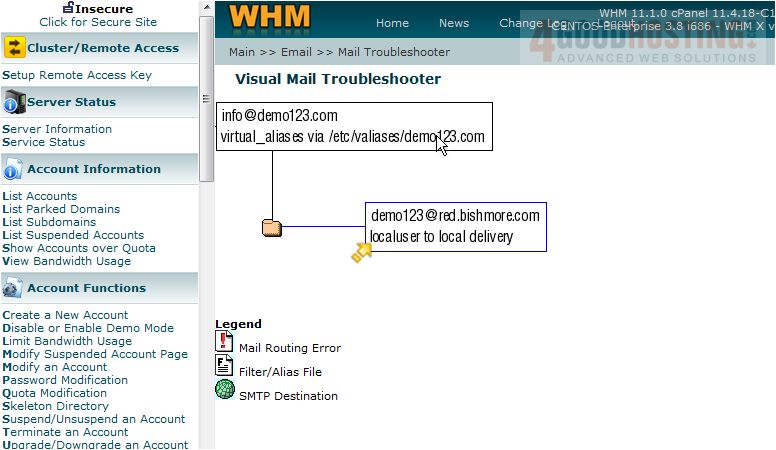
The trace didn't go very far, because the email address would be located on this same server. It just stopped at the email address entered
5) Go back to the Mail Troubleshooter
6) Let's enter an email address that we know is not on this server. Then click the Submit button
This time the trace went to a server called smtpin.eastlink.ca, and there were no errors in this trace. This email address appears to be working fine

7) Click the Mail Troubleshooter link again
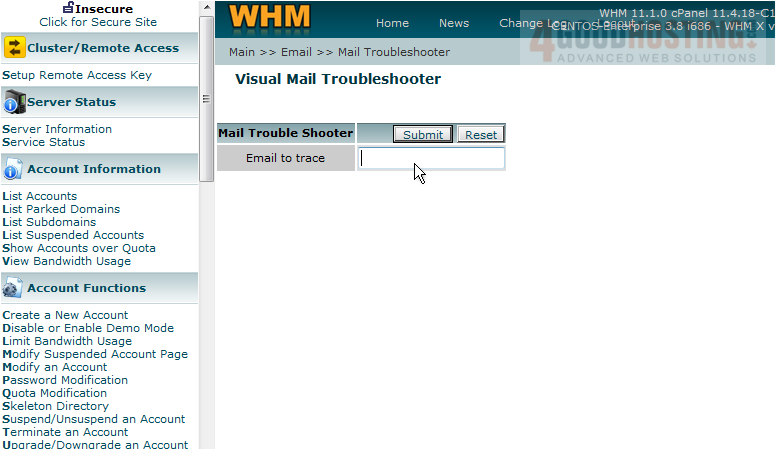
8) This time enter a bogus email address that you know will fail. Click Submit
This time we got an error saying it failed
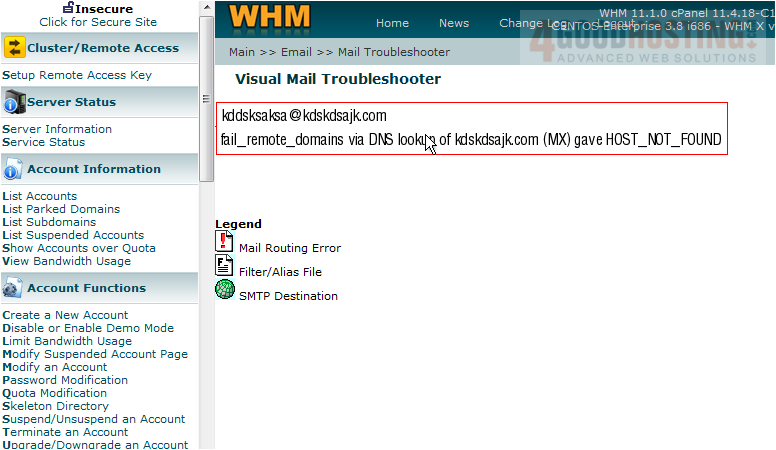
This is the end of the tutorial. You now know how to check an email address by perfomring a trace using the email troubleshooter tool in WHM

 WGS AI Assistant