
This demo assumes you've already logged in to WebHost Manager (WHM)
Now let's learn how to use the cPanel/WHM News feature
1) Click the cPanel link here
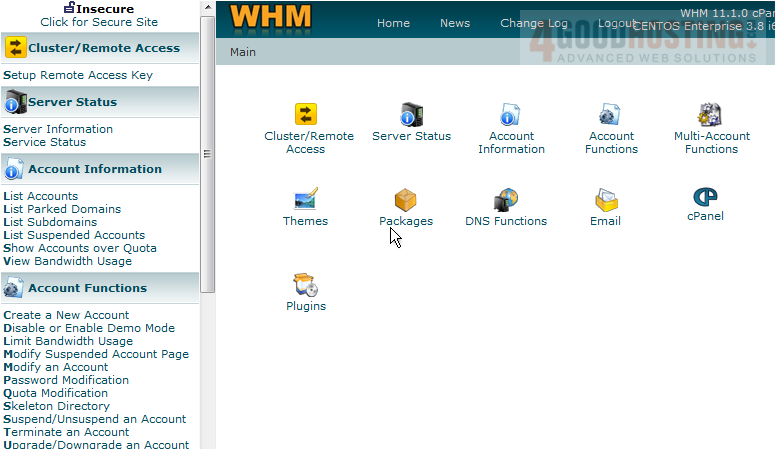
2) Then click Modify cPanel/WHM News

Whatever we type in this text box, will appear on the main page of our customer's CPanel (all CPanel accounts that are in this reseller plan)
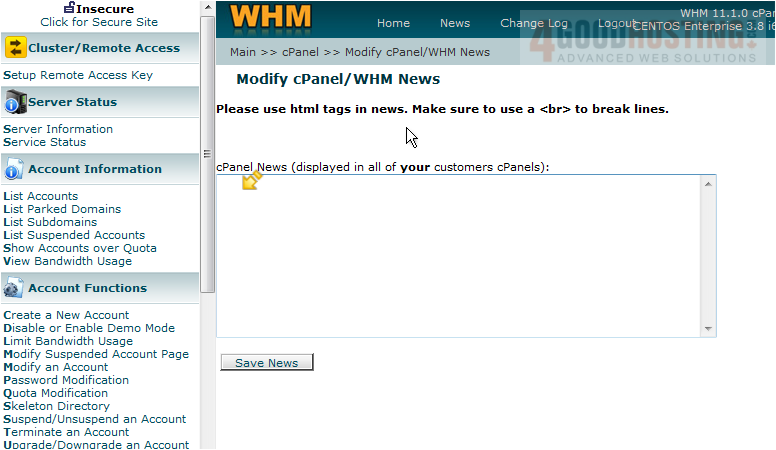
3) Let's go ahead and enter some news. Click the Save News button when finished
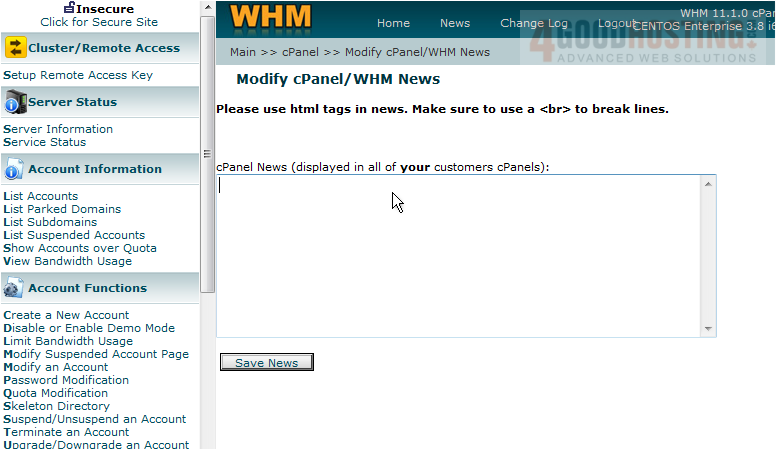
That's it! The text we just entered will appear in all cPanels in this reseller plan. Let's take a look
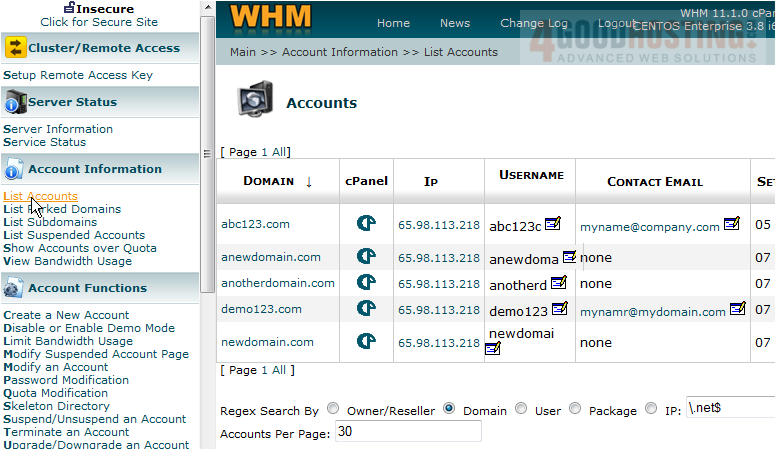
4) Click the List Accounts link here
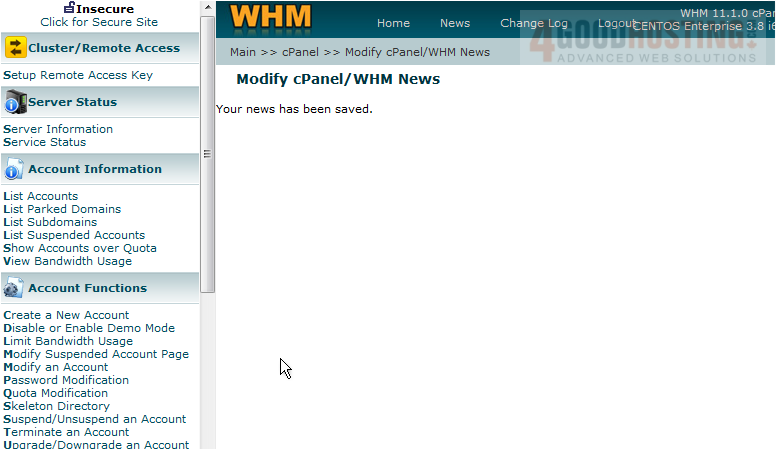
5) Then click the cPanel link for the abc123.com account
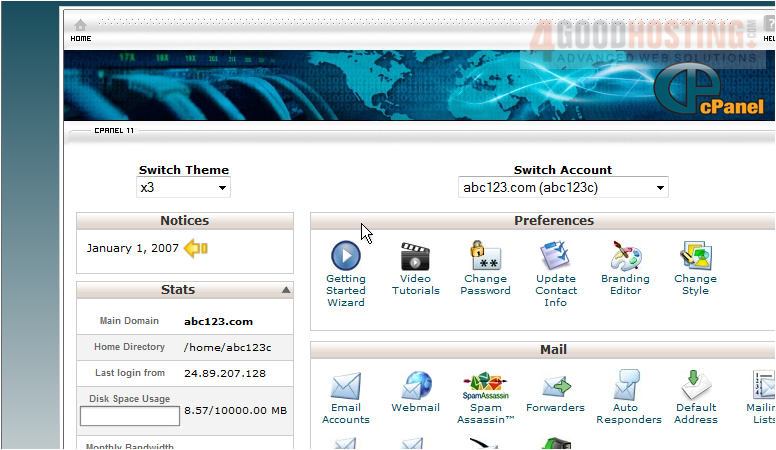
Here you can see the text we just entered in the news section of WHM. It displays here on the left of the cPanel home page
This is the end of the tutorial. You now know how to use the cPanel/WHM News section of WHM

 WGS AI Assistant