
This demo assumes you've already logged in to WebHost Manager (WHM)
Let's learn about cPanel branding and how to display a custom logo in cPanel
1) Click the cPanel link here

2) Then click the Branding link here

This is the main cPanel branding page. It has lots of information on how to incorporate branding into your customer's cPanel so that it will be your logo they see instead of a cPanel logo

We can brand any of the following cPanel themes with our own logo
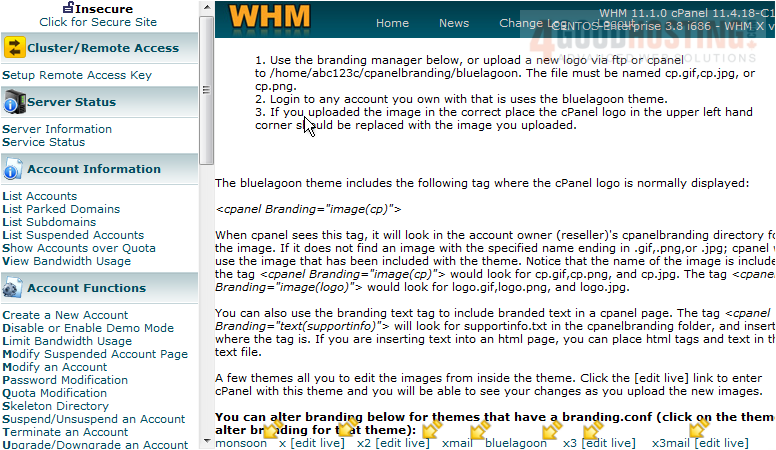
3) Select the monsoon theme
Here you can see the two logos that you can replace with your own logos in the monsoon theme
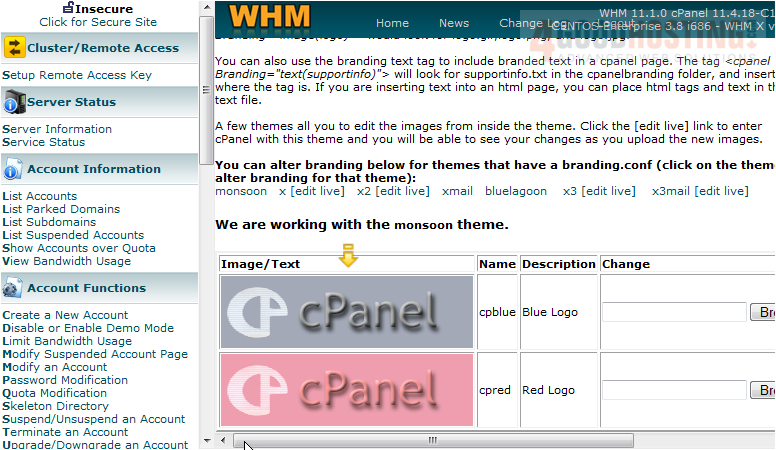
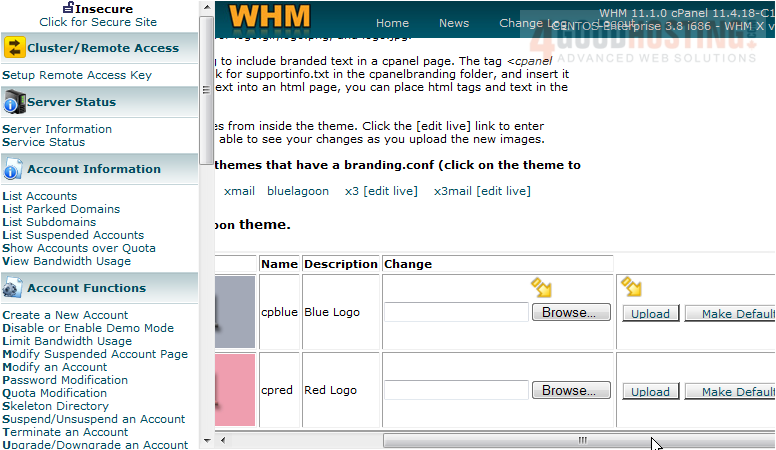
From here, you can upload new logos to replace the existing red and blue monsoon logos. Browse to the location of the new logo. Then click upload. The new logo will replace the old one, and you will have successfully branded cPanel so your customers see your logo instead of the standard cPanel logo
This is the end of the tutorial. You now know how to use cPanel branding to replace the standard cPanel logo with your own

 WGS AI Assistant