
This demo assumes you've already logged in to WebHost Manager (WHM)
Now let's learn how to manage our DNS zones
Keep in mind that you rarely (if ever) have to modify your DNS zones, since WHM does that for you automatically. You should only attempt to modify DNS zones if you know exactly what you are doing
1) Click the DNS Functions link

2) Click the Add a DNS Zone link
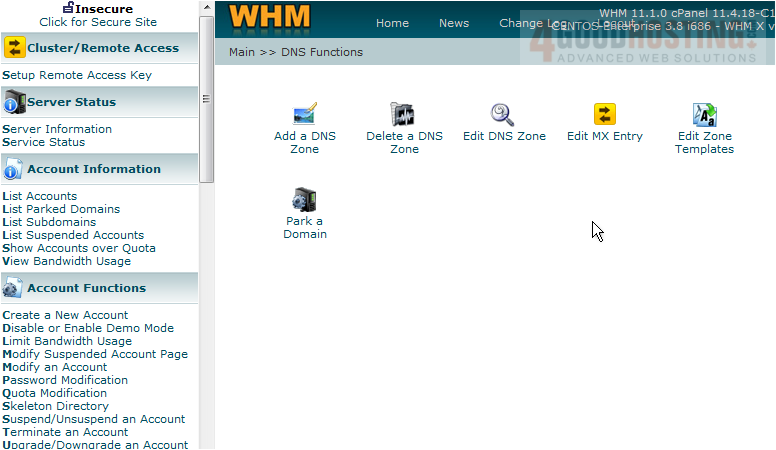
This is the screen where you can add new DNS zones, but we're not going to do that in this tutorial
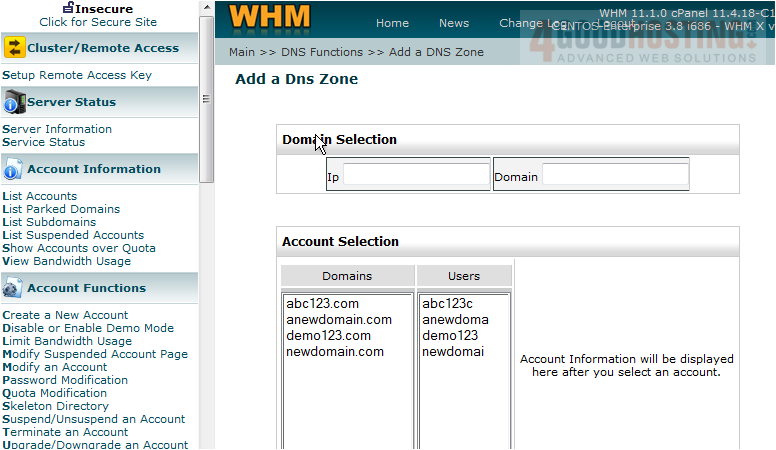
3) Click the DNS Functions link
4) Click the Delete a DNS Zone link
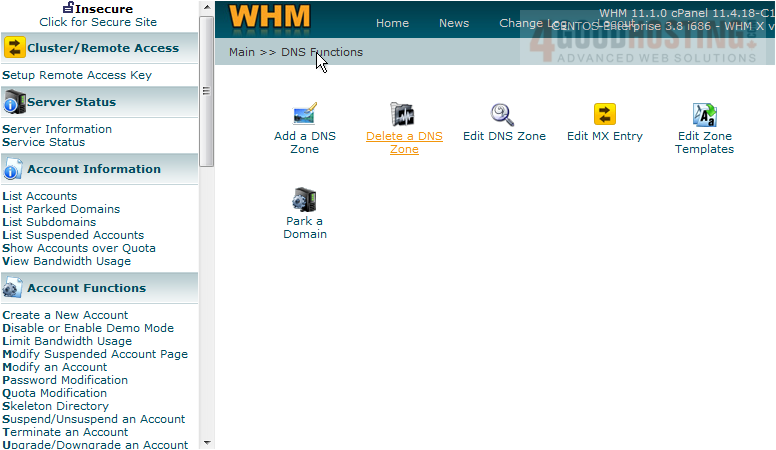
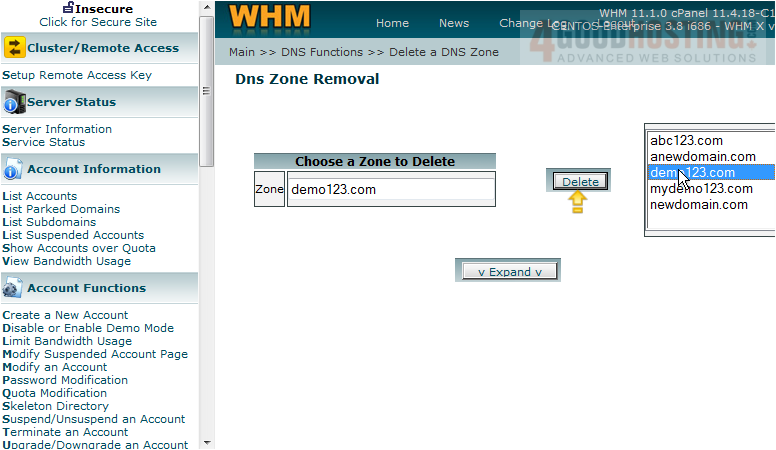
This is the screen where you can delete DNS zones together
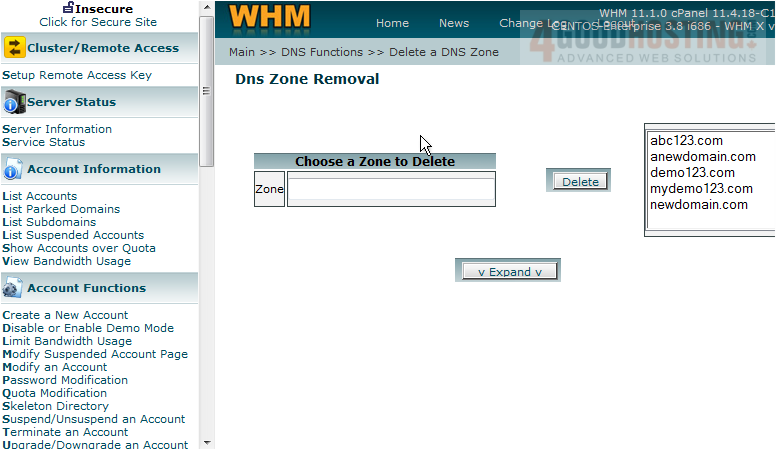
5) To delete the DNS zone for demo123.com, select that account here. Then we would click this delete button, but we're not going to do this, as it would render the account useless
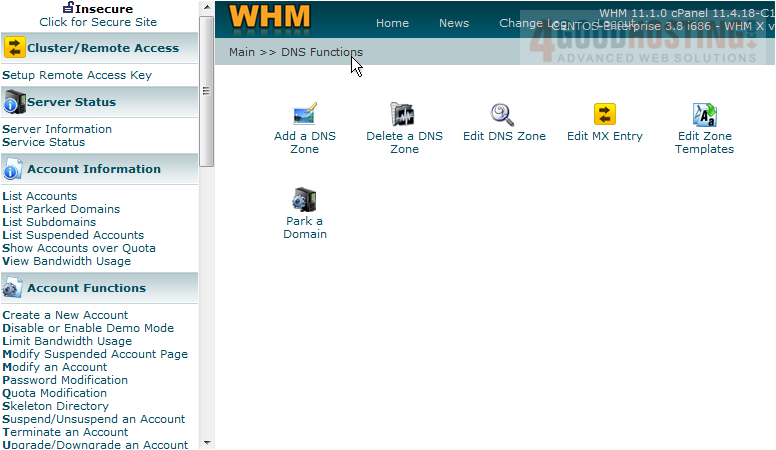
6) Click the DNS Functions link
7) Now click the Edit DNS Zone link
8) Select demo123.com

9) Then click Edit
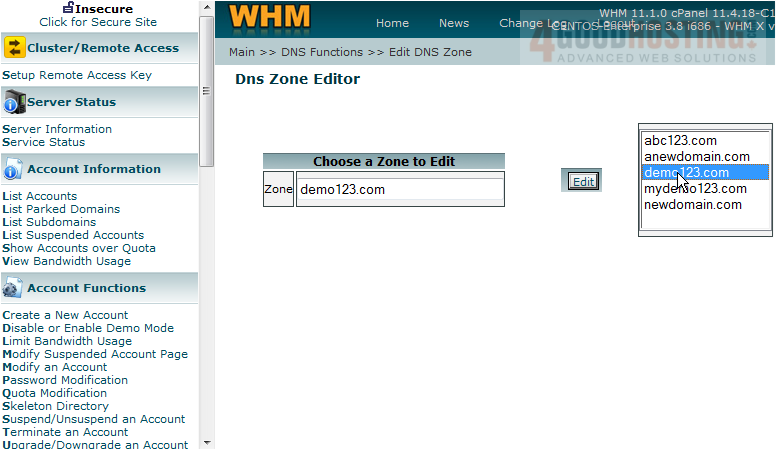
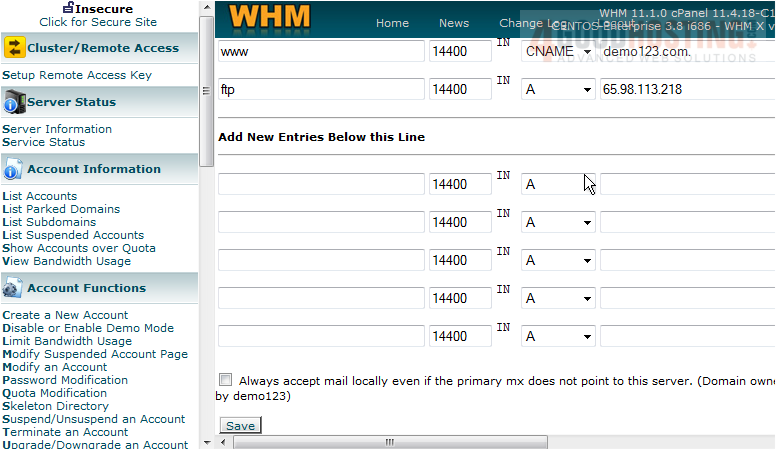
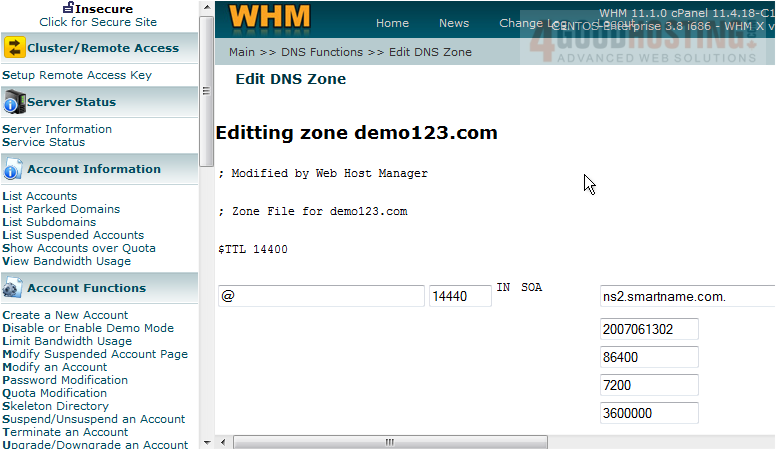
This is where you can edit the DNS zone properties of the demo123.com account
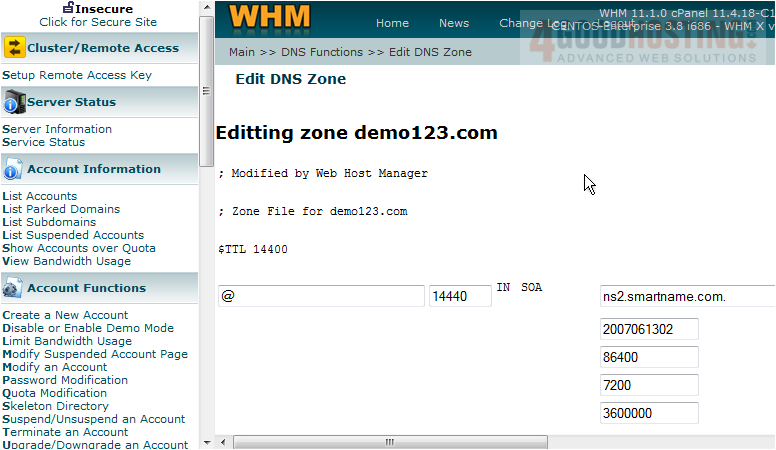
All of these zone properties (or zone records) can be modified from here. But again, do not change anything unless you know exactly what you are doing
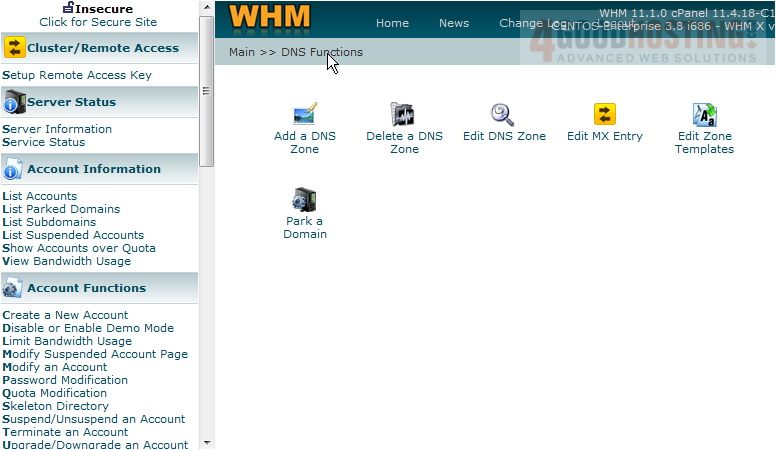
10) Click the DNS Functions link
11) Click the Edit MX Entry link
12) Select demo123.com
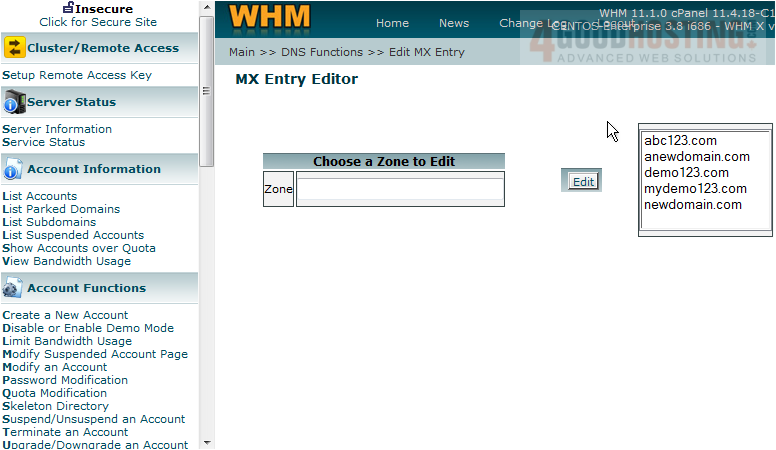
13) Then click Edit
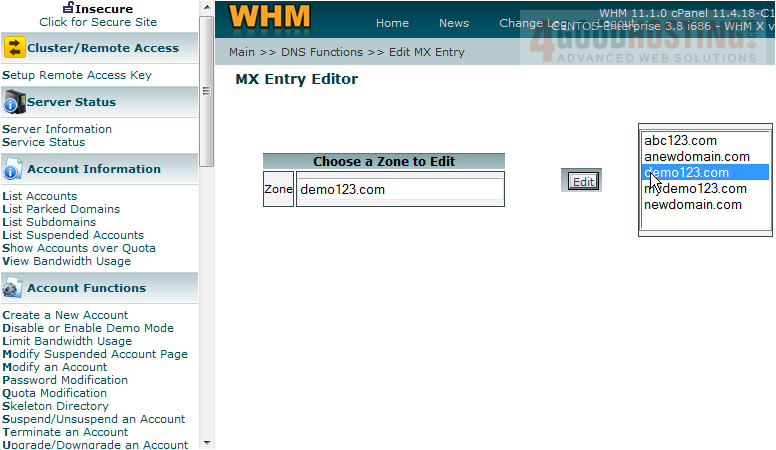
This is where you can specify a custom MX entry. You may want to do this for customers who want their email hosted elsewhere on another server. In those cases, you would enter the other server's IP address here and click save
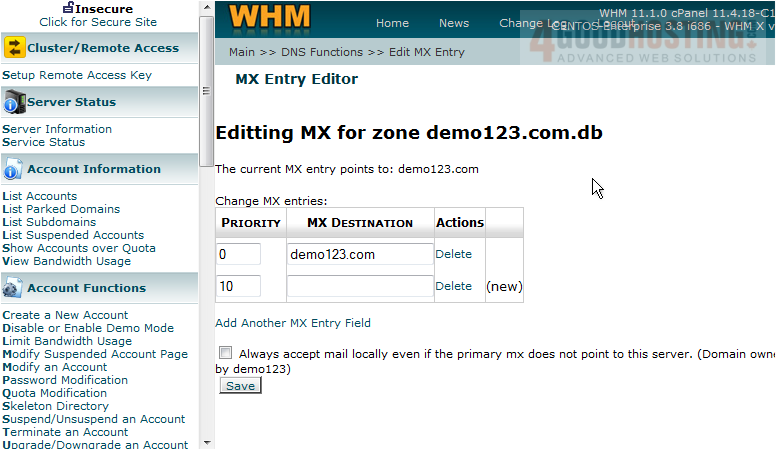
This is the end of the tutorial. You now know how to manage DNS zones in WHM. Remember that WHM automatically manages DNS zones for you, so you should rarely have to do it manually

 WGS AI Assistant