
Let's see how to install LimeSurvey from Installatron.
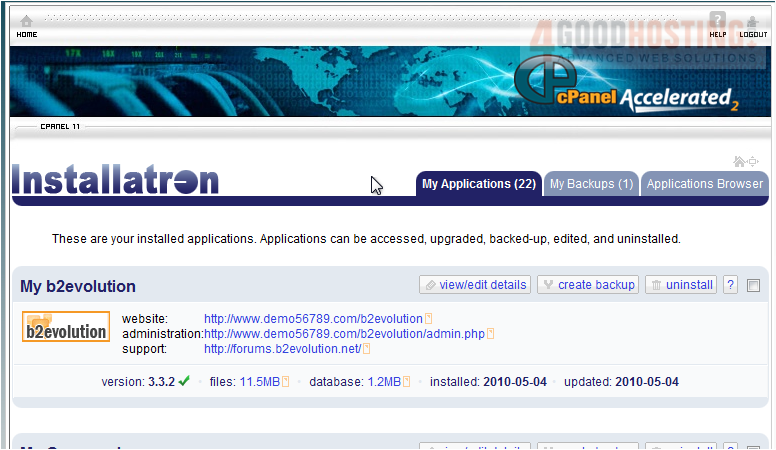
1) Click Applications Browser.
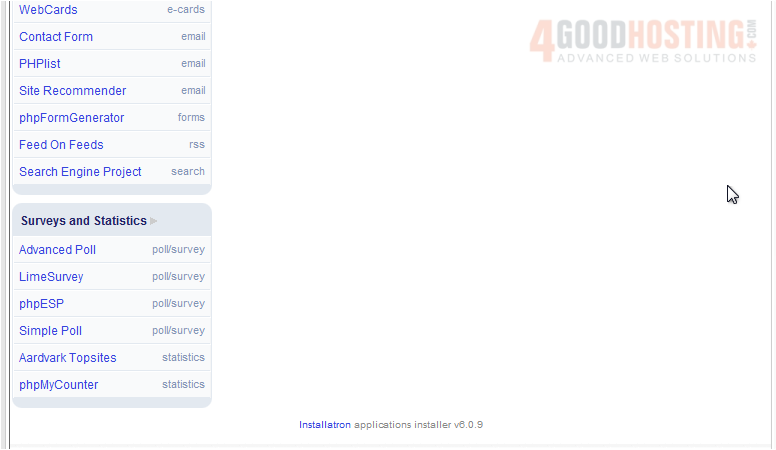
2) Scroll down until you find LimeSurvey in the list.
This page will show you more information about the script.
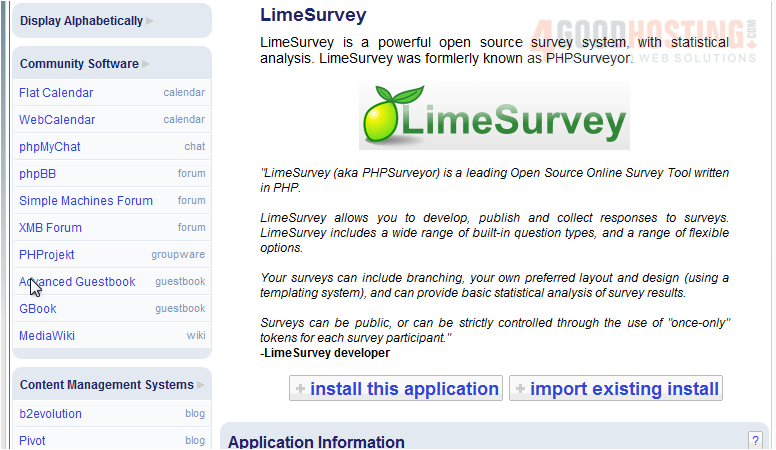
3) When ready, click Install This Application.
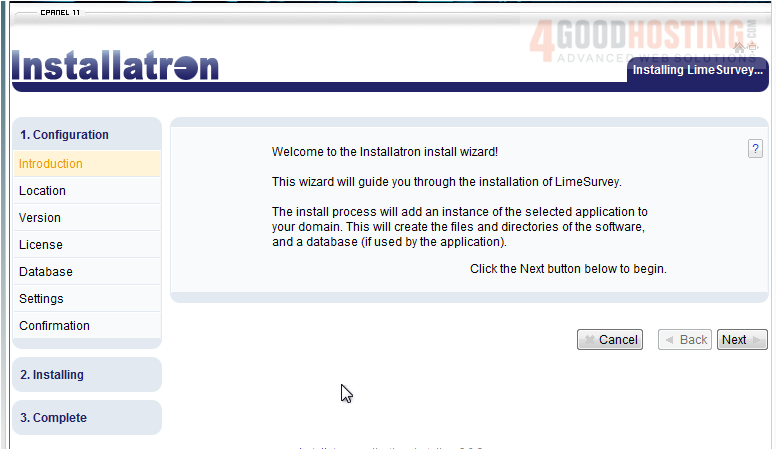
4) Click Next to begin.
5) If you have multiple domain names, select the one where this application should be installed.
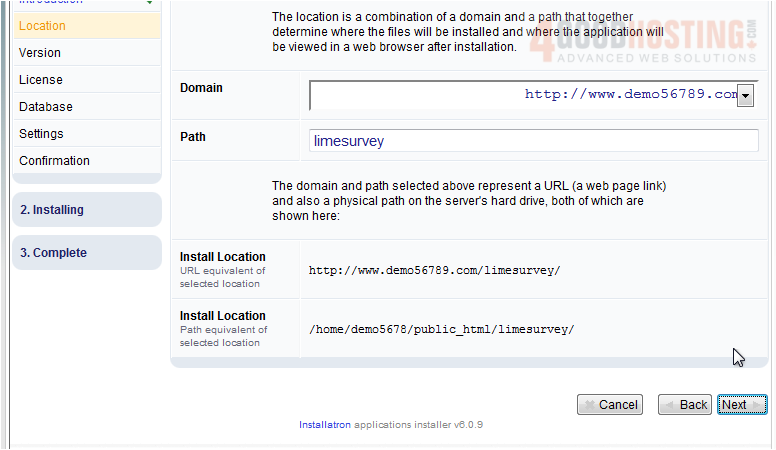
6) Enter the path here.
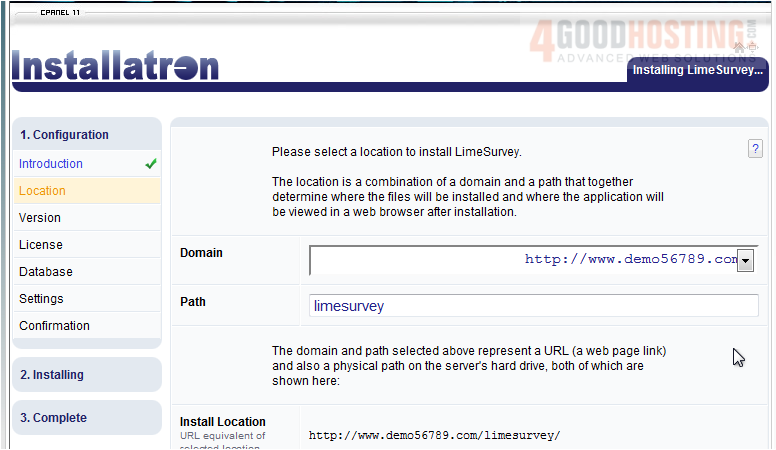
7) Click Next.
8) Choose the version that should be installed. You should choose the latest version unless you require an older release.
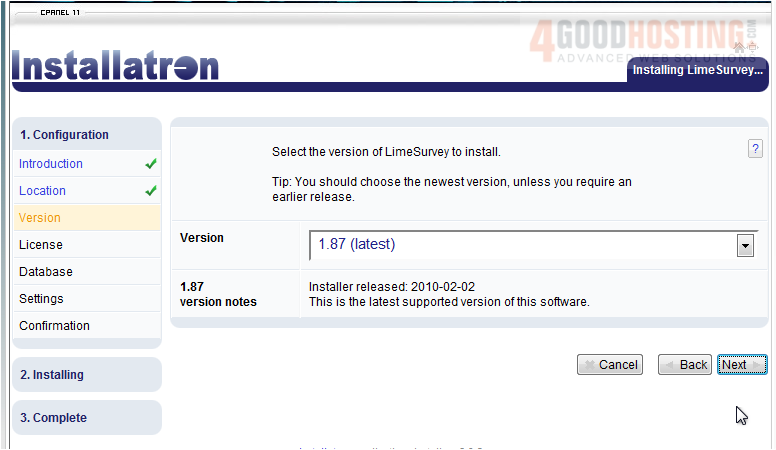
9) Click Next.
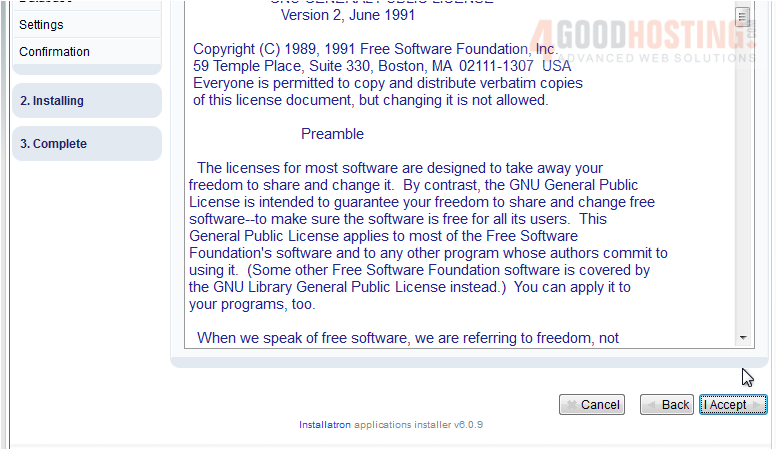
You must accept the End User License Agreement (EULA) before continuing.
10) Click I Accept.
11) Set the database management settings here. Leave the default if you want Installatron to automatically create and setup a database.
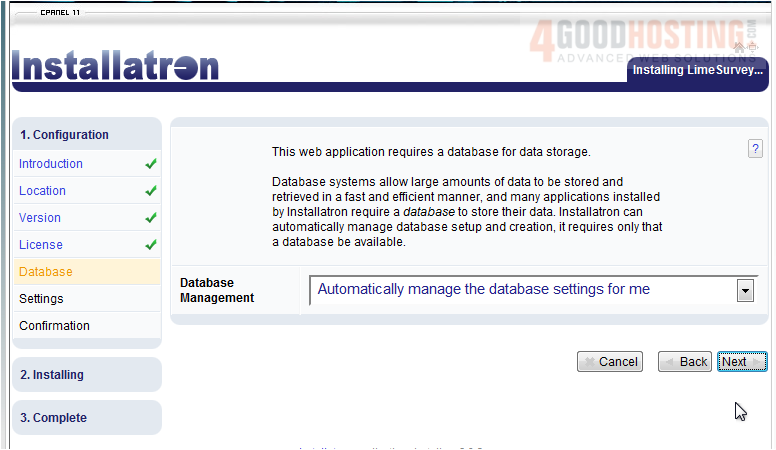
12) Click Next.
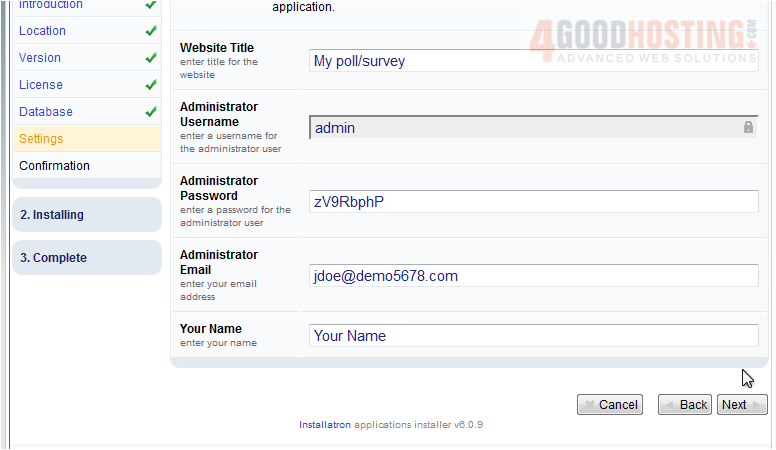
13) Set the website title, admin username, password, email, and your name, then click Next.
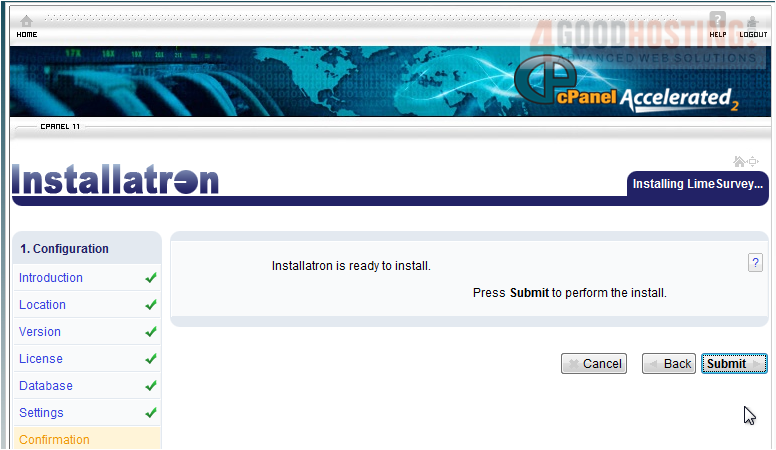
14) Click Submit to install.
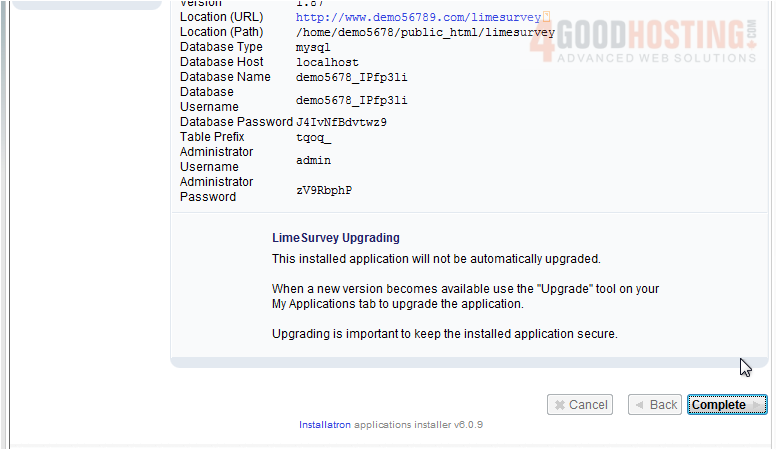
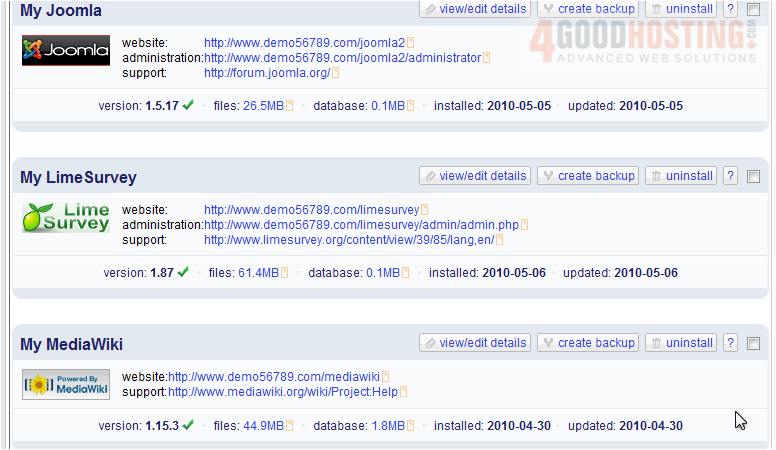
After a moment the software will be installed and a page containing information about the installation will be displayed.

15) Click Complete.
16) Use this link to view your newly installed application.
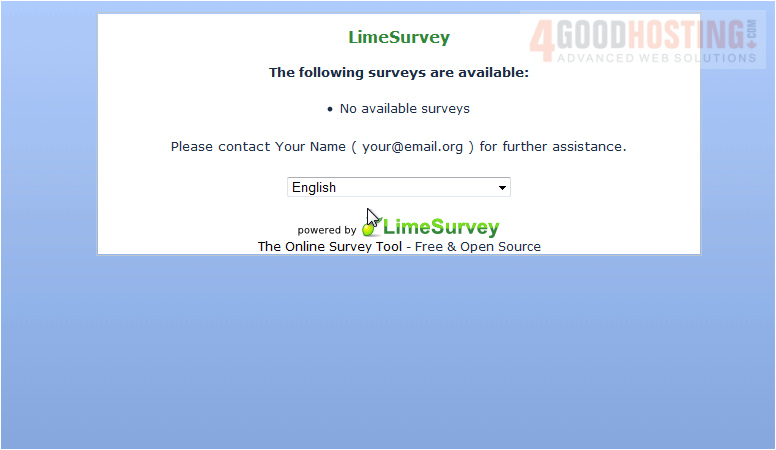
Here is our new installation of LimeSurvey, ready for use.

 WGS AI Assistant