
This tutorial assumes you've already logged in to SquirrelMail webmail
Now let's learn how to open an email message
1) Simply click on the Subject of an email to open it
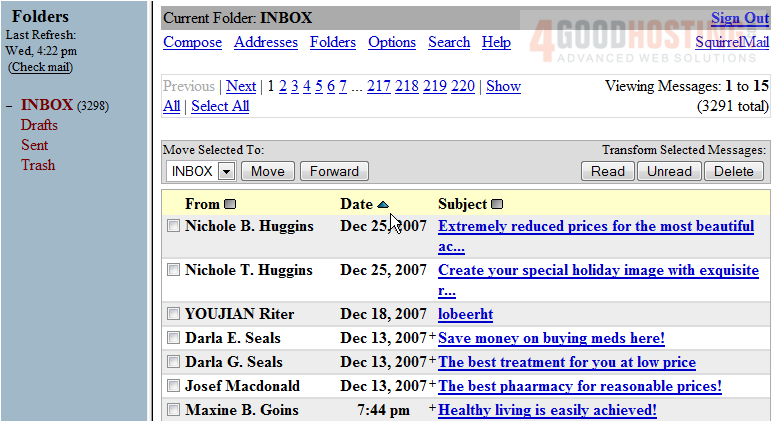
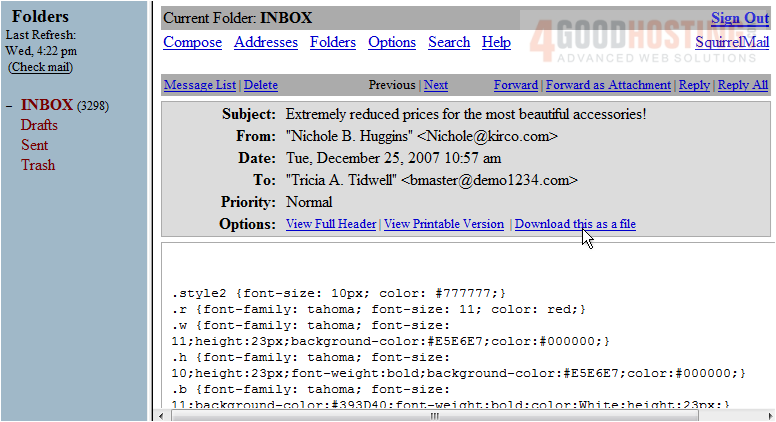
That's it! Here is the email we chose to open and view
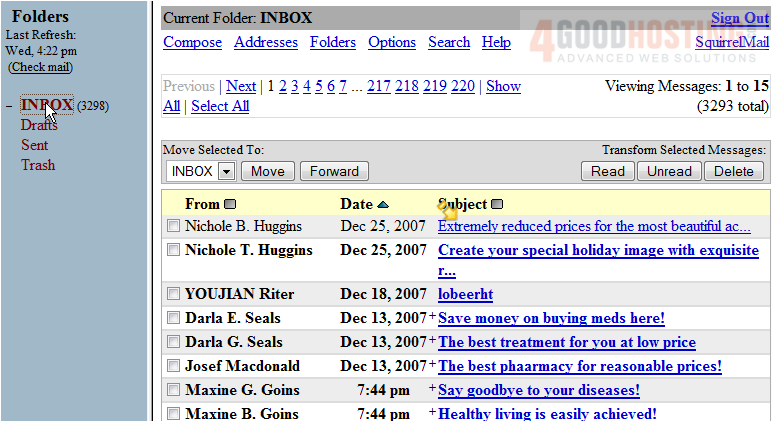
2) Let's return to the Inbox
The subject of the message we read is no longer bold, this signifies it is a read message
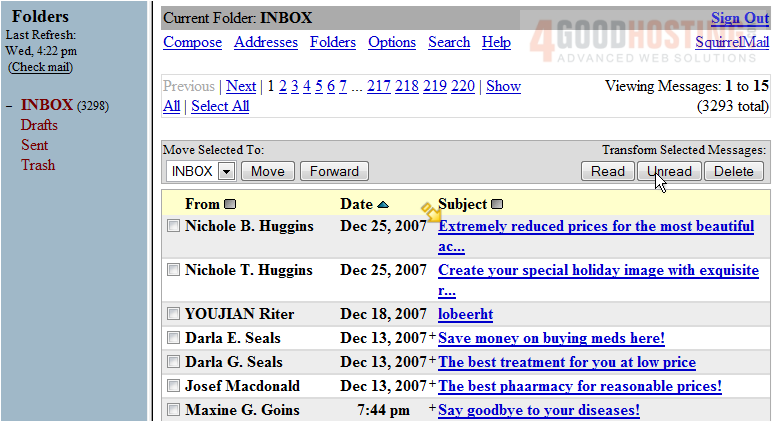
If you want to keep the message bold, you can mark it as unread... let's do that now
3) Select the message here
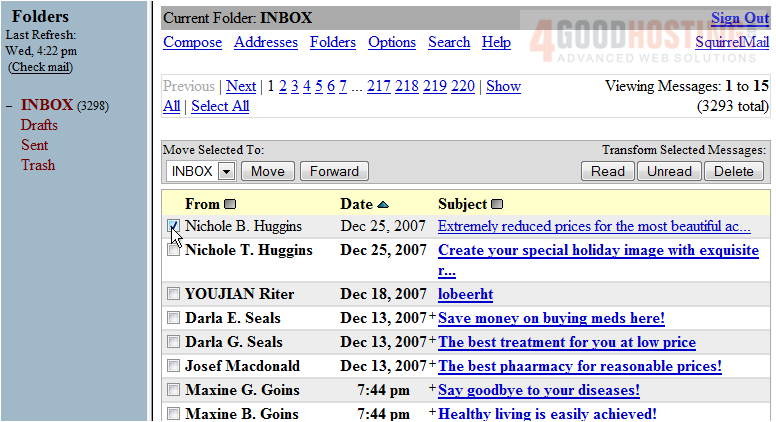
4) Then click the Unread button here
Notice how now the message we read is once again shown as unread
This is the end of the tutorial. You now know how to open an email message in SquirrelMail

 WGS AI Assistant