
This tutorial assumes you've already logged in to SquirrelMail webmail
Now let's learn how to create folders
1) Click the Folders link
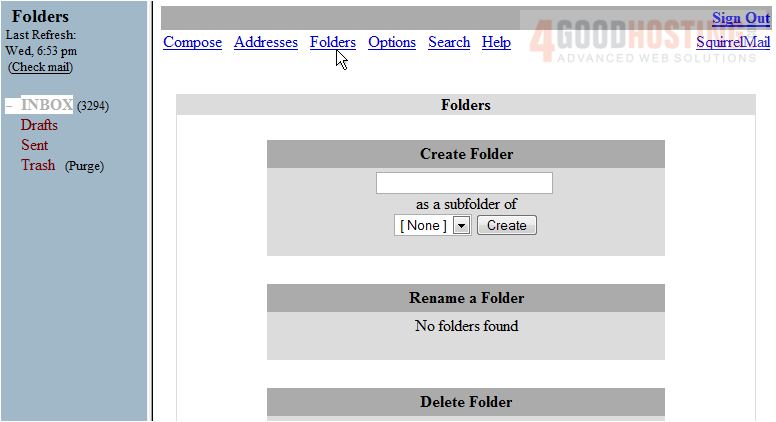
This is the Folders page, where we can manage all folders within webmail
2) Let's create a new folder. Enter a new folder name here
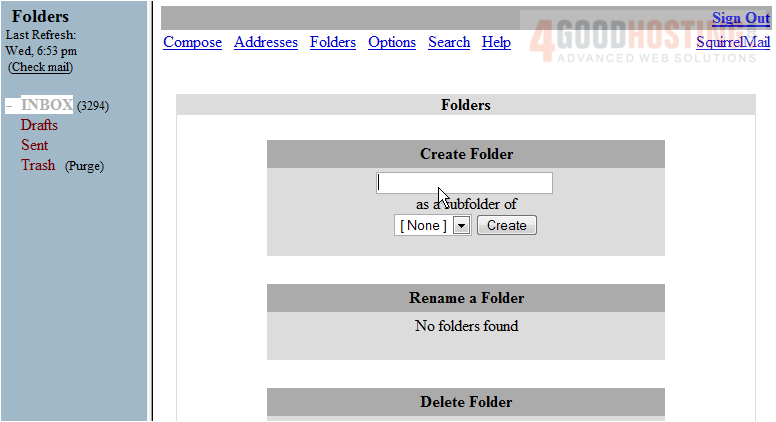
3) Then click Create
4) Click refresh folder list
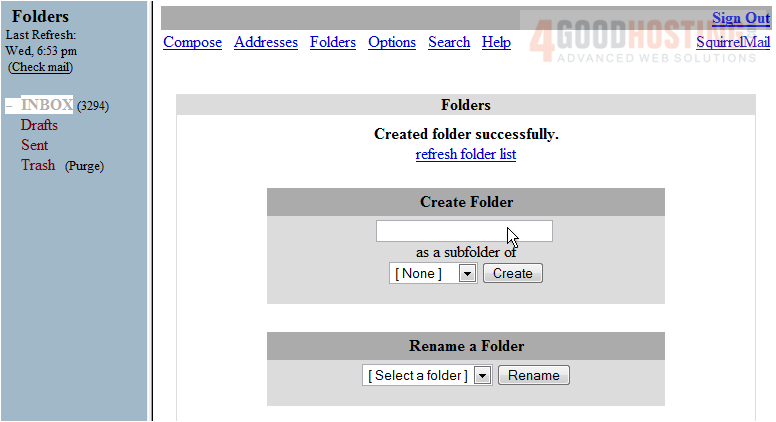
That's it! You can see the new folder listed here
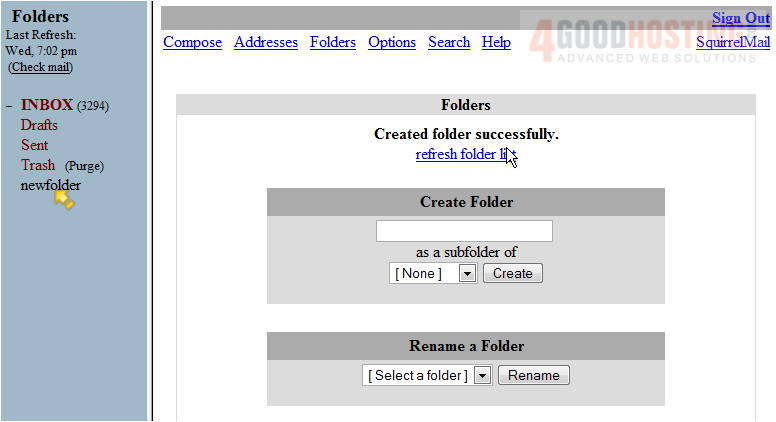
5) Click INBOX
6) Now let's demonstrate how to move a message to the new folder... select it here
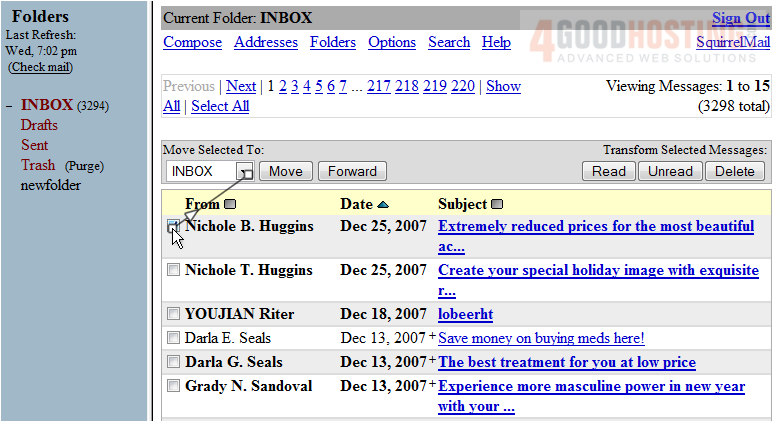
7) Select the folder we want to message moved to
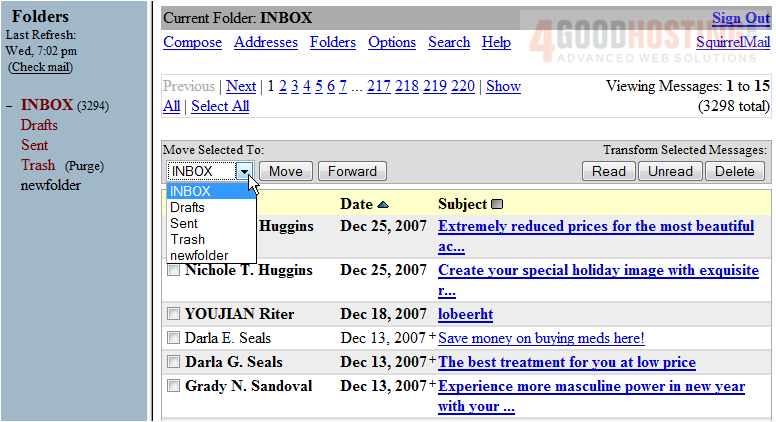
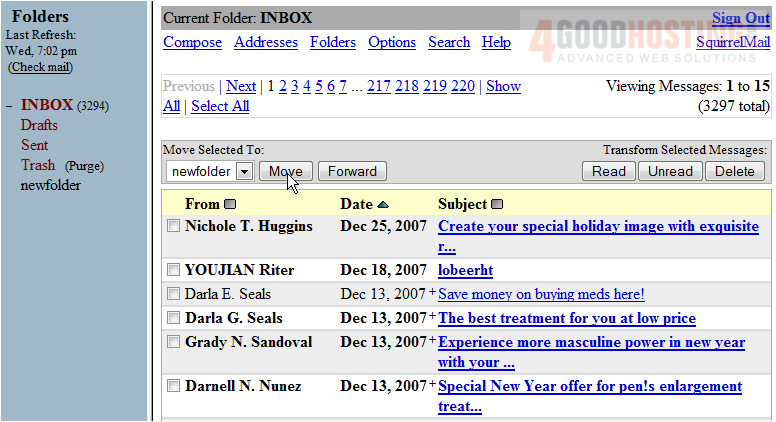
8) Then click Move
The message has been moved to the new folder and can no longer be seen here in the INBOX
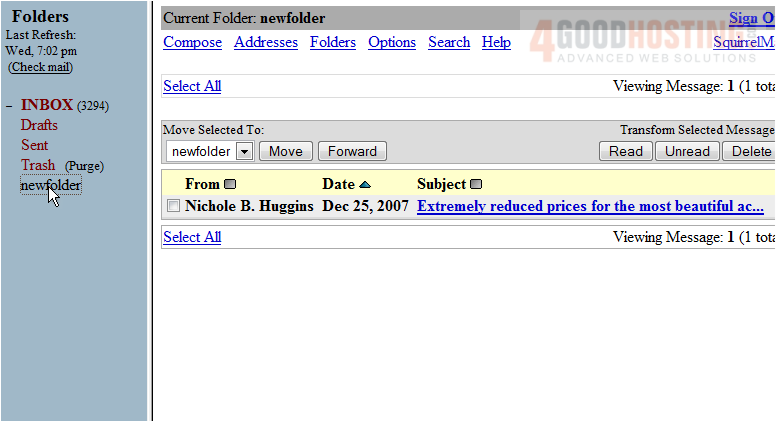
9) Click the newfolder link
The message we moved can be seen here in our new folder. You can move this message again if you wish
This is the end of the tutorial. You now know how to create folders in SquirrelMail for the purpose of managing your messages

 WGS AI Assistant