
This tutorial assumes you've already logged in to SquirrelMail webmail
Now let's learn how to modify the index order
1) Click the Options link
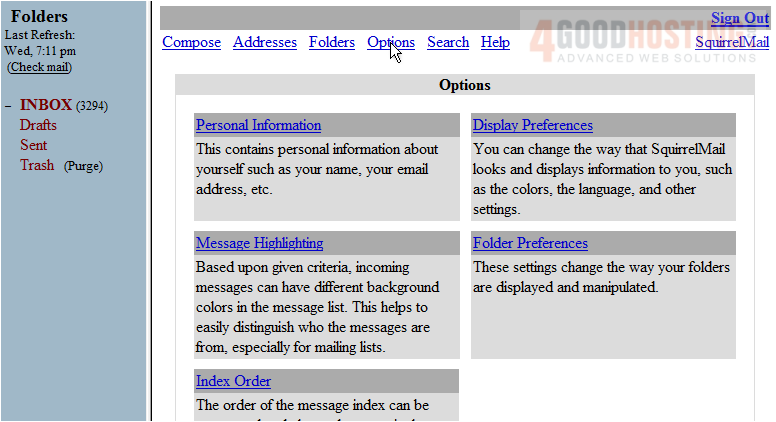
2) Click the Index Order link
This is the Index Order page. These are the settings for which the columns on the message index are displayed
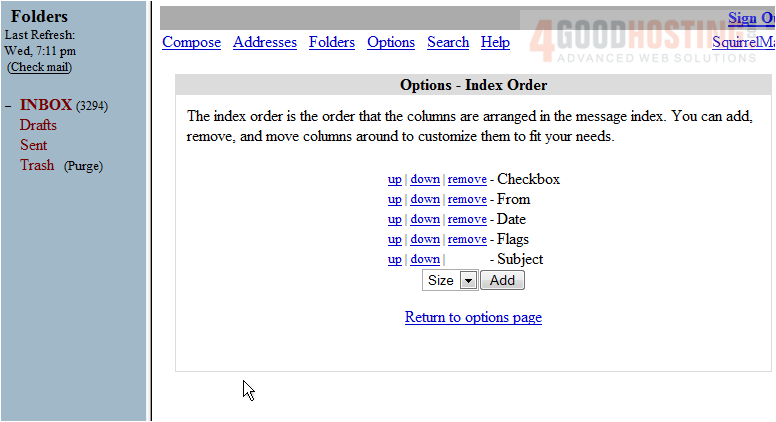
Let's modify the columns for demonstration purposes. Items listed at the top of the list will be displayed the furthest to the left, while items at the bottom will be displayed on the far right
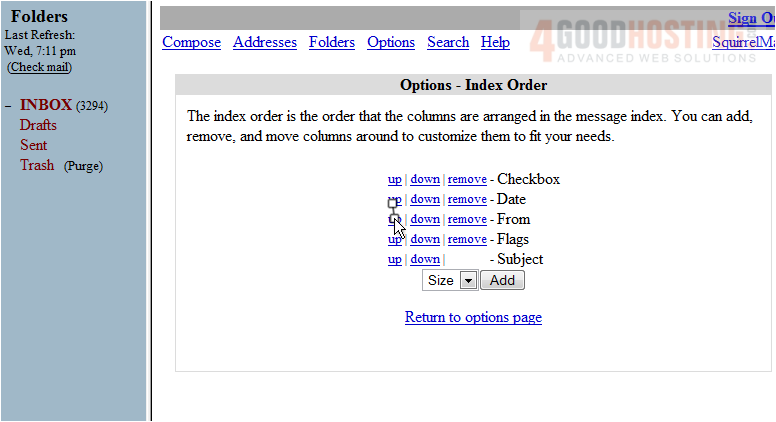
3) Click Add when finished
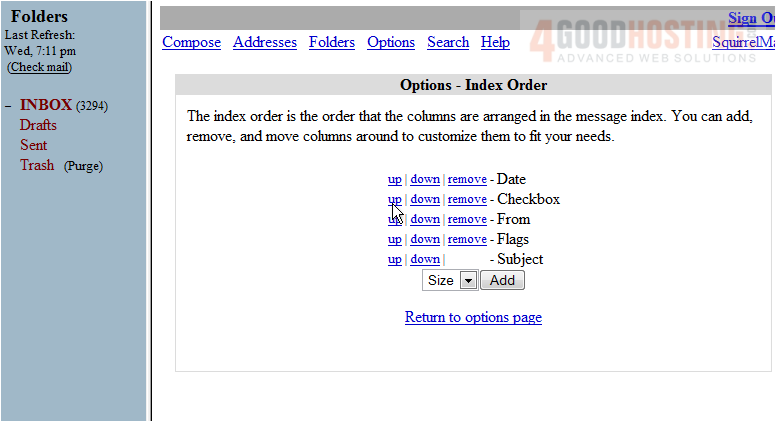
4) Let's return to the Inbox
That's it! You can see here that the columns are ordered as per our preferences with the Date column now on the far left
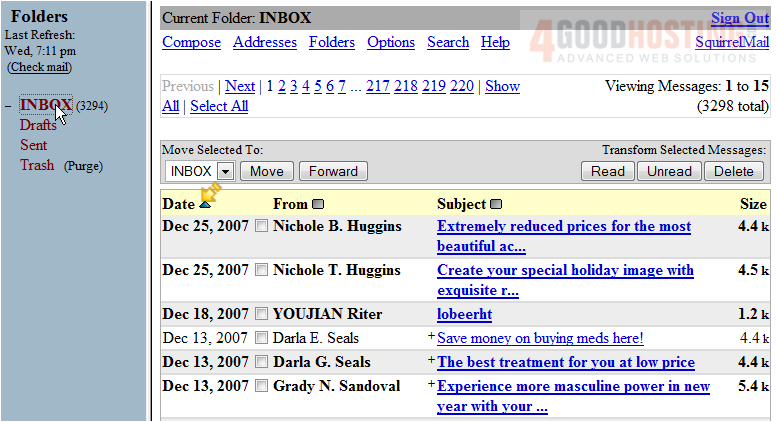
This is the end of the tutorial. You now know how to modify the index order in SquirrelMail

 WGS AI Assistant