
This tutorial assumes you've already logged in to your Virtuozzo Power Panel (VZPP).
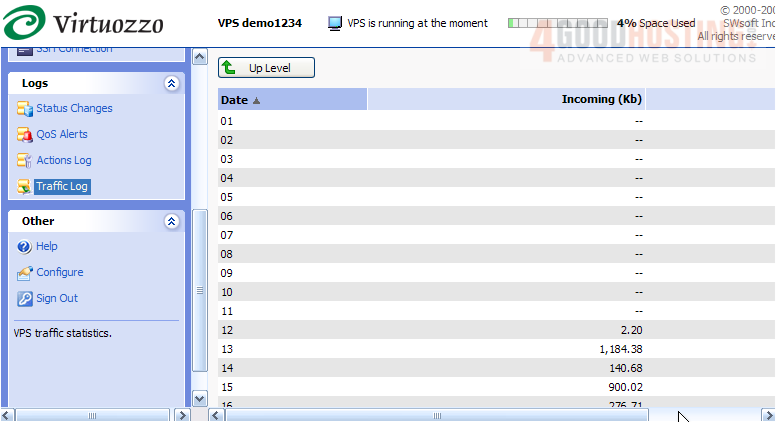
Now let's learn how to view our Traffic Statistics (or logs) in Power Panel.
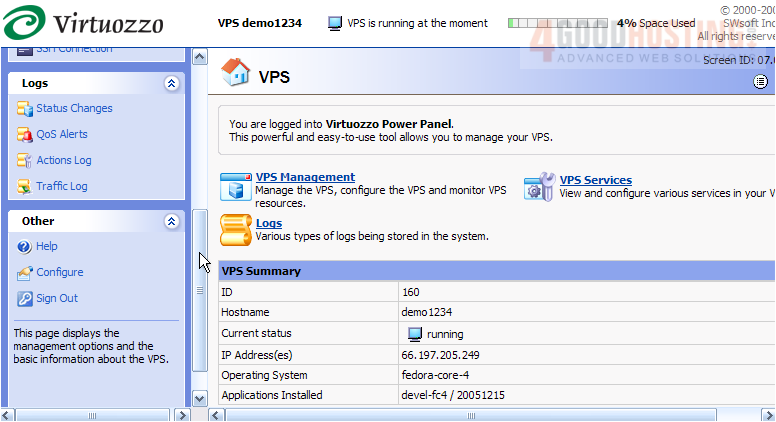
1) Click the Traffic Log link in the left sidebar.
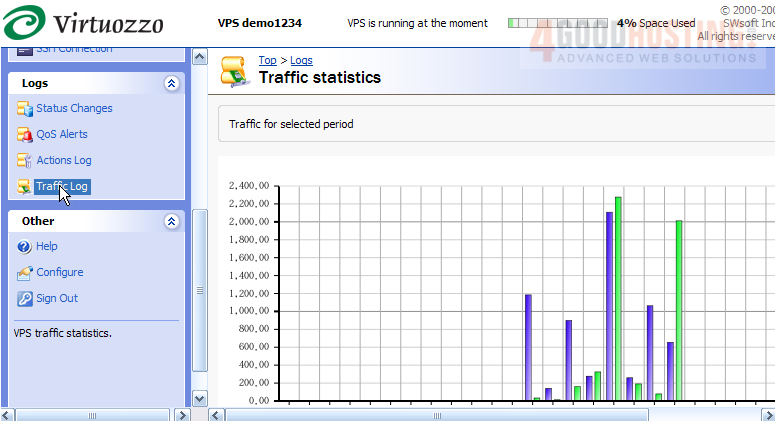
This is the Traffic Statistics page, which enables you to view information on all incoming and outgoing traffic for your Virtual Private Server over a specified time period in the past.
From here you can specify which period you want the traffic details for.
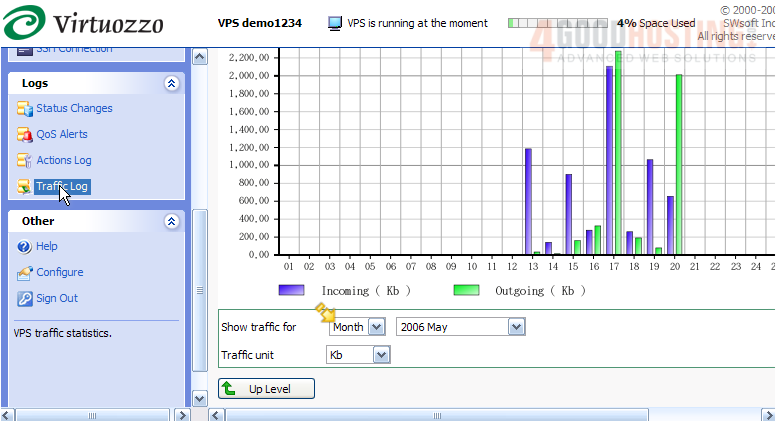
2) Simply select the period you want to view, then click refresh.
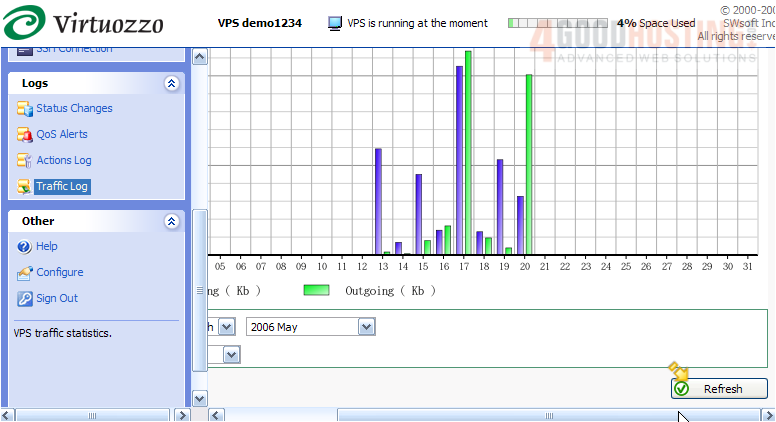
At the bottom of the page, you can see a breakdown of all incoming and outgoing traffic in the specified period.
This is the end of the tutorial. You now know how to view Traffic Statistics from within your Power Panel.

 WGS AI Assistant