
This demo assumes you've already logged in to WebHost Manager (WHM)
Now let's learn how to park a domain in WHM
Customers can park domains themselves, from their cPanel control panels so you'll rarely have to use this feature in WHM
1) Click the DNS Functions link
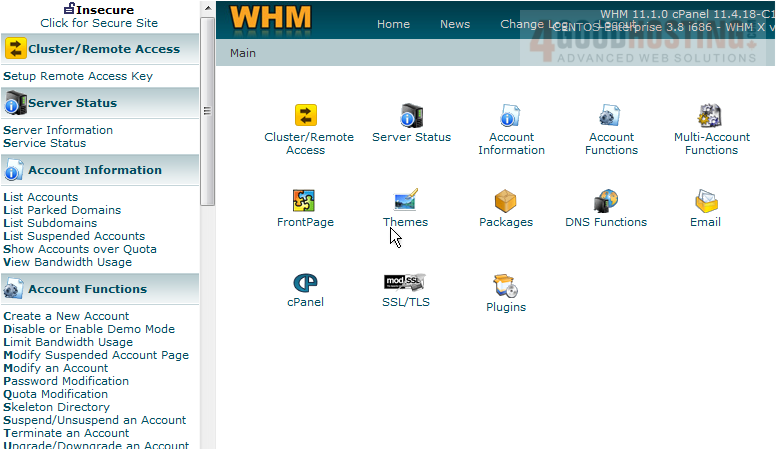
2) Then click Park a Domain
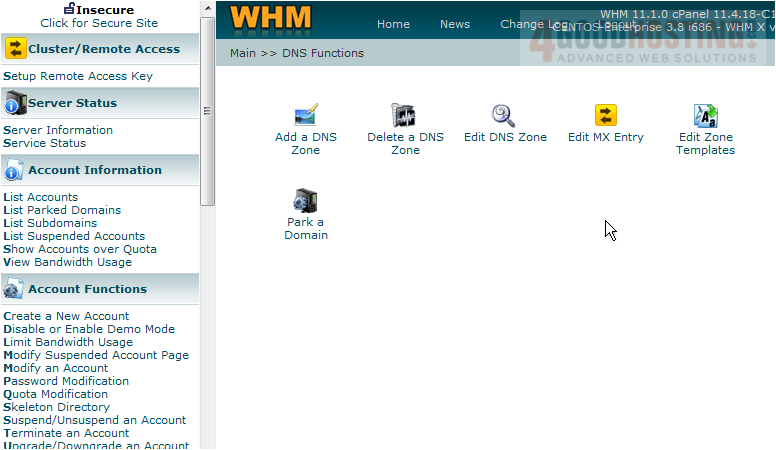
Parking a domain will automatically set up a DNS zone in the server
In this tutorial, we want to park (or point) a new domain to demo123.com
3) Select the existing domain here

4) Then enter the new domain to park here. To create the new DNS zone, click the Submit button

That's it! We've just created a new DNS zone so that our new domain will point to our existing domain. Make sure that you now update the nameservers of the parked domain to the same values as demo123.com. Both domain names must have the same nameserver settings, and after 24-48 hours of propagation, the new domain will be successfully pointing to the original domain

This is the end of the tutorial. You now know how to park a domain in WHM. Remember that your customers can do this themselves with their own domains, from their CPanel

 WGS AI Assistant