
If your site is hosted on a dedicated IP address (not shared by other users or sites), you can set up a directory within the site where other users will be able to anonymously download or upload files through FTP.
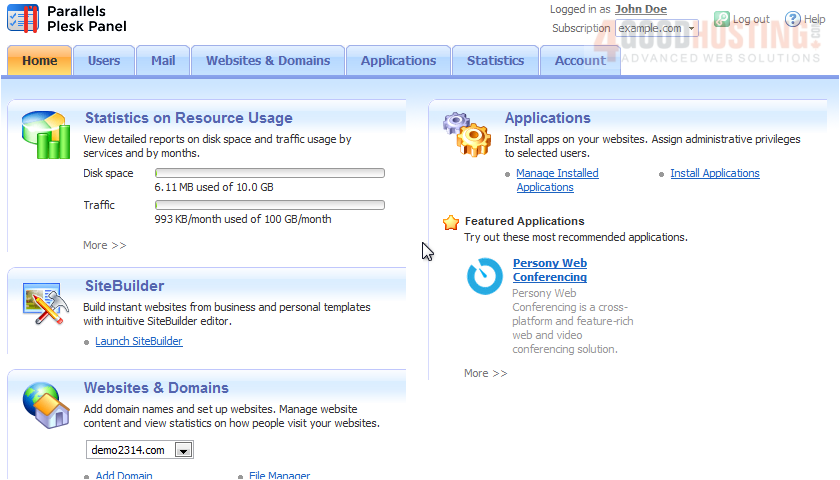
1) To set up this feature, go to Websites & Domains.
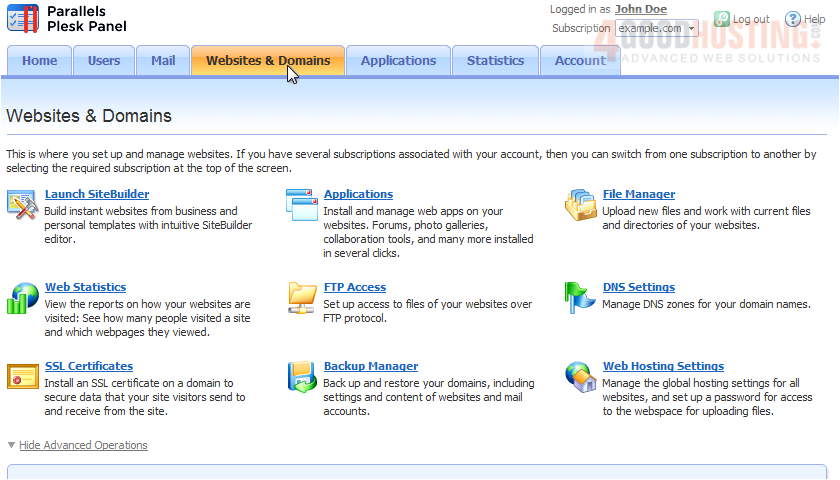
2) Click FTP Access.
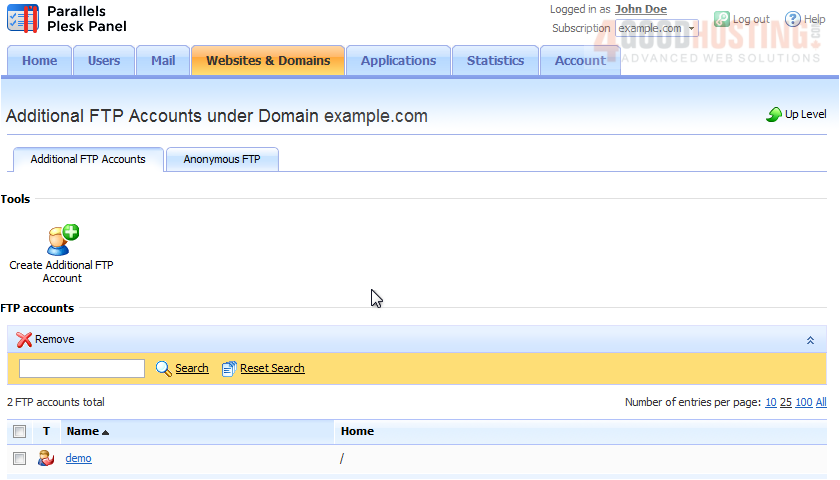
3) Select the Anonymous FTP tab.
4) Click this icon to switch on the service.

5) Optionally enable and enter a log in message.
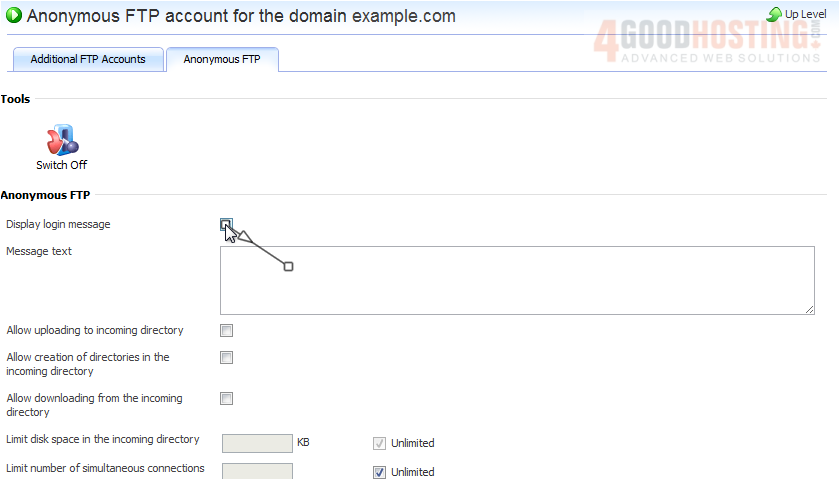
6) To allow visitors to upload to the incoming directory, select this checkbox.

7) To allow the creation of subdirectories, choose this box.
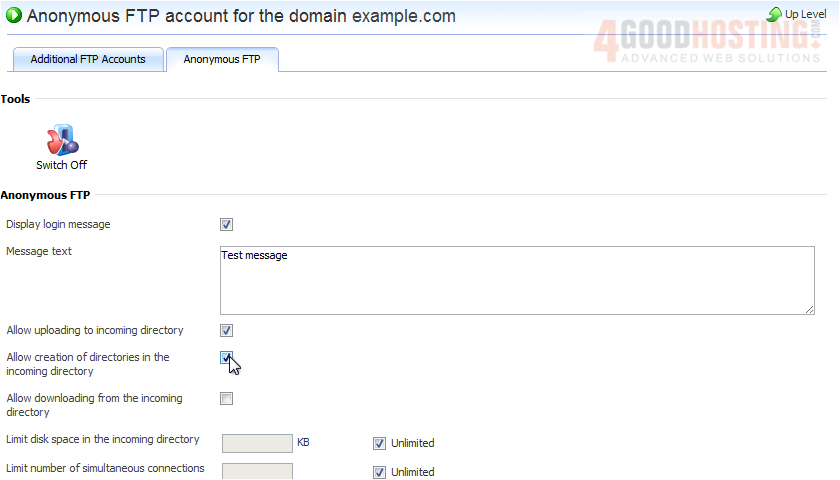
8) Check this box to allow downloading from the incoming directory.

9) Type values in these boxes to limit the disk space, simultaneous connections or download bandwidth, or leave Unlimited selected. Click OK.
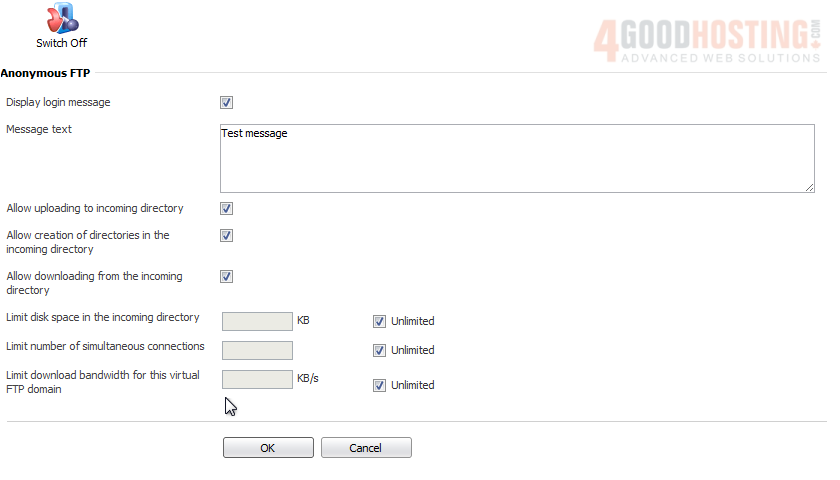
That's it! Anonymous FTP has been set up and is ready for users to begin uploading and downloading.

 WGS AI Assistant