
|
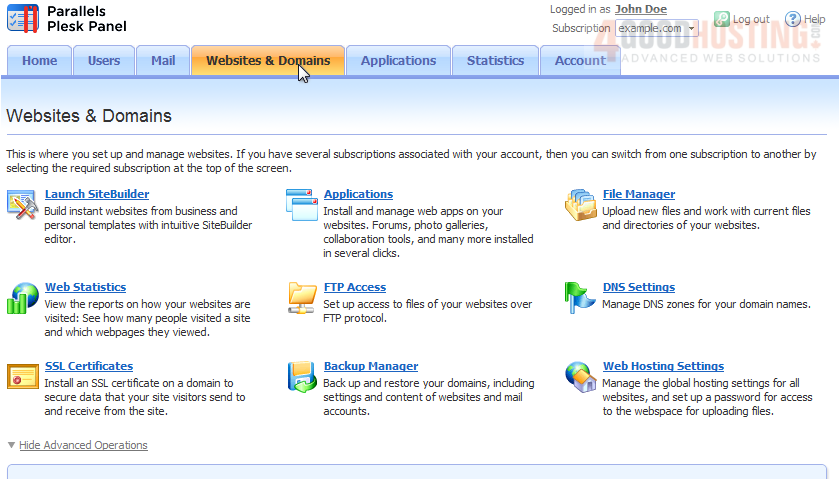
Password protecting a directory is useful if you want only a select few people to be able to access it using the login info you specify. 1) First, go to Websites & Domains.
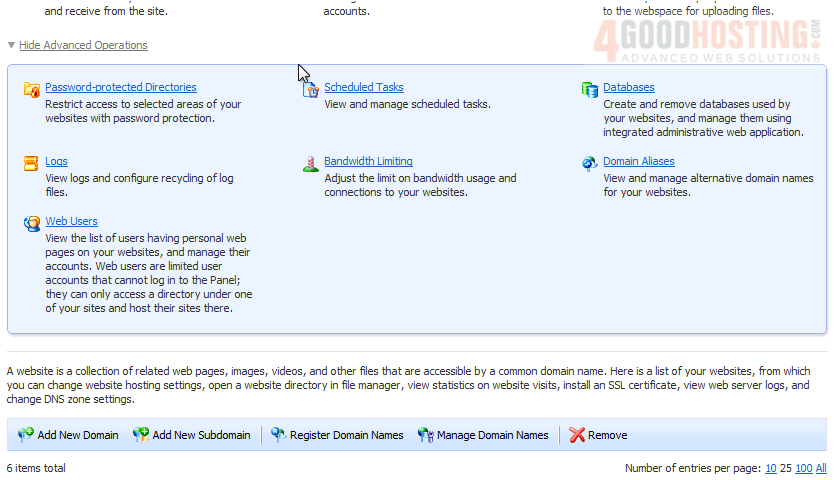
You may need to Show Advanced Operations.
2) Click Password-protected Directories.
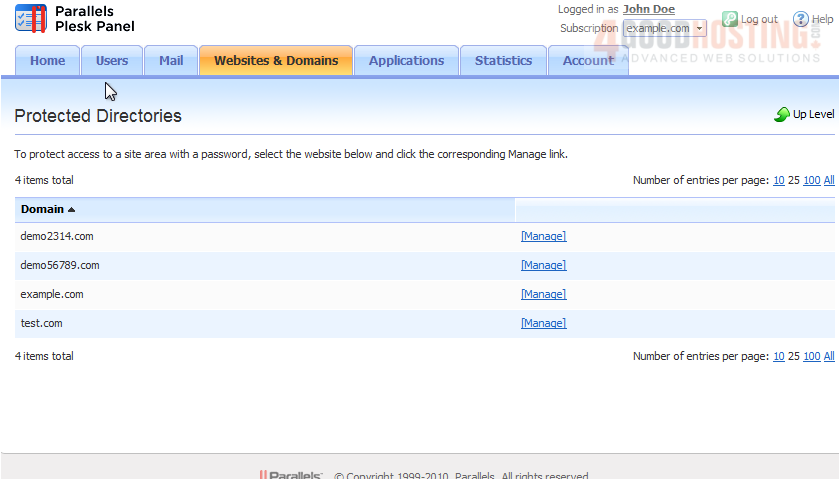
3) Click the corresponding Manage link next to the domain.
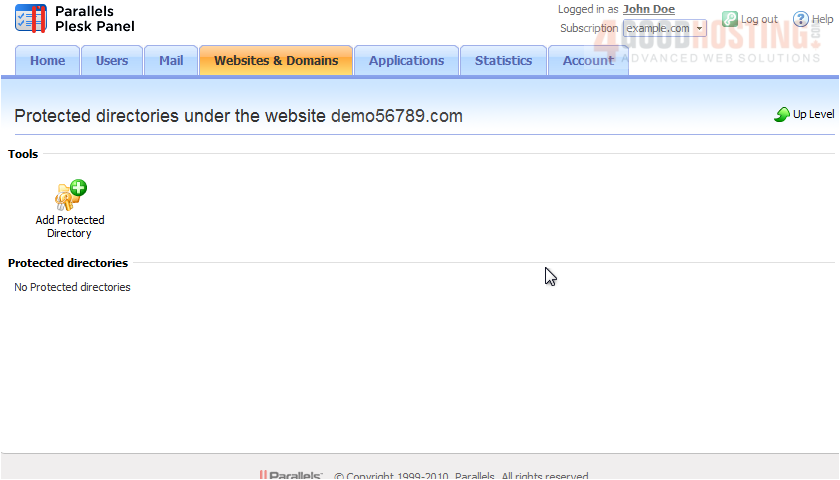
4) Choose this icon.
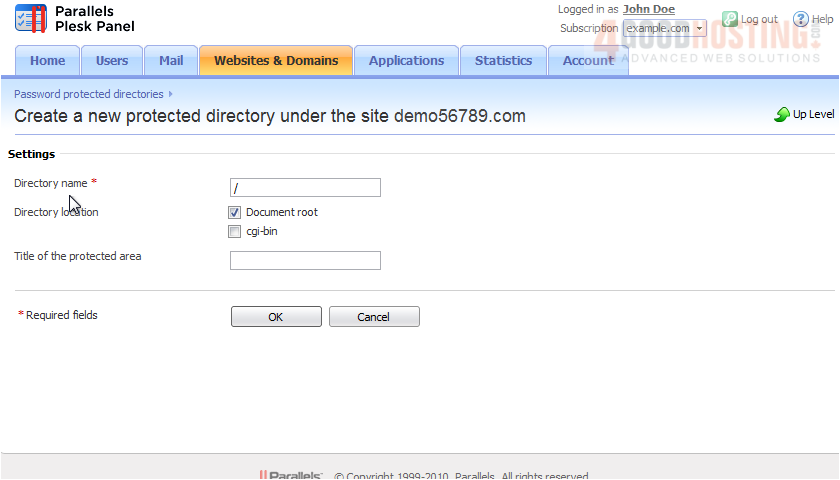
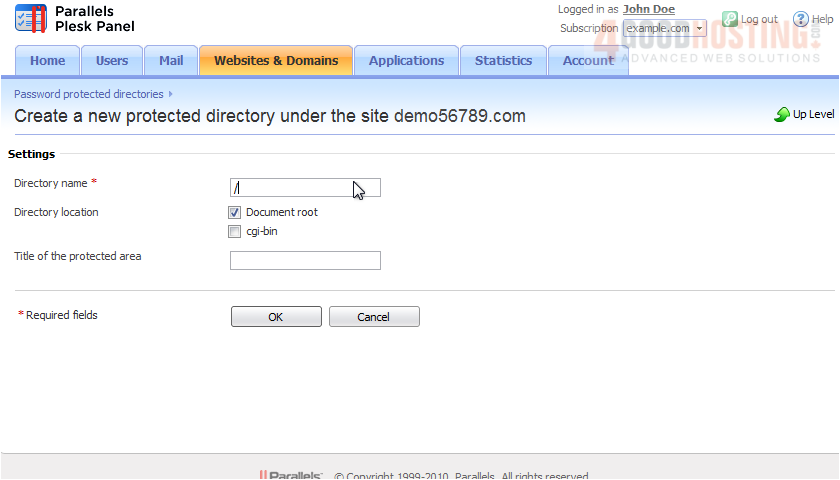
5) Enter the directory name here.
6) Click OK.
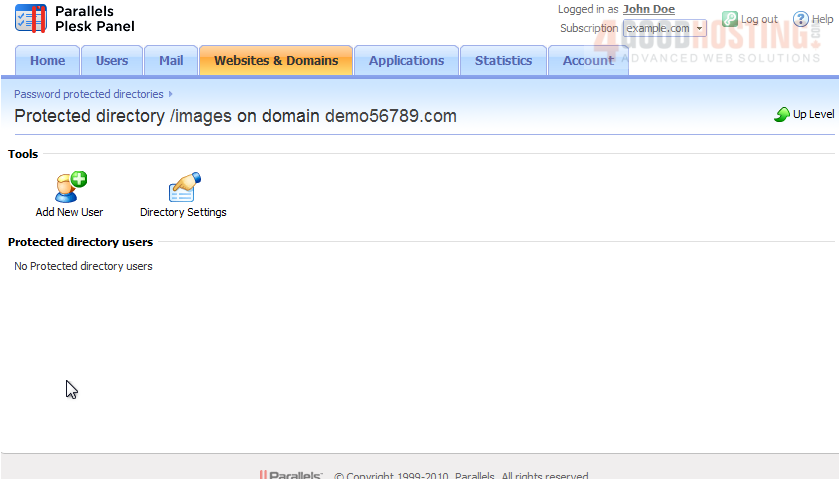
Now that the directory has been created, we need to create users each with their own username and password. 7) Select the directory.
8) Click Add New User.
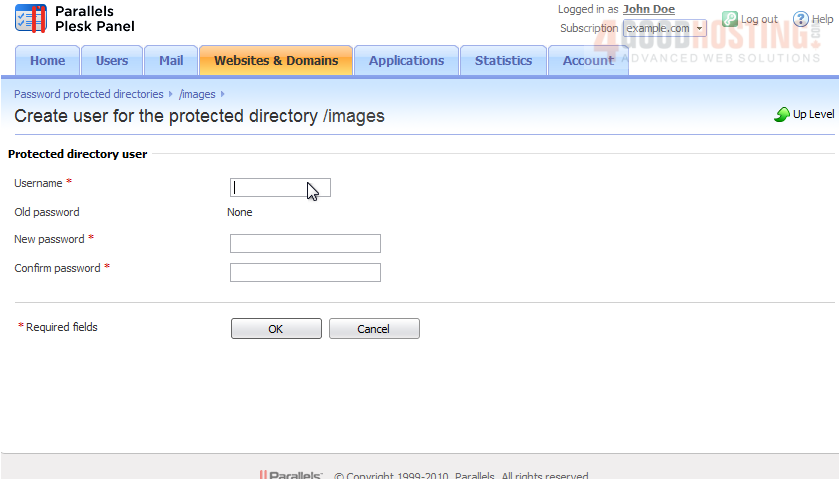
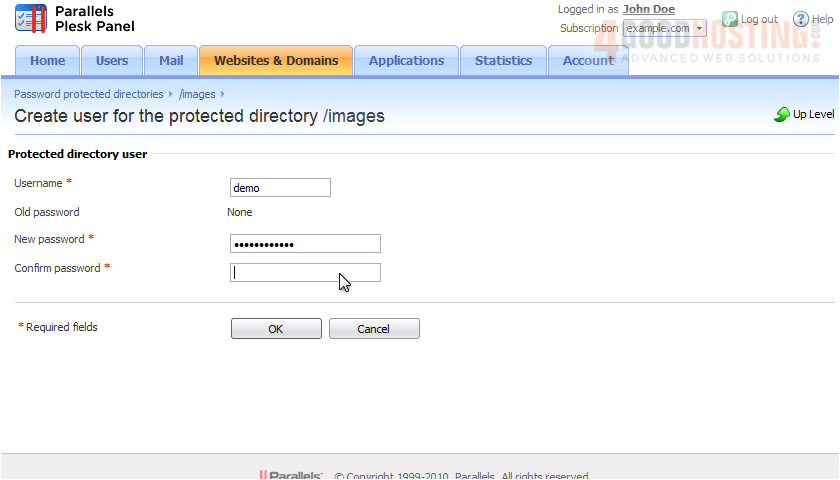
9) Choose a username and password and enter them in these boxes.
10) Click OK.
The user account for access to the protected directory was created successfully. Feel free to create a user for each person you want to be able to access the directory.
|
|
Comments (0)


 WGS AI Assistant