
If your website incorporates custom data processing applications or is designed to generate web pages dynamically, you will likely need a database for storing and retrieving data.
1) First, click the Websites & Domains tab.
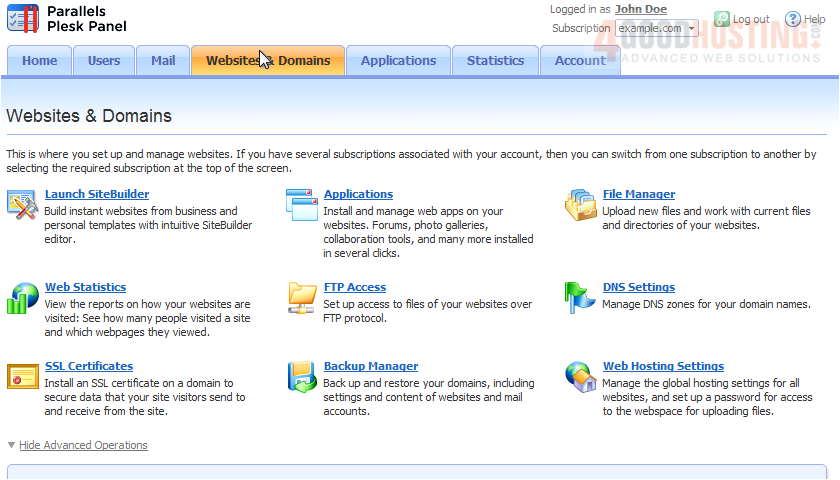
2) Then click Databases.
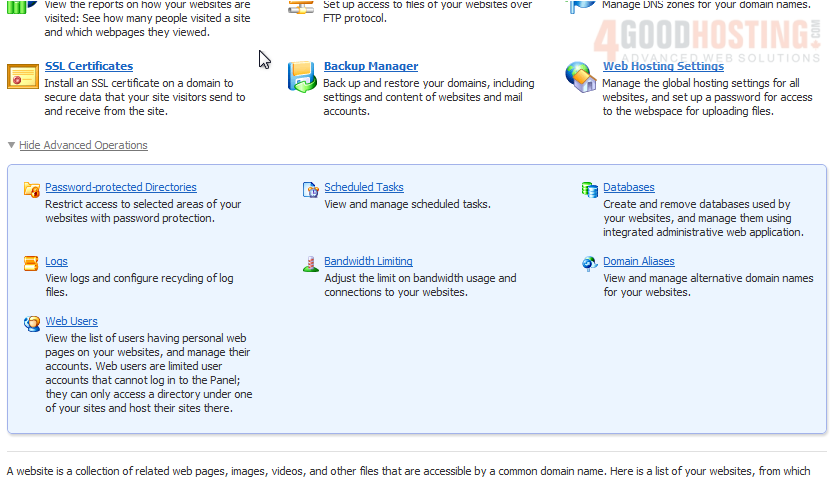
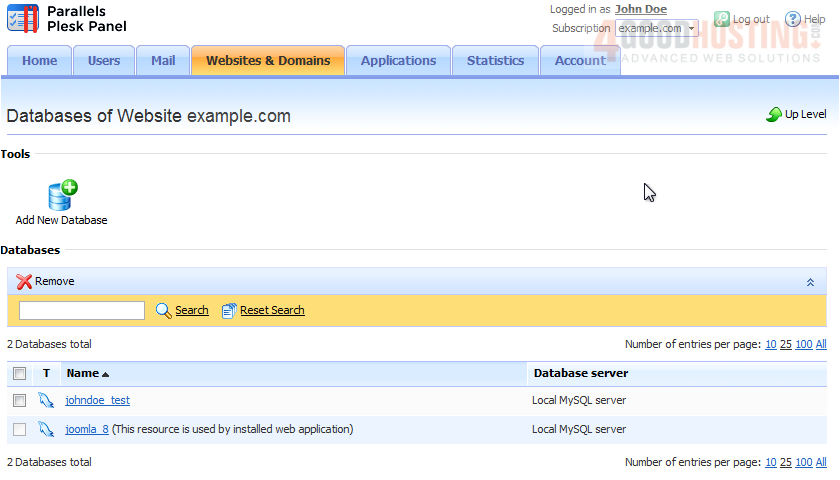
3) Click Add New Database.
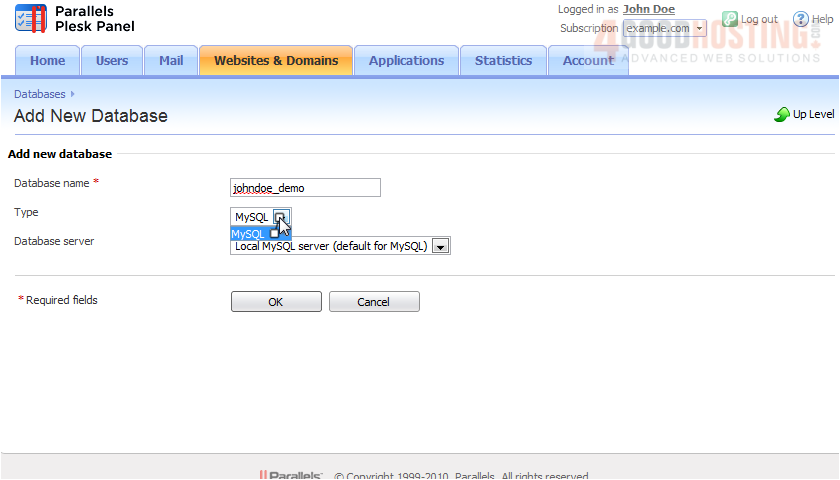
4) Enter the database name.
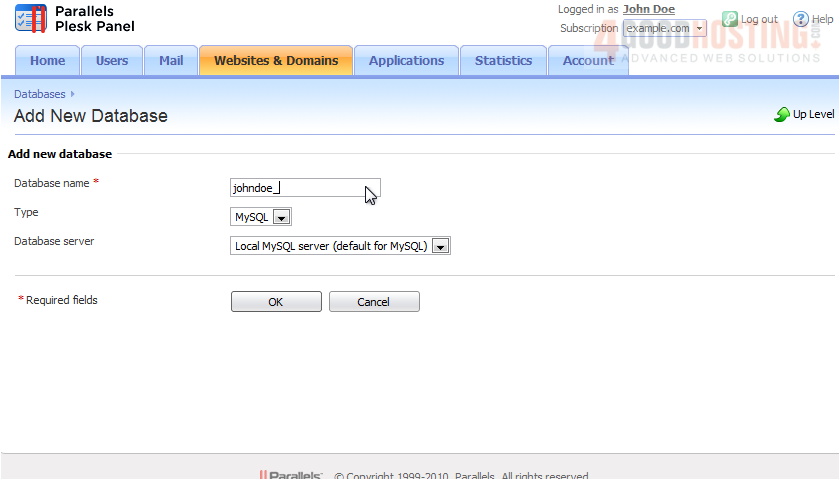
5) Choose the type of database and the database server.
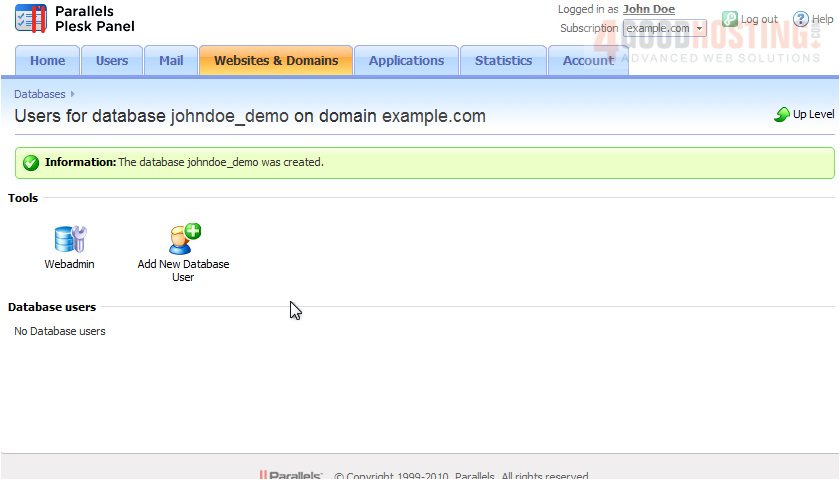
6) After the database is created, we need to add at least one user that has permission to access it, so click Add New Database User.
7) Type the username and password.
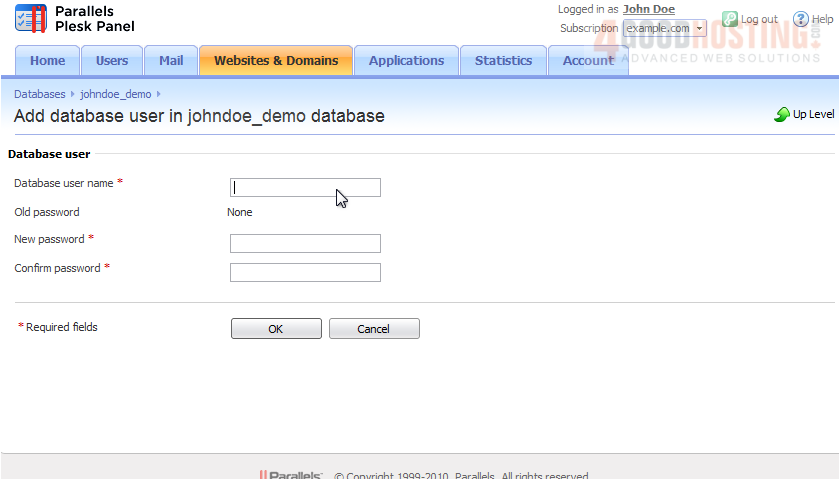
8) Click OK.

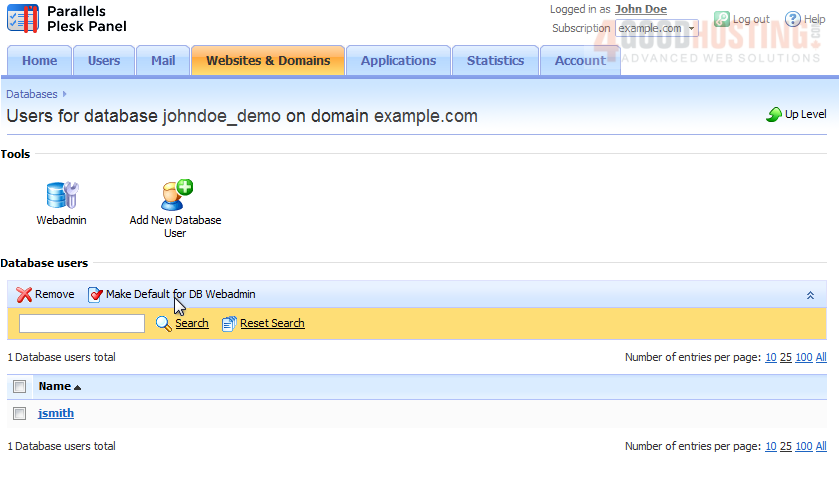
Once you have created at least one user, you can choose one to use as the default for the database Webadmin.
9) First, select the user.
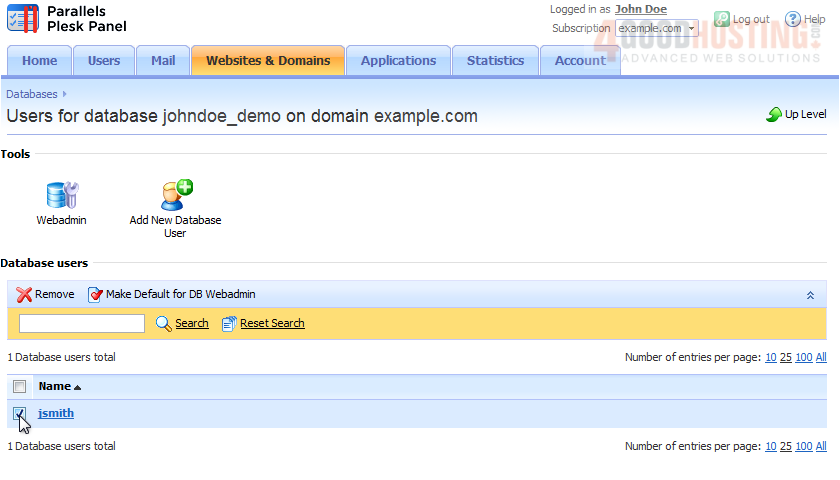
10) Click Make Default for DB WebAdmin.
That's it! Now you know how to create a database and add users to it.

 WGS AI Assistant