
You may need to change your account password or contact information at one time or another, so let's see how to do that.
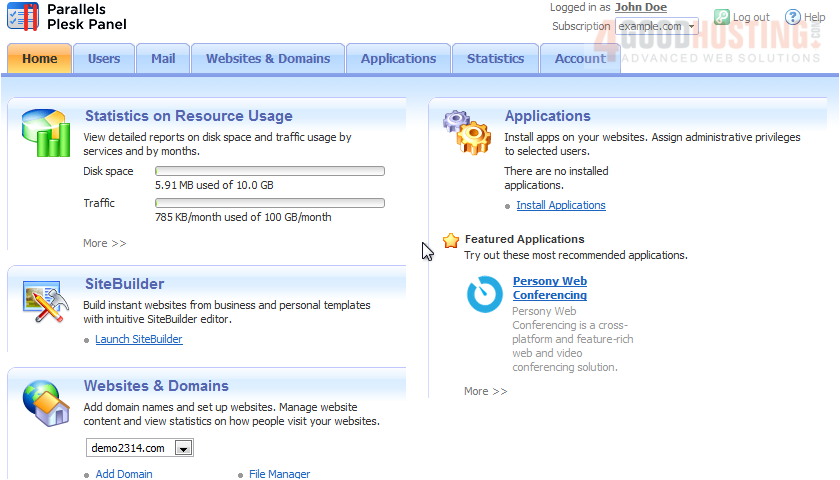
There are two ways to get to your profile information.
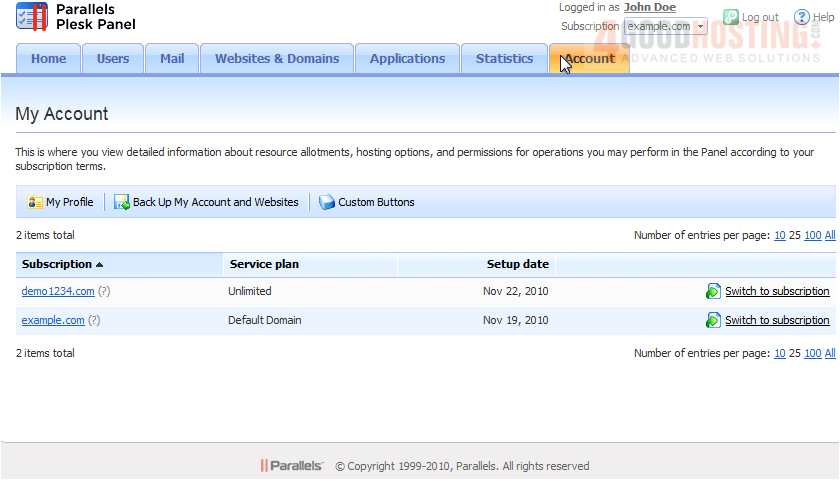
1) The first is to go to the Account tab. Then click My Profile.
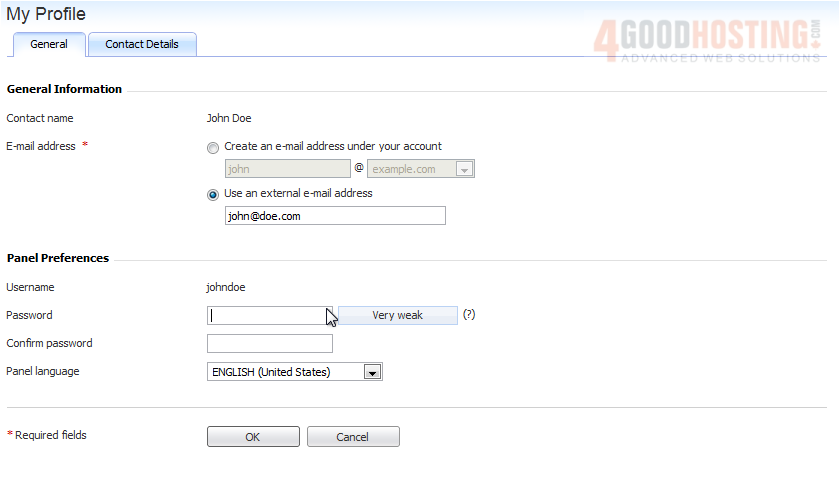
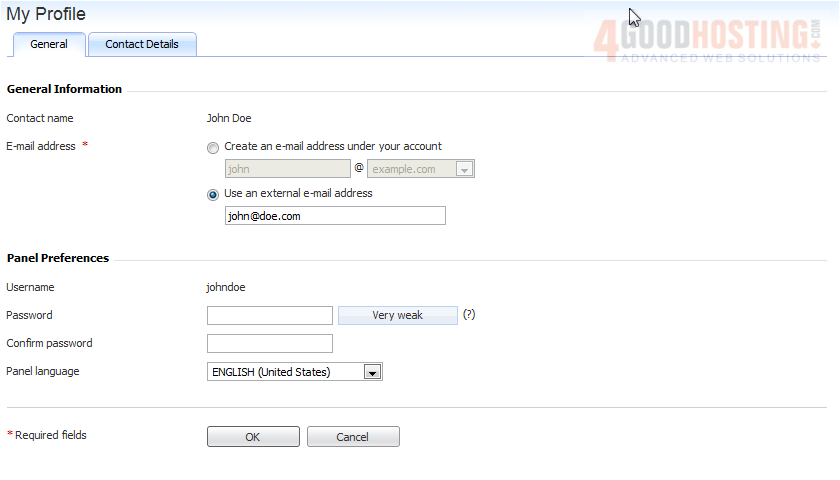
This is the General tab, where you can change your e-mail address, password or preferred language.
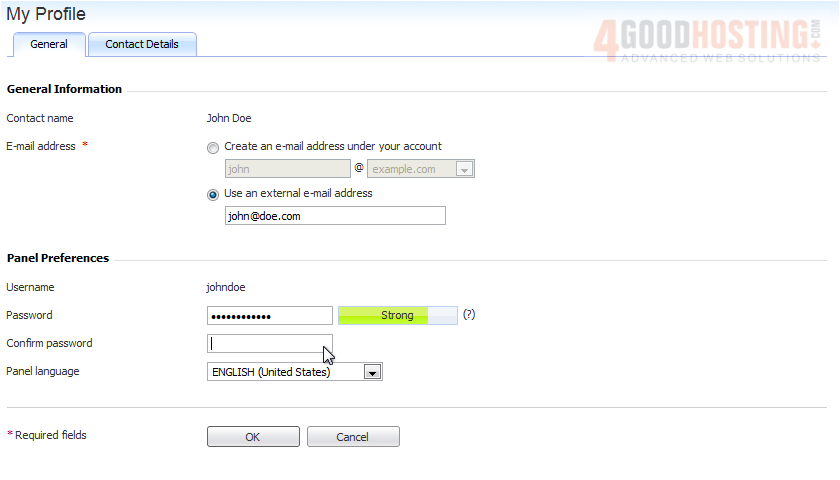
2) To set a new password, type it in these two boxes. You should note that this will only change the password you use to log in to the Panel, not the passwords for any of your hosting subscriptions. Click OK to apply.
3) The second way to get to your profile is to simply click your username at the top right.
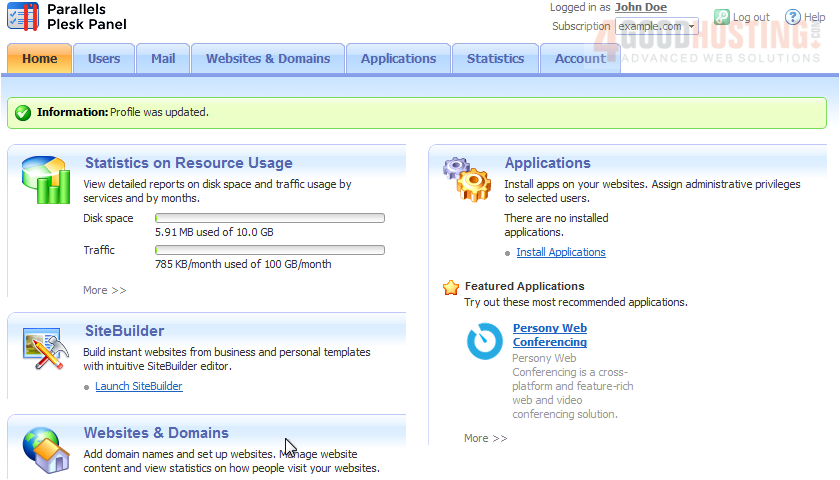
This is the same screen we visited just a moment ago.
4) Go to Contact Details.
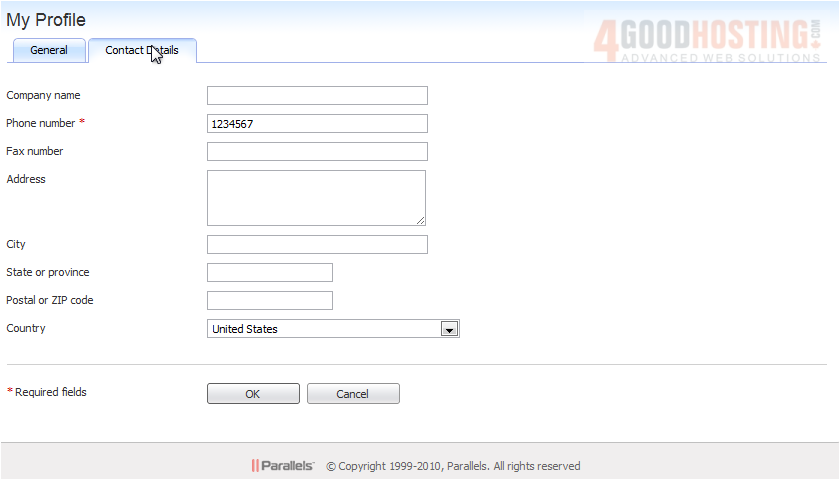
5) Here is where you can enter your company's name and other relevant information. Again, click OK to save your changes.
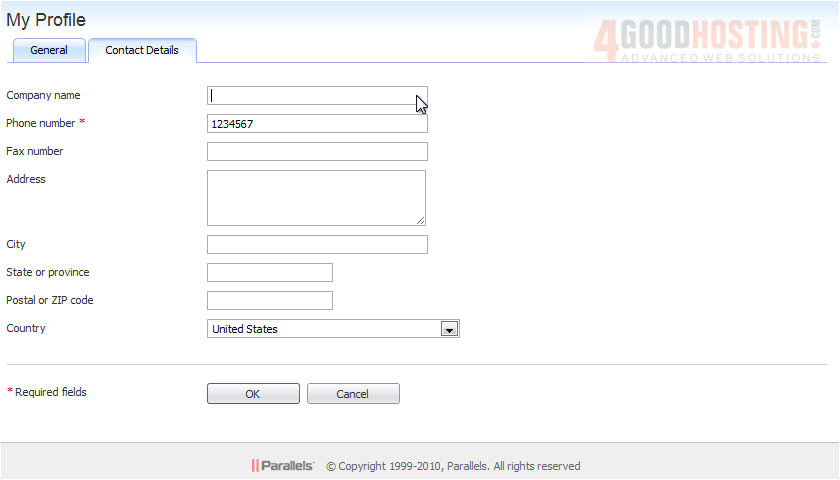
That's it! The profile has been updated with the new changes.

 WGS AI Assistant