
This demo assumes you've already logged in to cPanel
Now let's learn how to park a domain
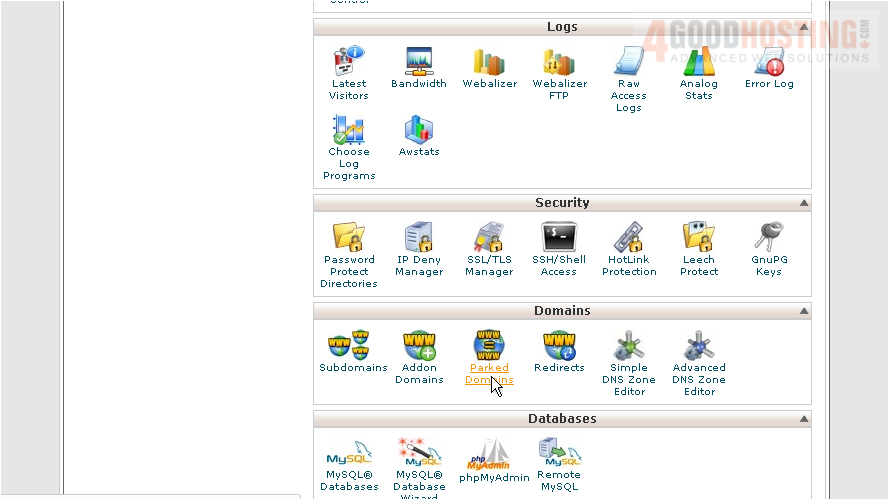
1) Click the Parked Domains icon
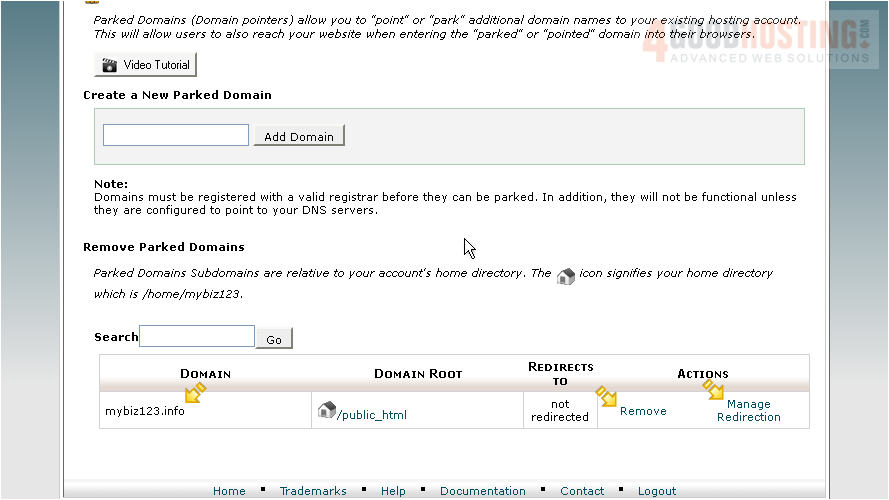
2) Enter the new domain you want to park here, then click Add Domain

Domain parking is useful when you have additional domain names that you want people to be able to use to get to your website
That's it! Now when someone browses to mybiz123.info, they'll automatically be redirected to mybiz123.net

Be sure to set your parked domain name's DNS settings to the same as your main domain or the redirection will not work
From here you can see a list of parked domains, and you can manage or delete these parked domains from here
This is the end of the tutorial. You now know how to park another domain name on your account from cPanel

 WGS AI Assistant