
You may be surprised to notice that Gmail doesn't allow you to create "folders" to store your emails in. Instead, you have the Labels system.
1) A conversation can have any number of labels applied to it -- not just one, as is usually the case with mail clients that use folders.
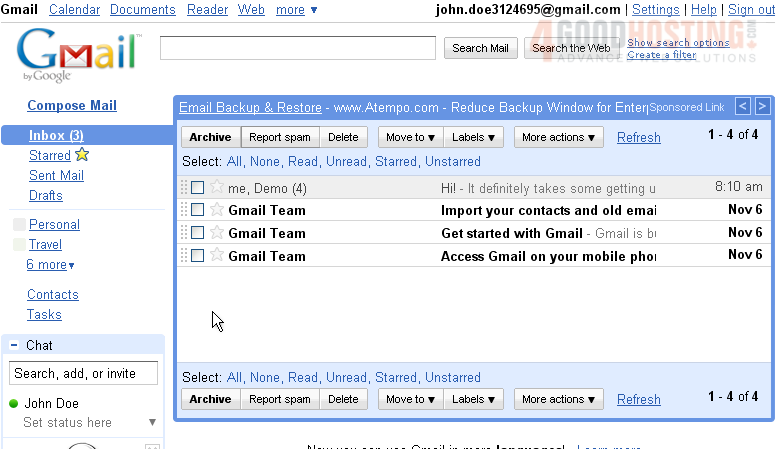
2) By default, Gmail has a number of different Labels that can be applied to your conversations, such as Inbox, Sent Mail, Personal, and Travel. Some of these are System labels, while others are Custom labels.
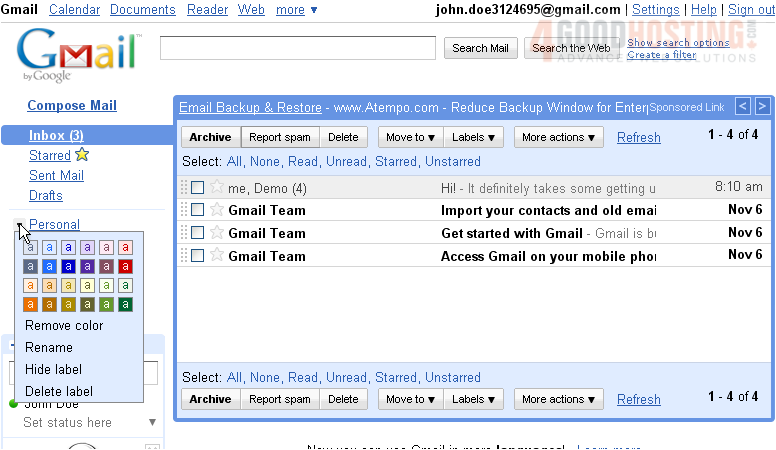
3) Each custom label has a box next to its name, providing you with a quick way to edit its properties. Here, you can add or remove a color to a label, allowing you to identify it at a glance. You can also rename, hide, or delete a custom label.
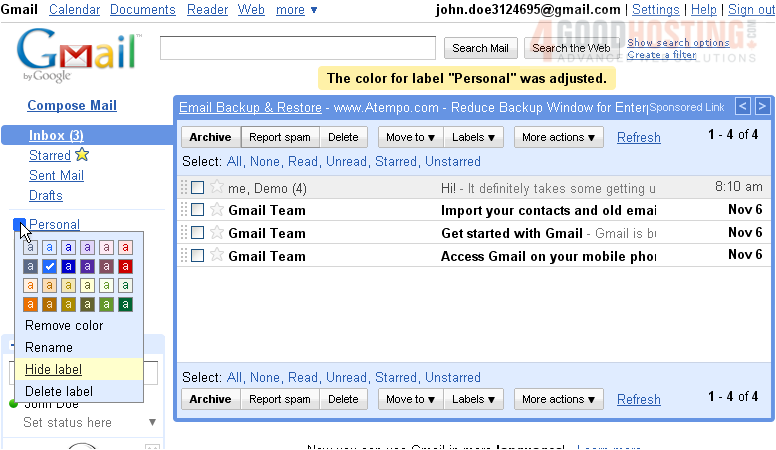
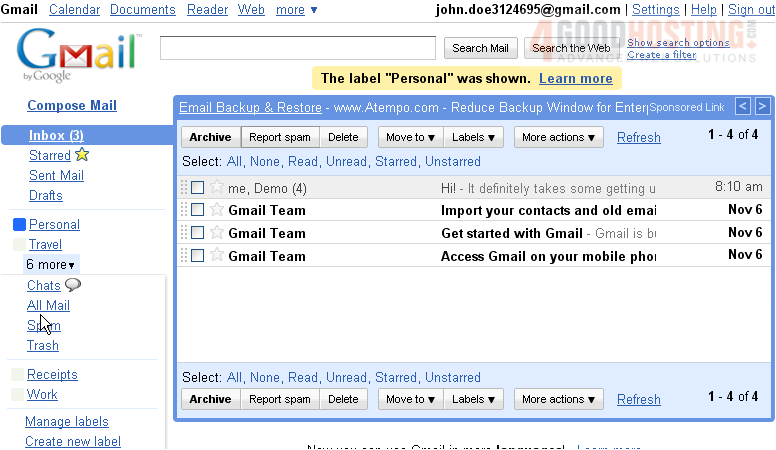
4) To find a label in the menu, click the link entitled 7 more.
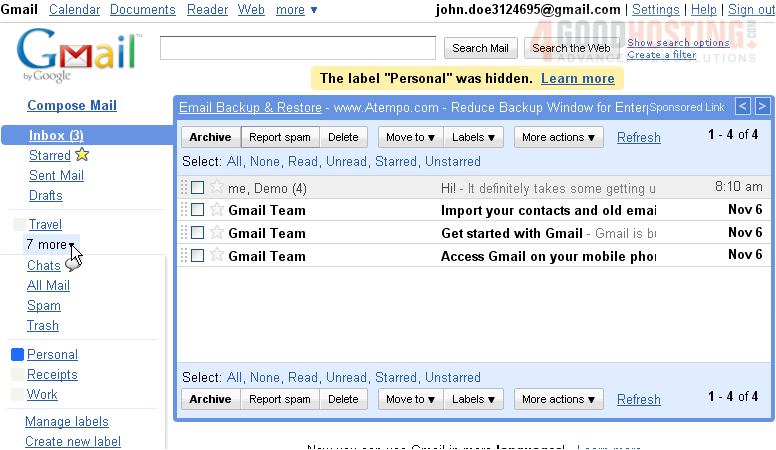
5) Now you can see all the other labels that have been marked as hidden.
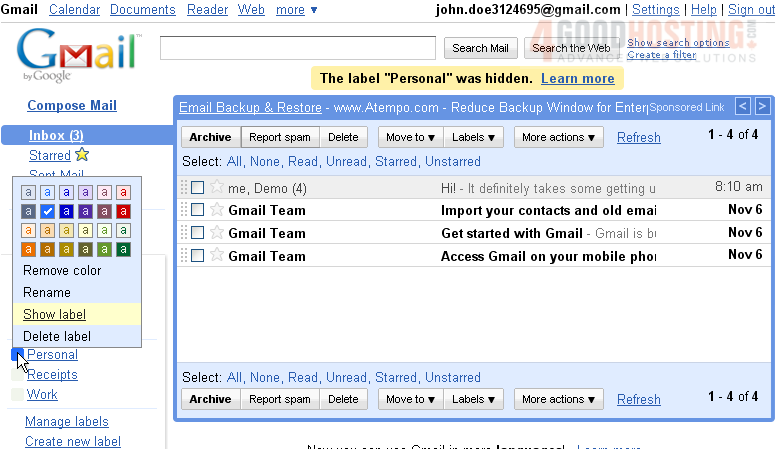
6) You can Manage labels or Create a new label using the links at the bottom of of the menu... or, do so by first clicking the Settings link in the top right corner of the page...
7) ...and then going to the Labels tab.
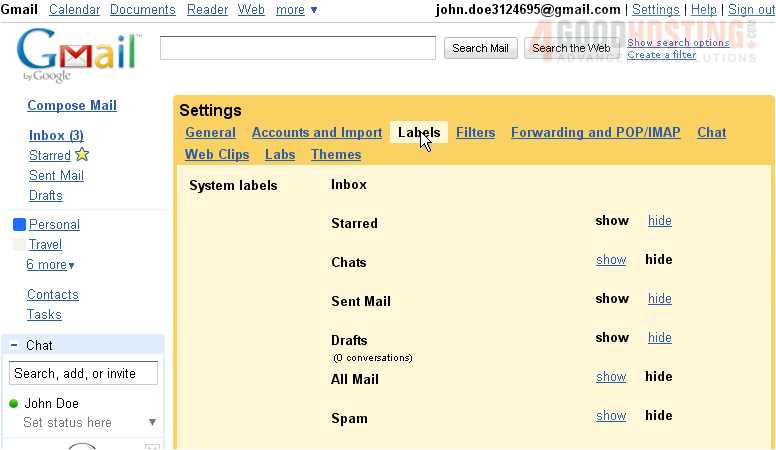
8) System labels are at the top, and you'll notice that they cannot be removed. All system labels except for Inbox can be shown or hidden. To show the Spam label for example, lick its show link. Notice that Spam is now visible in the main menu, and that the 6 more link has changed to 5 more.
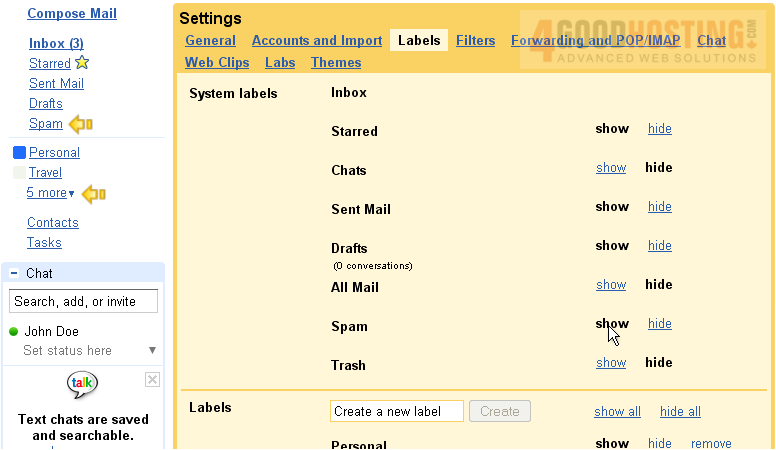
9) At the bottom are the Custom labels. All of these can be shown, hidden, or removed to your liking. Let's remove the Travel label.
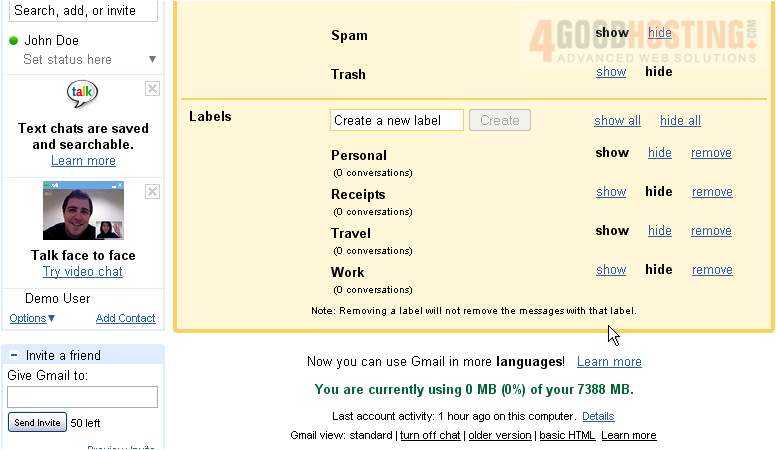
10) Click OK to confirm.
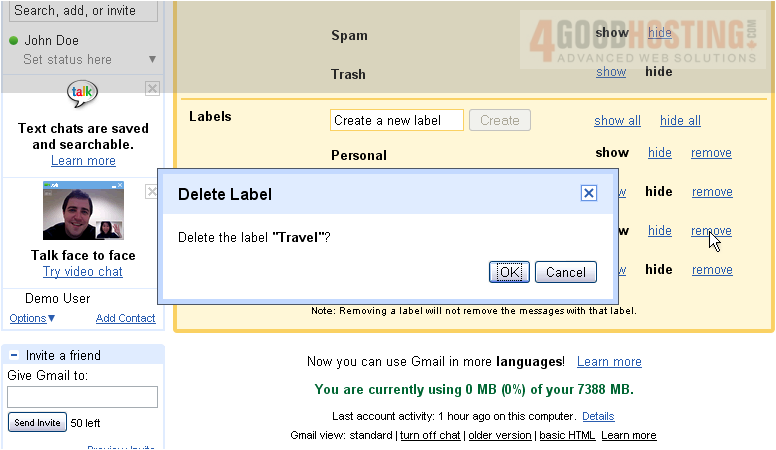
11) Note that removing a label will not delete the messages with that label; a message that has no labels will still show up under All Mail.
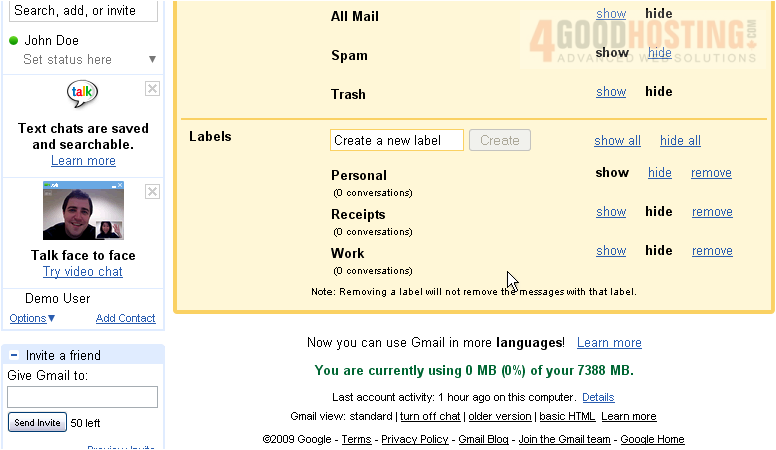
12) To rename a custom label, simply hover over its title and click into the text field that appears. To finish editing the label, click off of it or just press Enter.
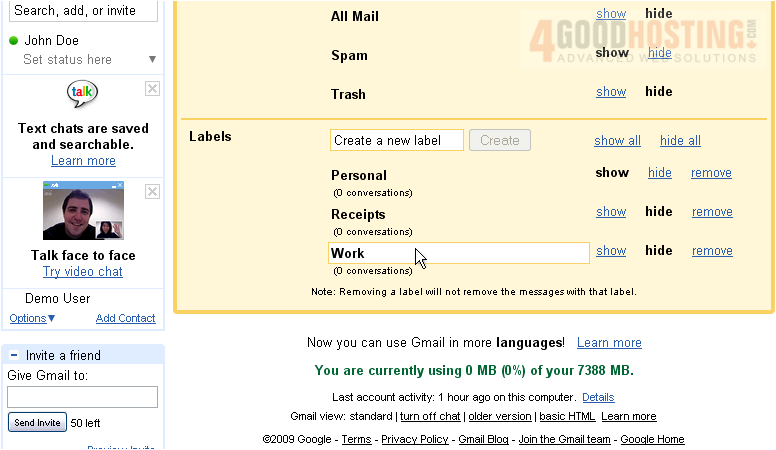
13) The labels will be automatically sorted in alphabetic order.
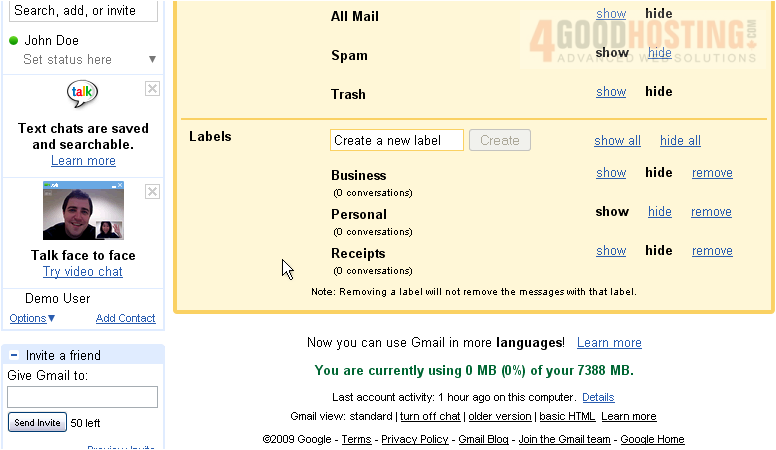
14) Next, let's recreate the Travel label using this form.
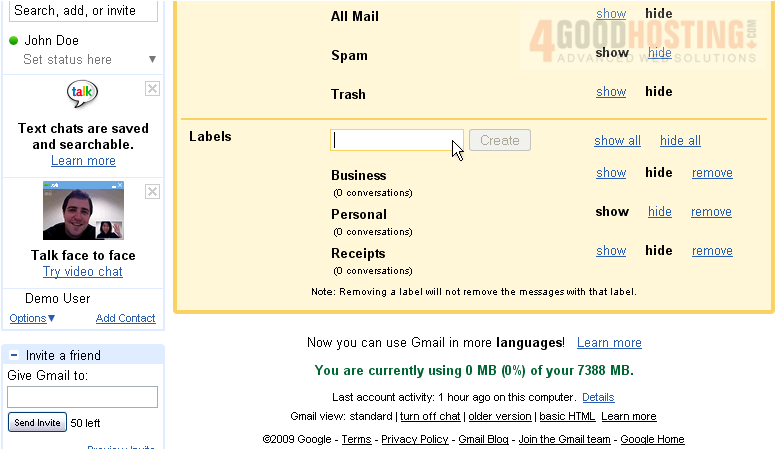
15) Click Create, and the label will reappear.
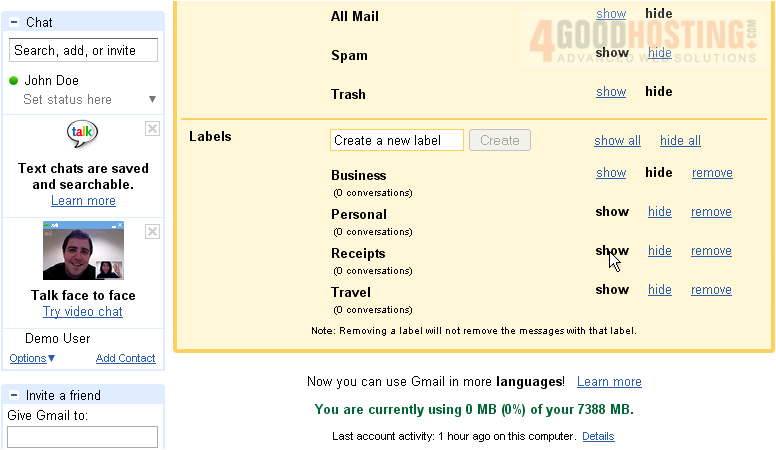
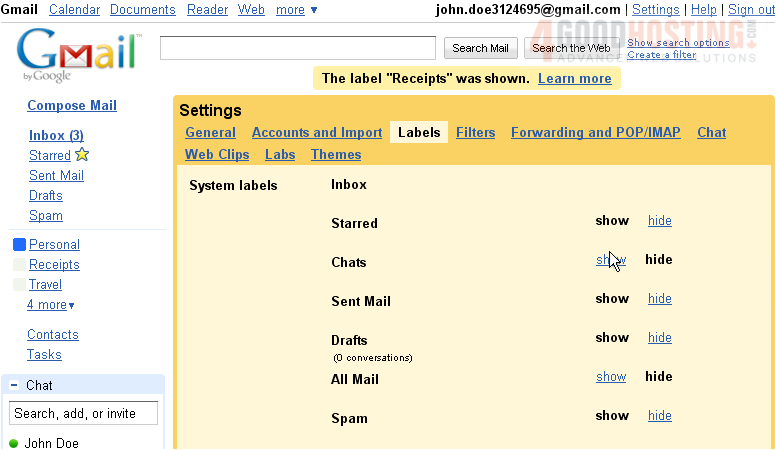
16) As you can see, all of the changes we made on this page took effect immediately.
This tutorial is now complete. You've seen how to manage labels in Gmail, but review the tutorials that follow to find out how to put them to use.

 WGS AI Assistant