
Rules in Apple Mail are filters that you can use to sort incoming mail into folders.
1) Go to Mail... then click Preferences.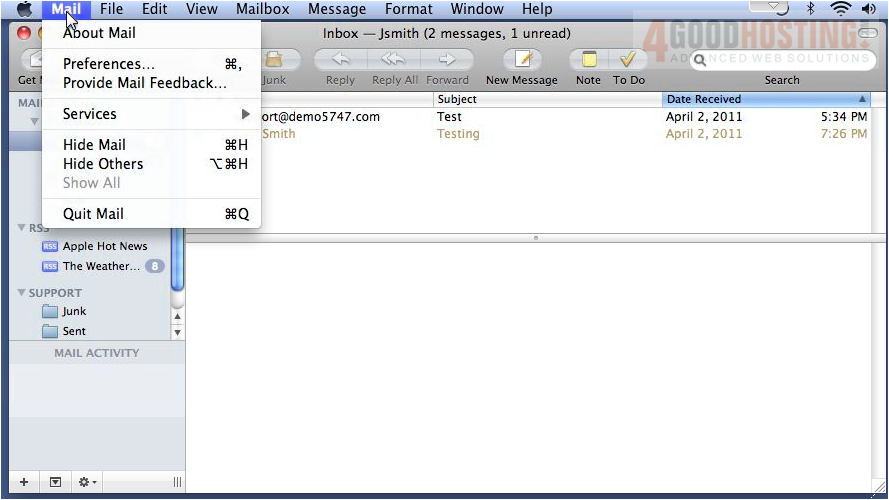
2) Select Rules... then click Add Rule.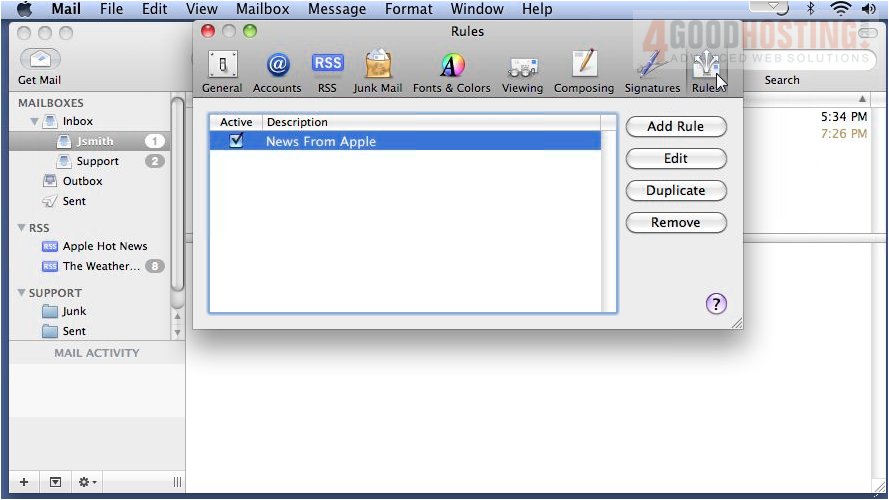
3) Enter a description.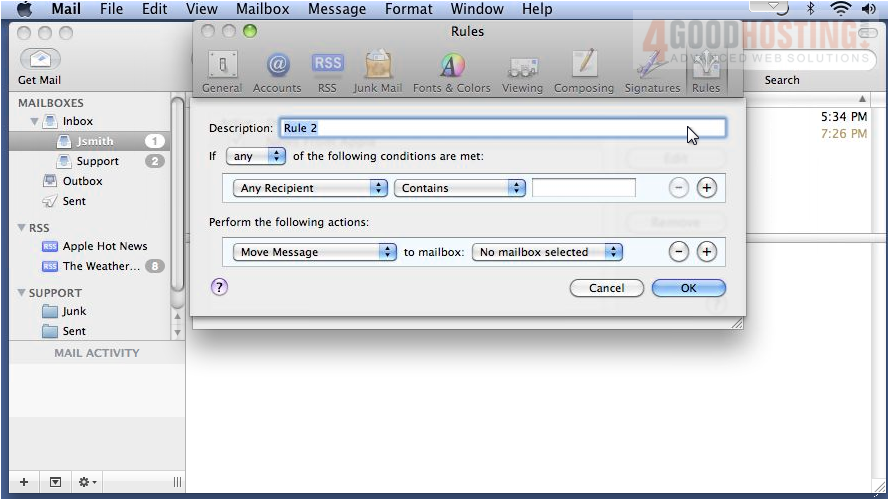
4) Choose to sort if any or all the following conditions are met.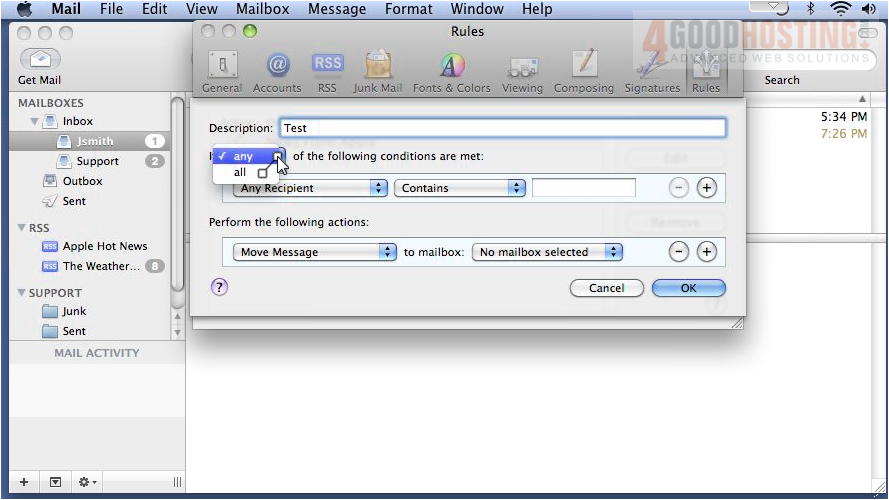
5) Select a condition. This condition will sort any mail that contains the word "Test".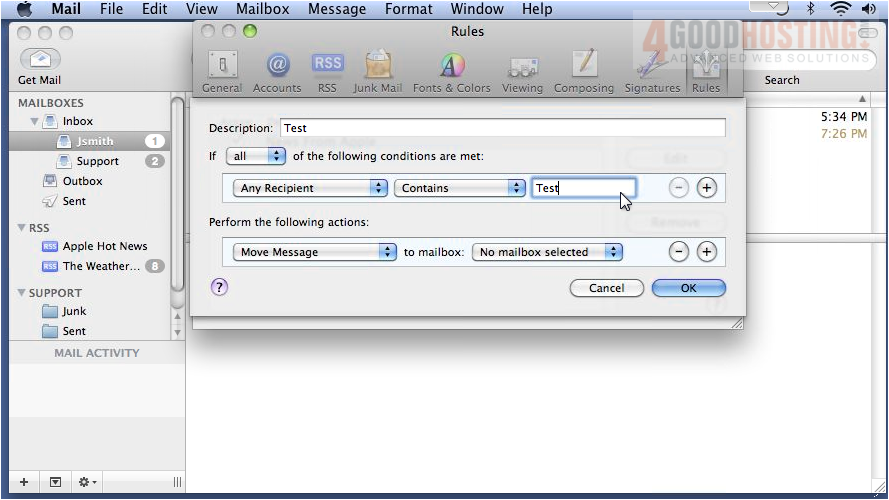
6) Click plus to add another condition... and set the action to be taken when the conditions are met.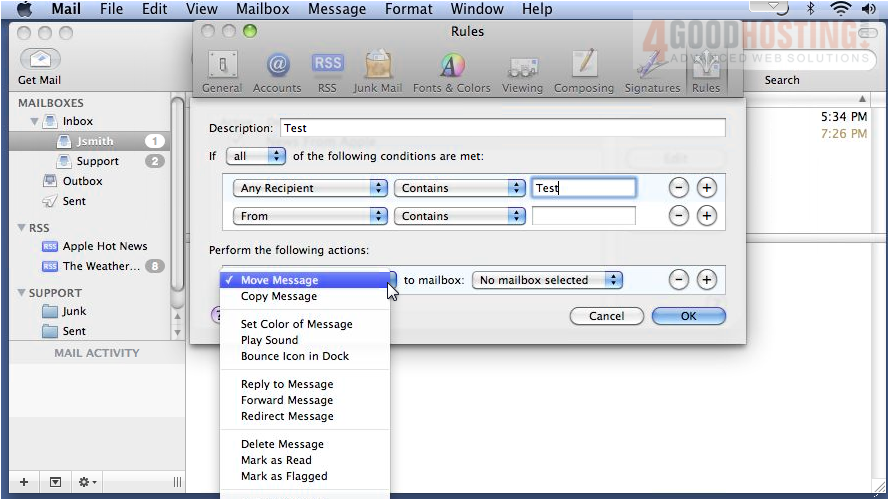
7) Now when the condition is met, the message will be moved to the Support mailbox. Click OK.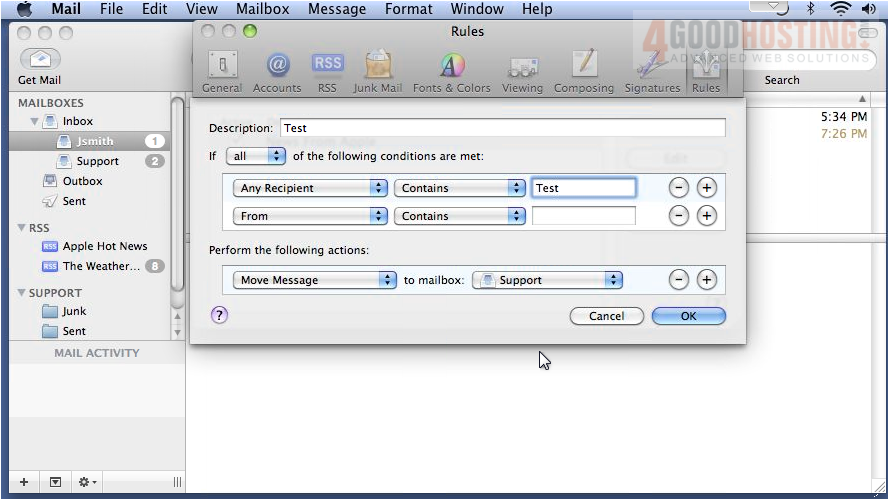
8) Click Apply to apply the rule to messages in your mailbox.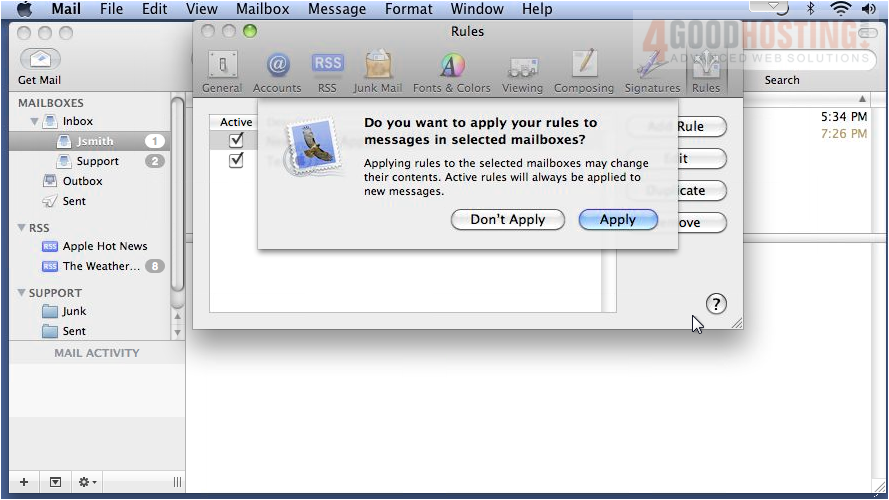
That's it! Now you know how to create rules in Apple Mail.

 WGS AI Assistant