
This tutorial assumes you've already launched the Fantastico application
Now let's learn how to install Templates Express
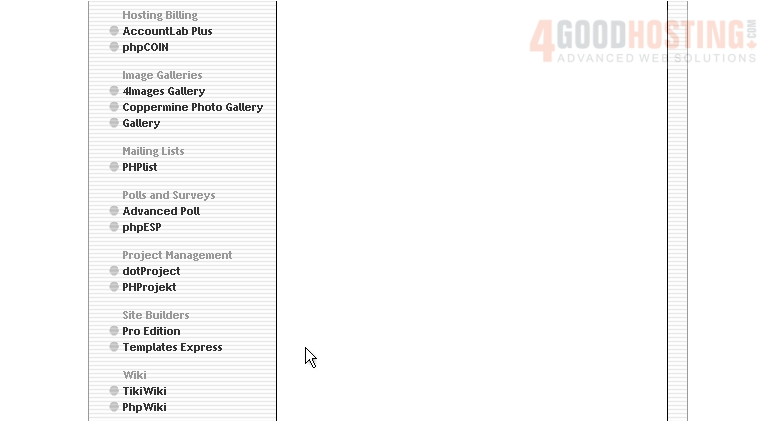
1) Click the Templates Express link here
This is the Templates Express installation screen
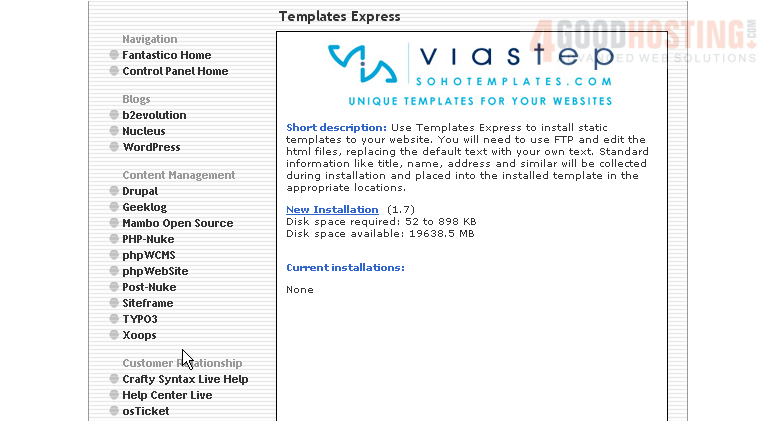
Templates Express is a collection of static website templates that you can add to your website. You will need to use FTP to edit the HTML files once installed, replacing the default text with your own.
2) Click the New Installation link here
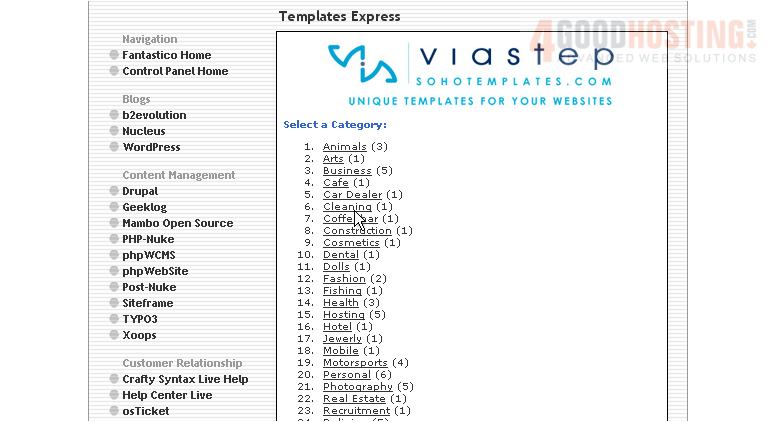
3) Then choose a category
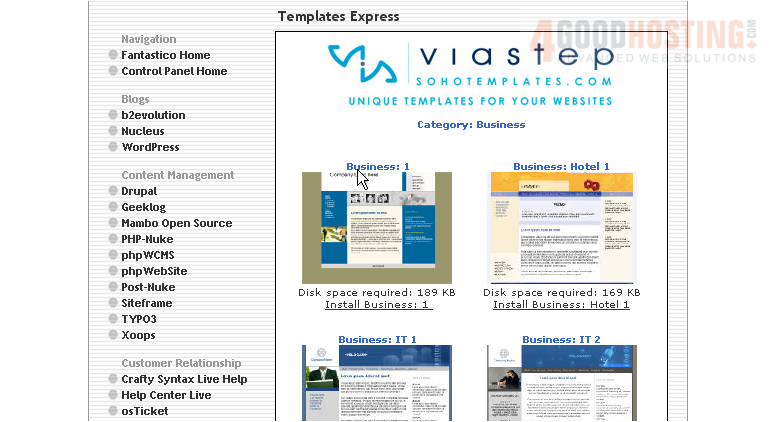
4) Choose the specific template you want to install
5) Enter the name of the directory you want to install in... or leave this field blank for installation in the root directory
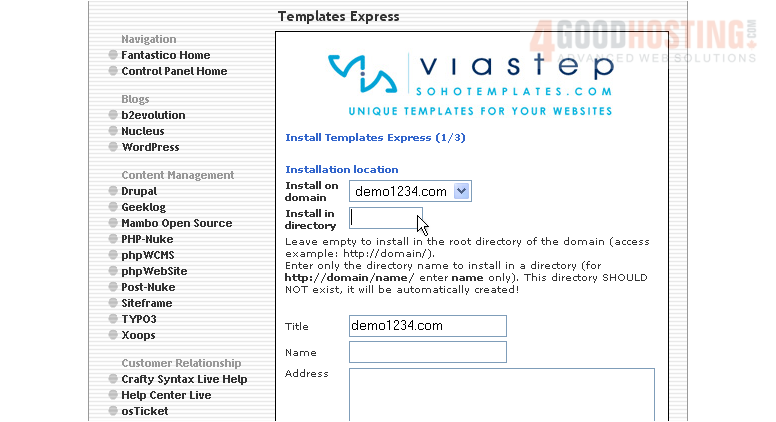
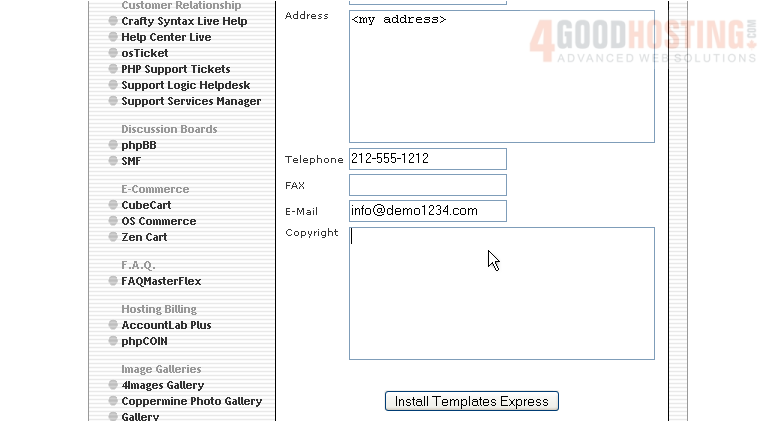
6) Enter your name here
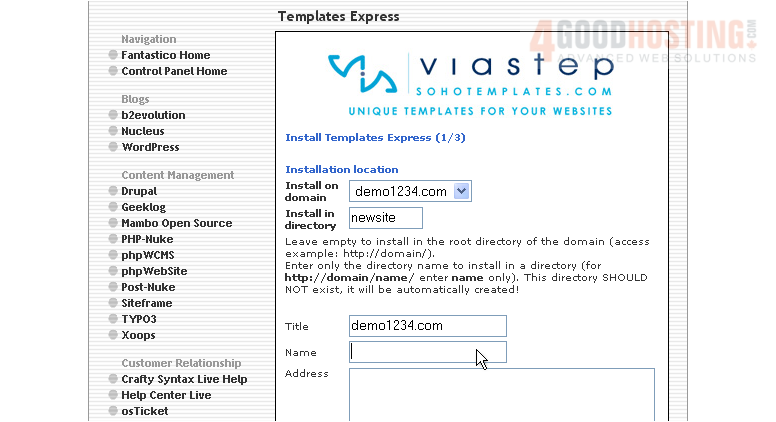
7) Then enter your address
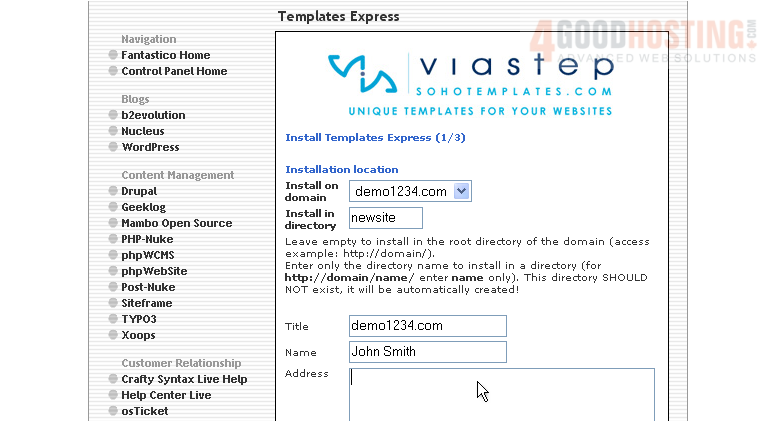
8) Complete the rest of the fields with appropriate information
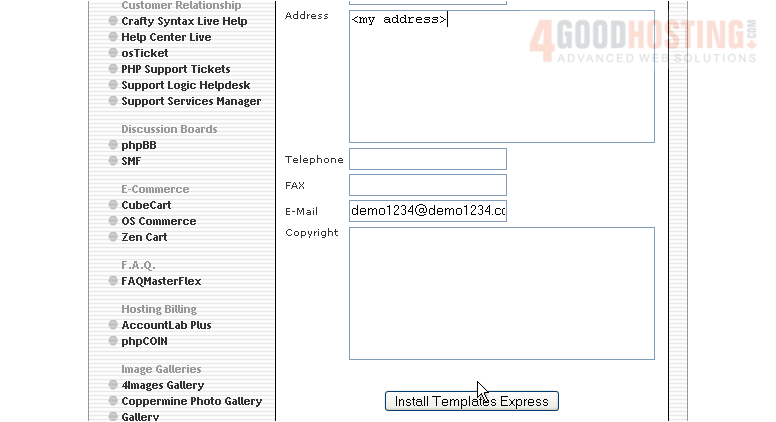
9) When ready, click here to install
10) Click here to finish the installation
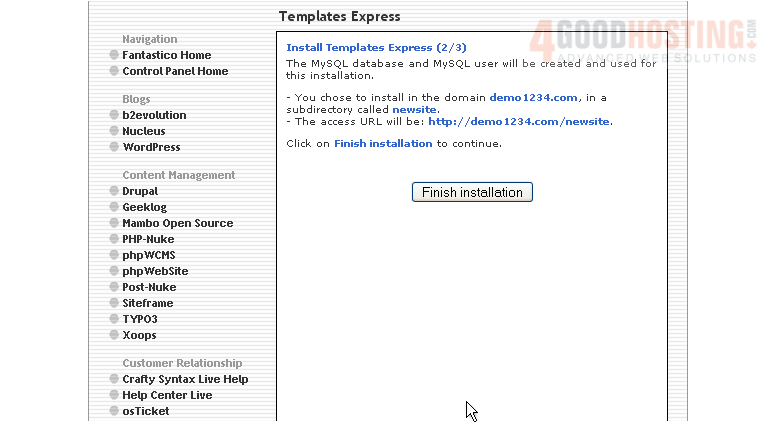
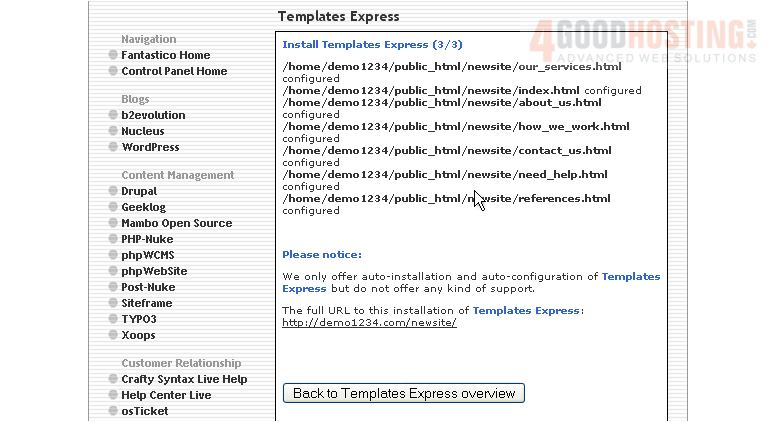
That's it! The Template has been successfully installed in your account, and is ready for you to start configuring it
11) Click here to login to your new installation
Your new installation is now listed here on the script's home page. From here you can visit the site by clicking here... or remove the script from your account by clicking here
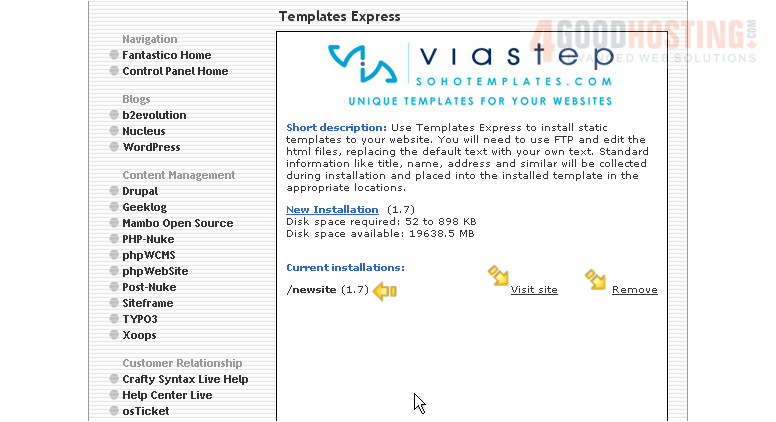
This is the end of the tutorial. You now know how to install Templates Express to your account from within Fantastico

 WGS AI Assistant