
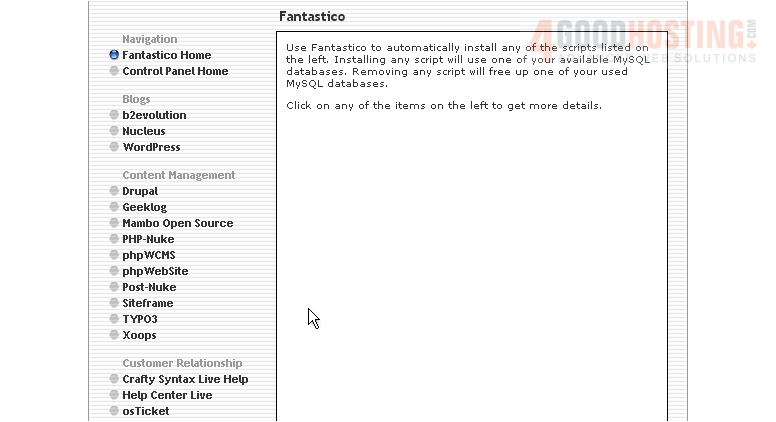
This tutorial assumes you've already launched the Fantastico application
Now let's learn how to install phpWCMS
1) Click the phpWCMS link here
This is the phpWCMS installation screen
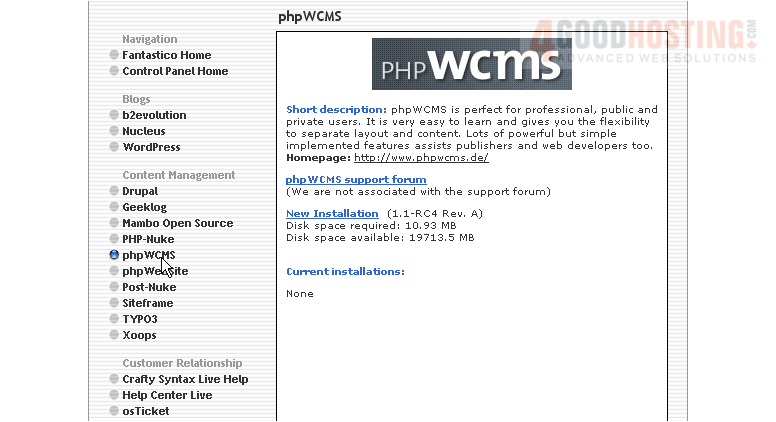
phpWCMS is a content management system that is very easy to learn, and gives you the flexibility to separate layout and content
2) Click the New Installation link here
3) Enter the name of the directory you want to install in... or leave this field blank for installation in the root directory
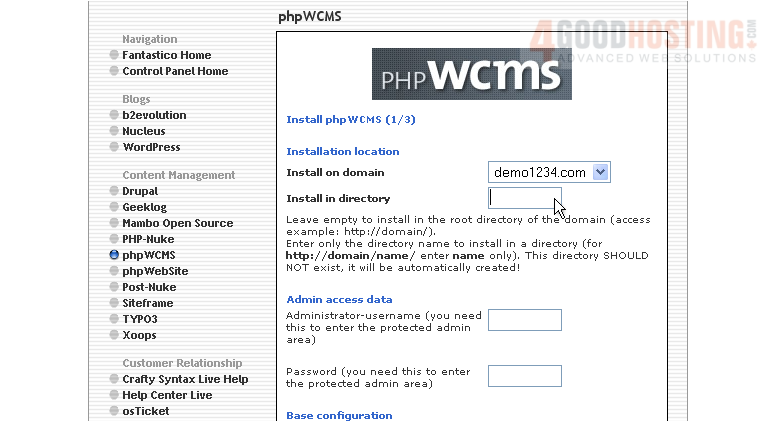
4) Enter an admin username and password in the following boxes
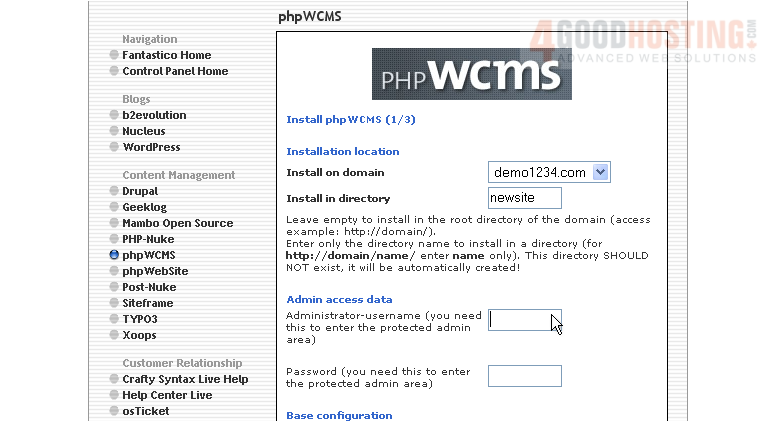
5) Then enter an admin email address
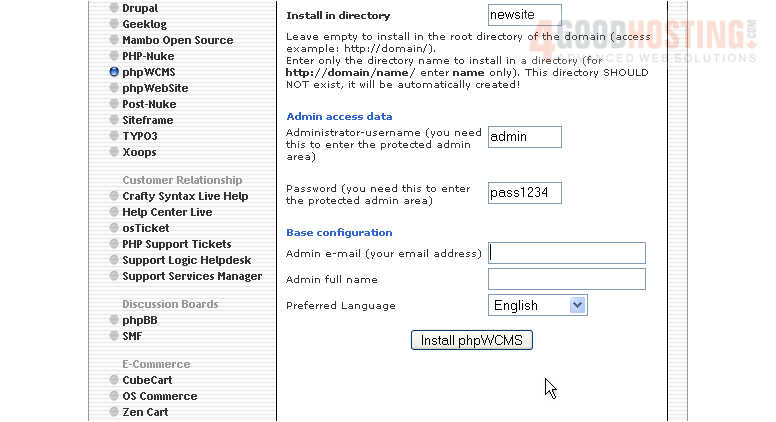
6) Enter the admin's full name
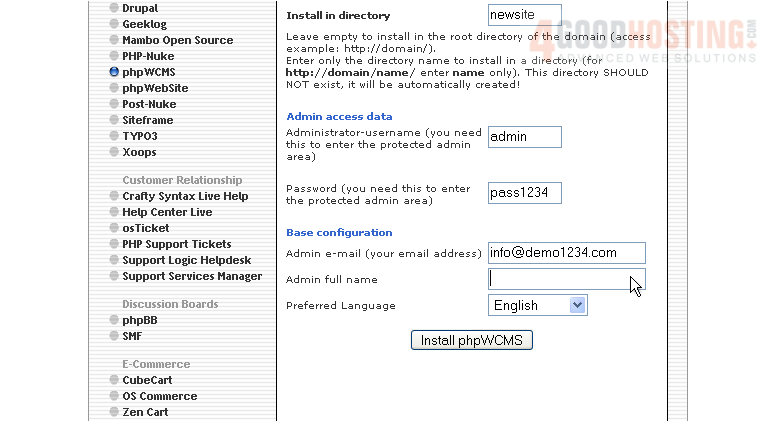
7) When ready, click here to install
8) Click here to finish the installation
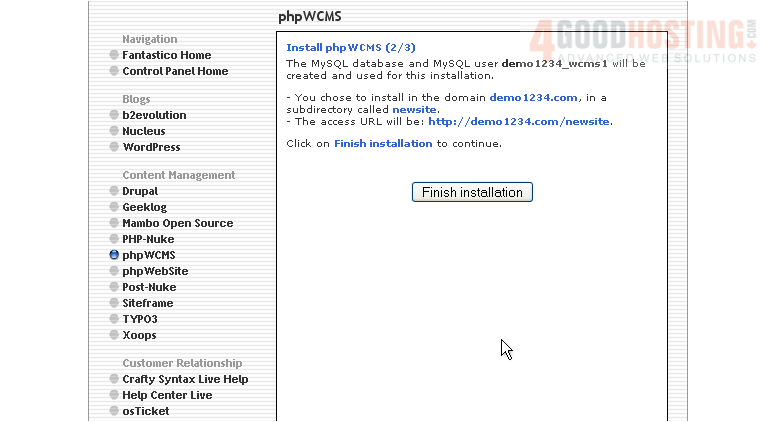
That's it! phpWCMS has been successfully installed in your account, and is ready for you to start configuring it
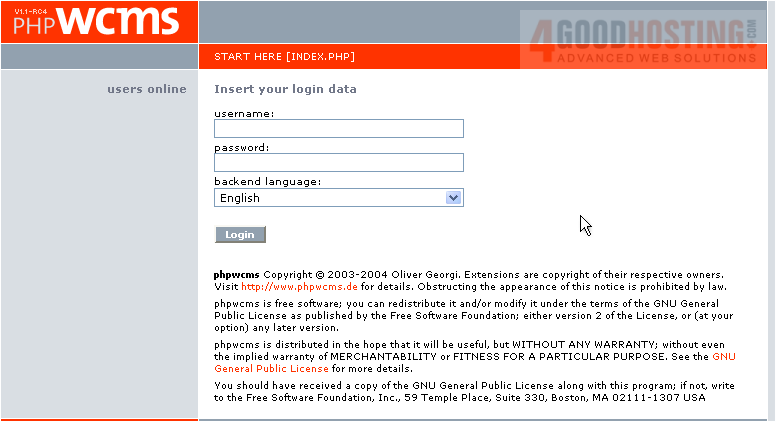
9) Click here to login to your new installation
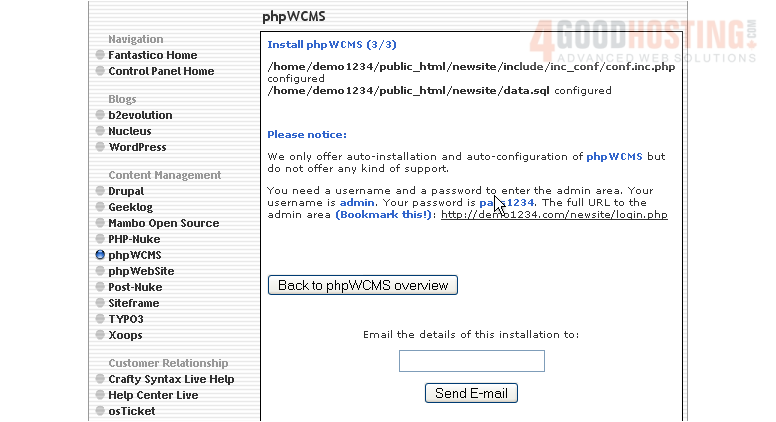
10) Login using the admin username and password you assigned during installation
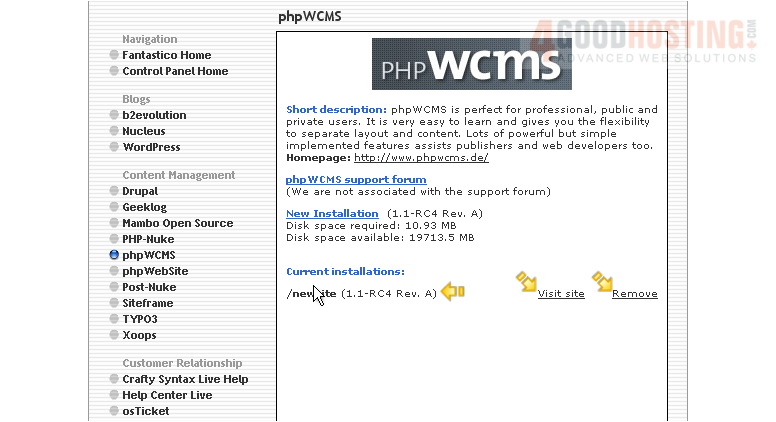
Your new installation is now listed here on the script's home page. From here you can visit the site by clicking here... or remove the script from your account by clicking here
This is the end of the tutorial. You now know how to install phpWCMS to your account from within Fantastico

 WGS AI Assistant