
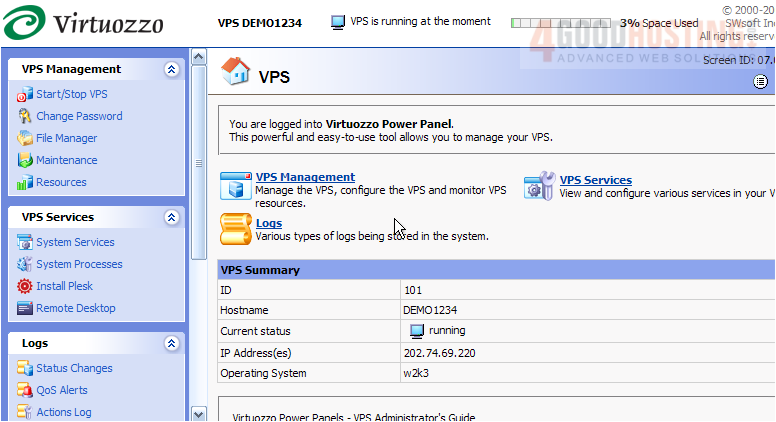
This tutorial assumes you've already logged in to your Virtuozzo Power Panel (VZPP) for Windows.
Now let's learn how to manage the VPS system processes.
1) Click the System Processes link in the left sidebar.
This is the System Processes page, where you can manage specific processes that are running in your VPS.
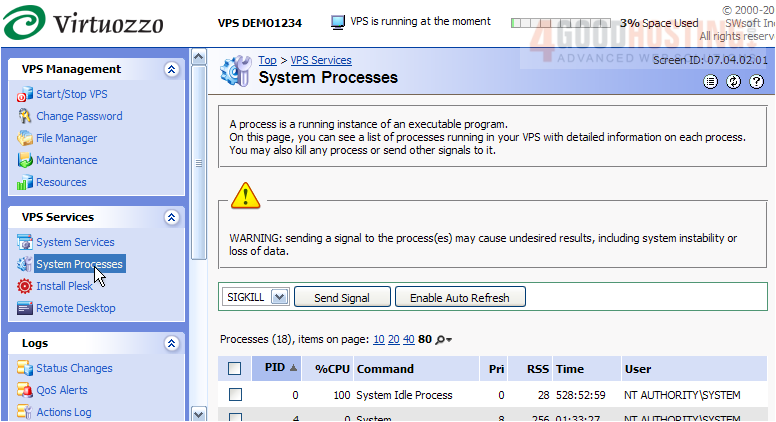
On this page, a list of all processes currently running in your VPS is displayed. You can see how much of your server resources are being used by these processes, and if something appears to be running out of control, you can shut it down. Let's go through how to do that.
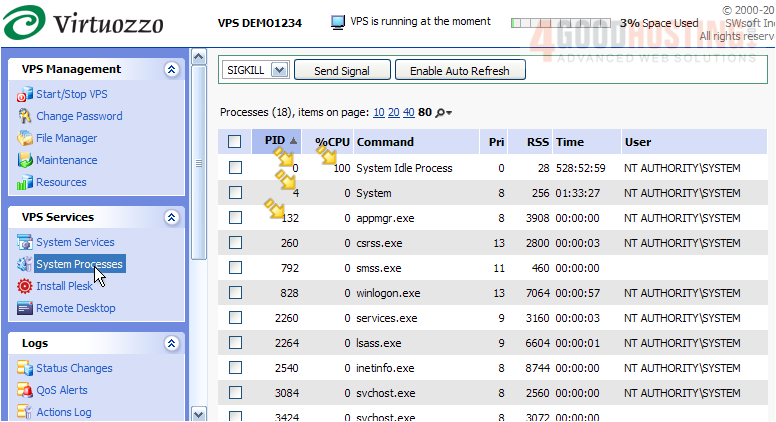
2) First, select the process you want to shut down here.
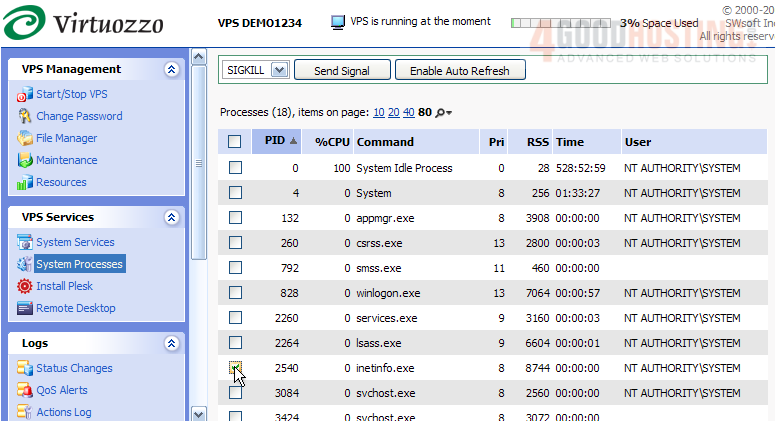
3) Then select the SIGKILL command here.
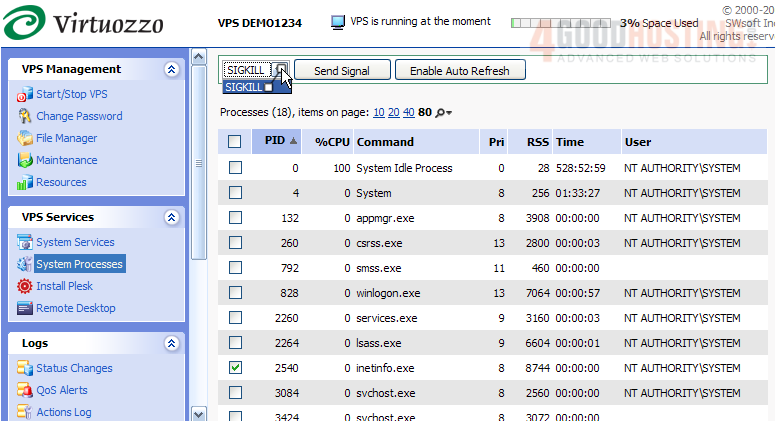
The SIGKILL command unconditionally kills the process, removing any chance for it to do a tidy cleanup and shutdown.
4) Then you would click Send Signal here.
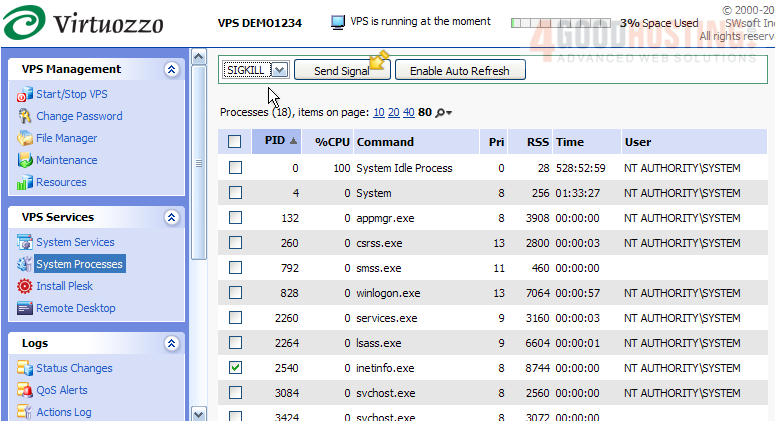
That's it! You now know how to shut down specific processes in your VPS.
This is the end of the tutorial. You now know how to manage all system processes running in your VPS. Keep in mind that you should exercise care when sending signals to processes, and only do so when you understand exactly what you are doing.

 WGS AI Assistant