
This demo assumes you have a domain name registered through Register.com, and starts from the register.com home page
Now let's learn how to update your domain name's DNS (Domain Name Server) settings
1) Click Your Account
 
Â
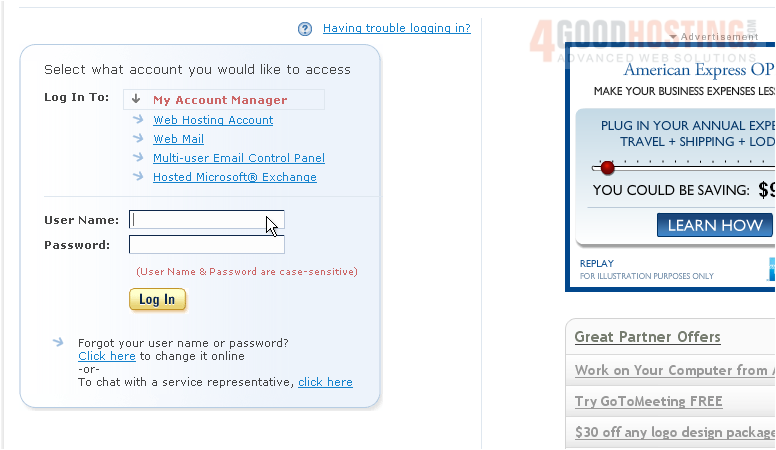
2) Enter your Register.com User Name and Password in the boxes here
Â
3) Then click Log In
Â
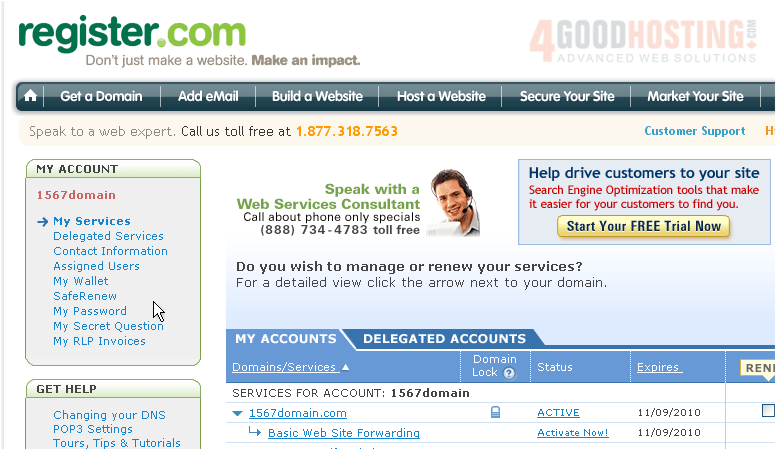
You are now logged in to your Register.com account
Â
4) Click on the domain name you wish to manage..... in this case, 1567domain.com
Â
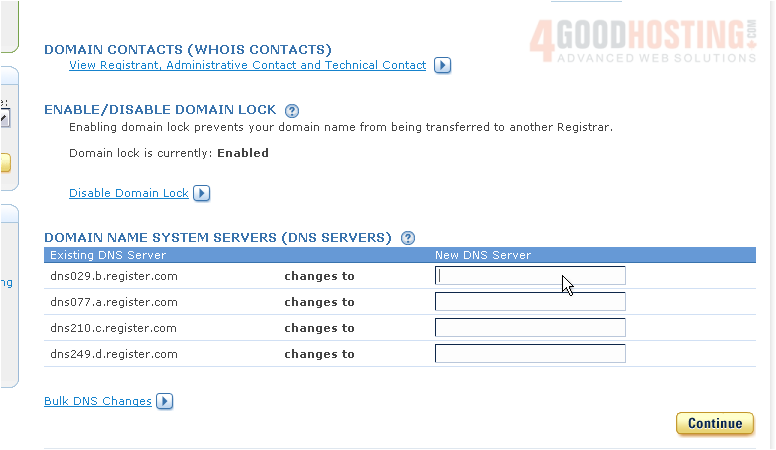
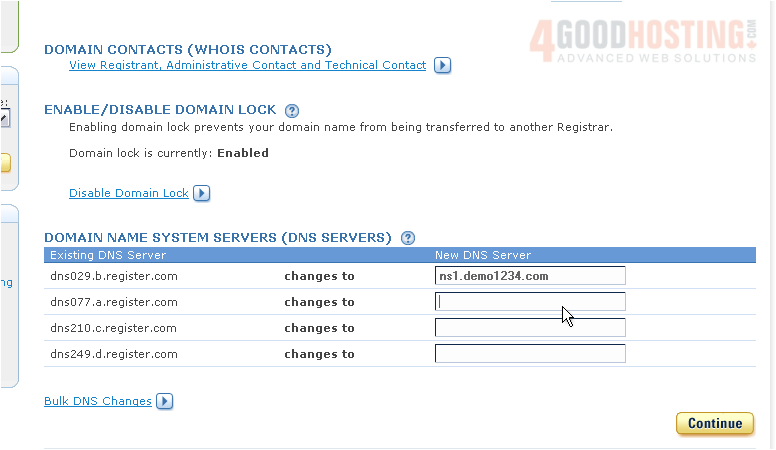
5) Now enter your new Primary and Secondary DNS settings in the boxes provided here
Â
6) Then click Continue
Â
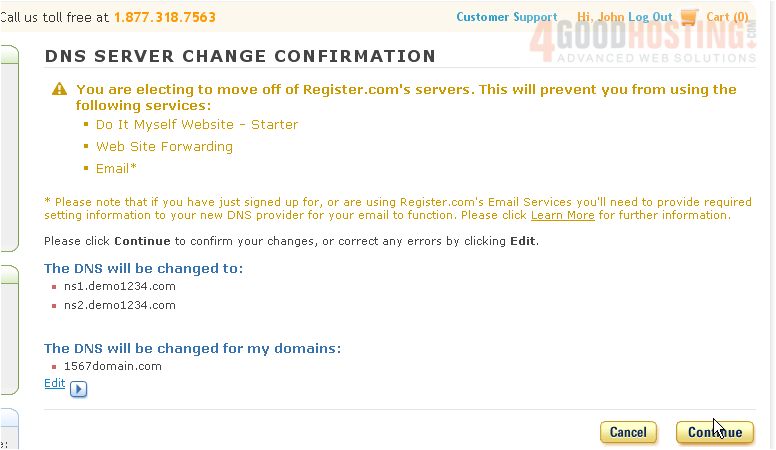
7) Click Continue again, to confirm your changes
Â
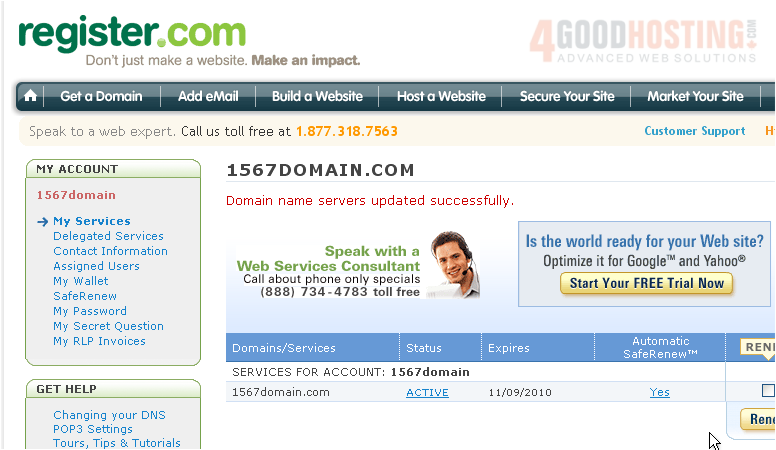
That's it! You've successfully updated your DNS settings
Â
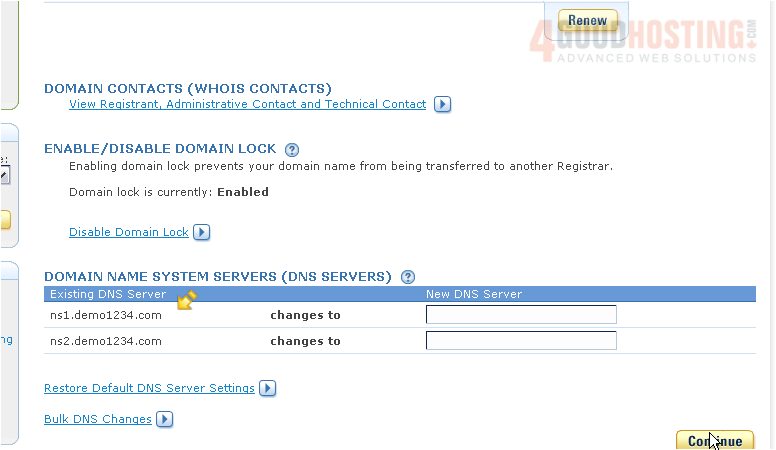
Scroll down, just to be sure.....
Â
Our new DNS settings are listed here
Â
Remember that it can take 24-48 hours for your domain name to fully propagate, after you make these DNS changes
Â
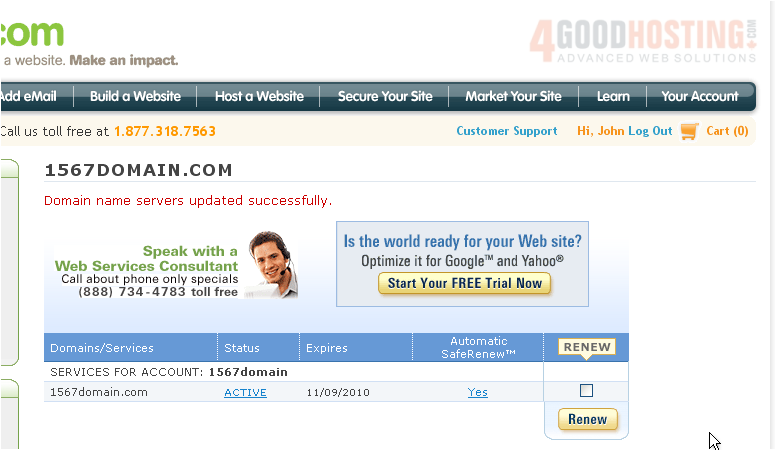
8) When finished, click the LOGOUTÂ link here
Â
This is the end of the tutorial. You now know how to update the DNS settings of your domain name, provided it's registered with Register.com

 WGS AI Assistant