
With the Background Process Killer, you can tell WHM to search every day for processes your users should have no reason to run in a standard web hosting environment.
If a process is found, the scanner will automatically kill the process and send you an e-mail telling you who was running it.
1) Locate the System Health category.
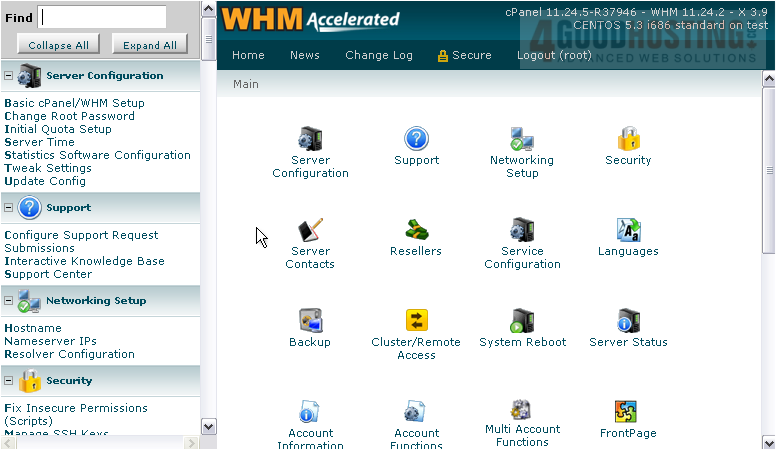
2) Click Background Process Killer.

WHM recommends that you check all of the programs in this list. Most of these relate to IRC, or Internet Relay Chat. IRC brings with it the stigma of causing lots of Denial of Service attacks, so most hosts explicitly disallow their users to run IRC servers on their networks.
This scanner will find these processes even if the user tries to hide them by renaming them.
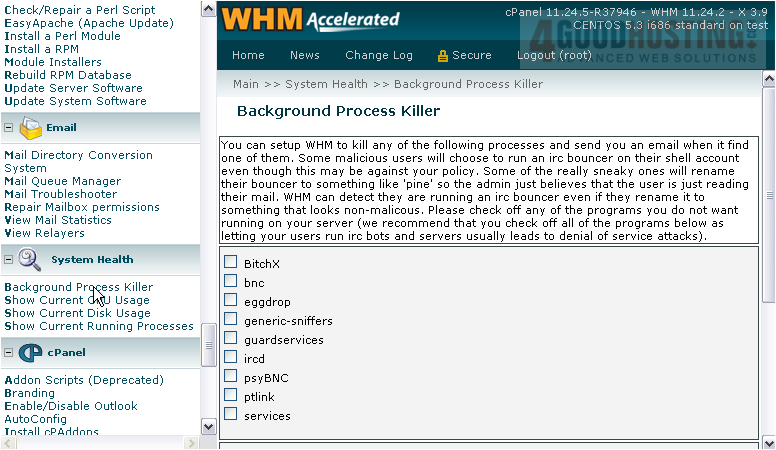
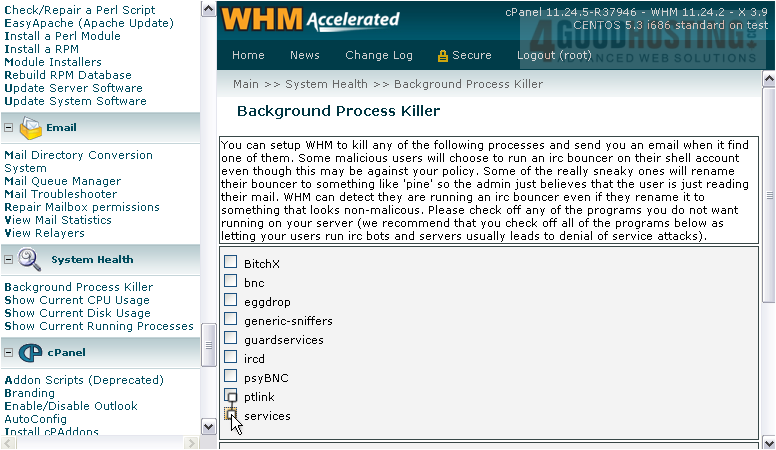
3) We'll do as they suggest and check off all the programs.
4) Using this textarea, you may enter a list of users that you want the process killer to ignore, one per line.
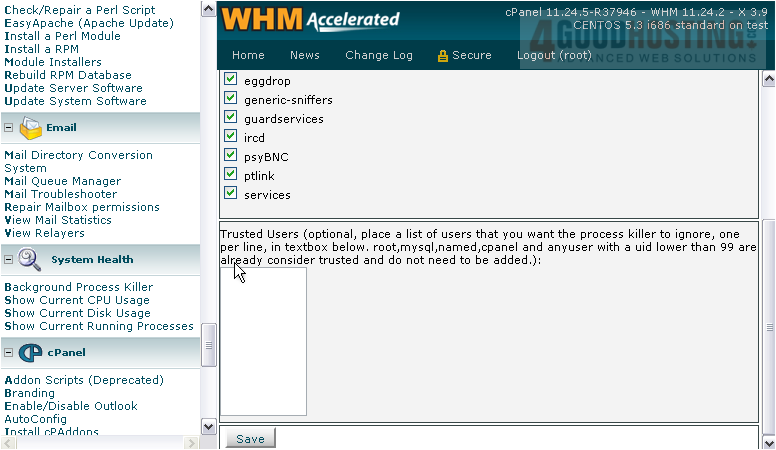
5) Press Save to finish.
Your selection has been saved. All the processes you chose will be killed every night, if detected.
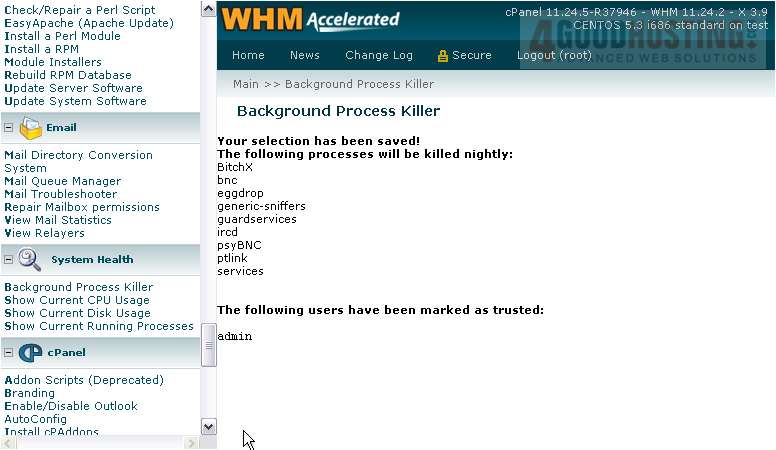
Also, any users you entered have been marked as trusted.
This completes the tutorial. You now know how to use the Background Process Killer in WHM.

 WGS AI Assistant