
Depending on your update settings, you may or may not need to run cPanel's update script manually in order for it to check for and install updates.
If you'd like to change or verify your update settings, we showed how early on in the Setup series.
This tool will also check for Server and System-related updates, as explained in the previous tutorial.
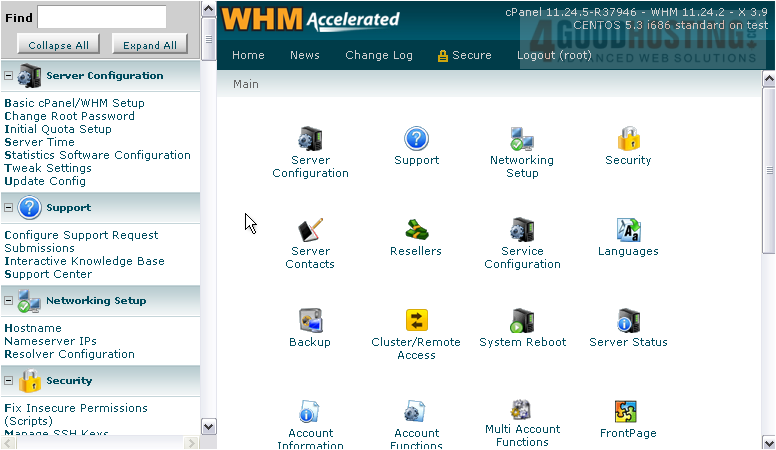
1) To manually run cPanel's update script, go to the cPanel section.
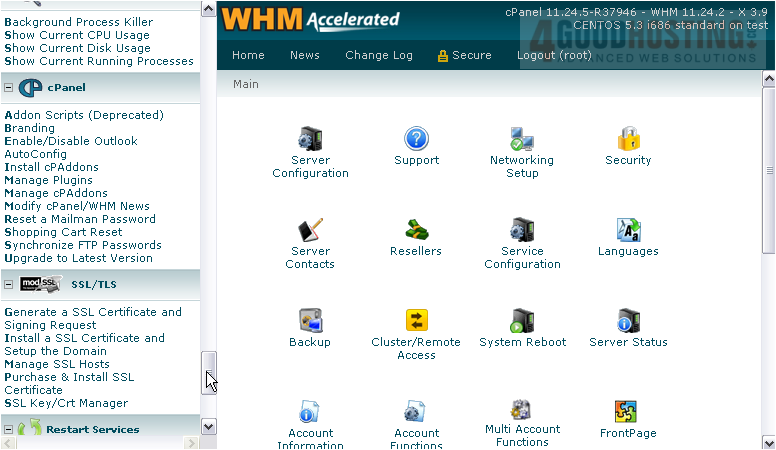
2) Click Upgrade to Latest Version.
As you can see here, our Update Settings dictate that we'll be updating to the latest RELEASE build of cPanel, assuming we don't have it already.
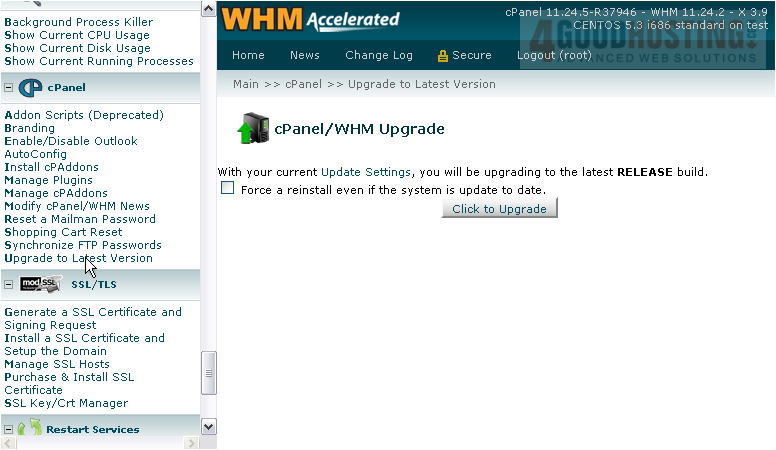
With this checkbox, you can force cPanel to reinstall itself, even if the system is up to date.
3) To upgrade, click this button.
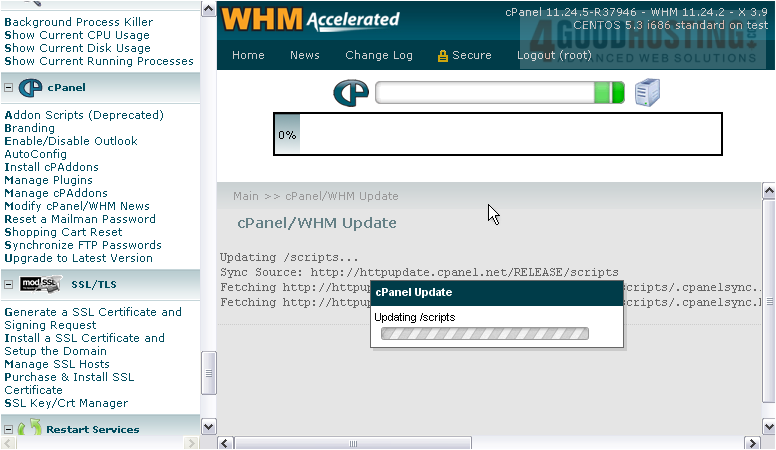
It may take an hour or more for the update to complete, depending on what needs to be installed, the speed of your connection, and your server hardware.
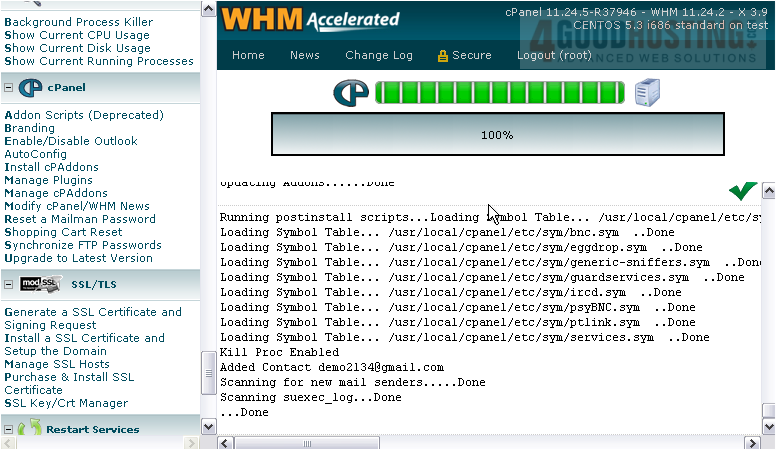
The percentage bar up here will update as the upgrade script runs.
That's it! The upgrade is now complete.
This is the end of the tutorial. You now know how to perform a manual upgrade of cPanel & WHM.

 WGS AI Assistant