
This tutorial will show you how to setup a Yahoo! email account on your iPhone.
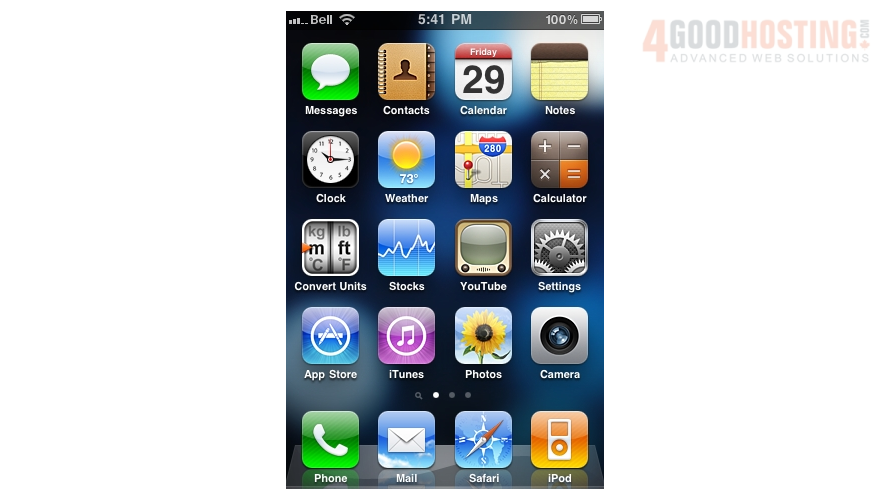
1) First, locate and press the "Settings" icon. It may be on a different screen or in a different location than shown here.
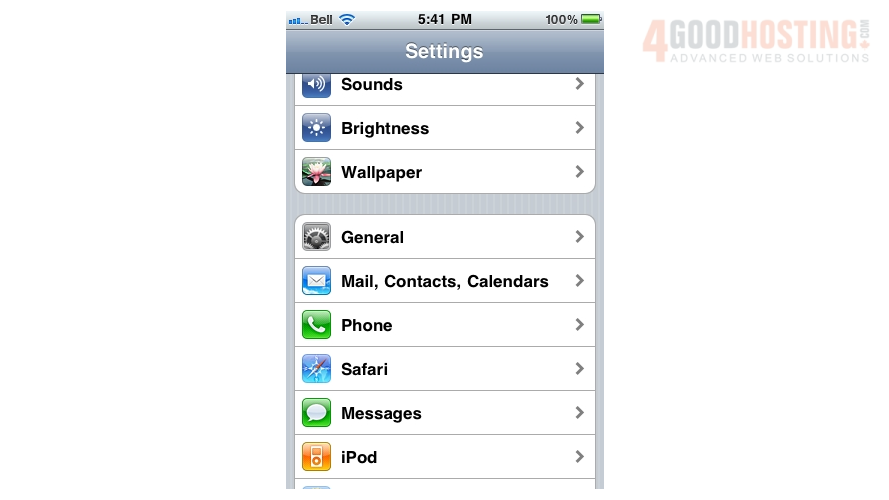
2) Then select "Mail, Contacts, Calendars".
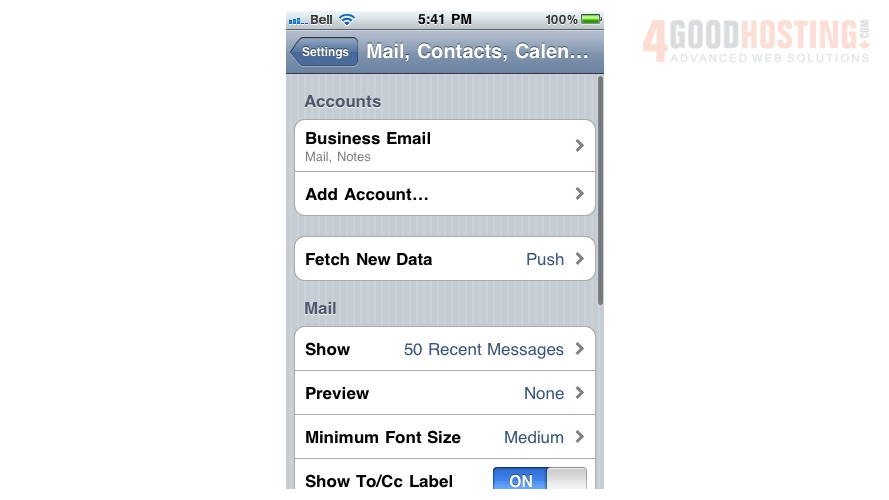
3) Select "Add Account".
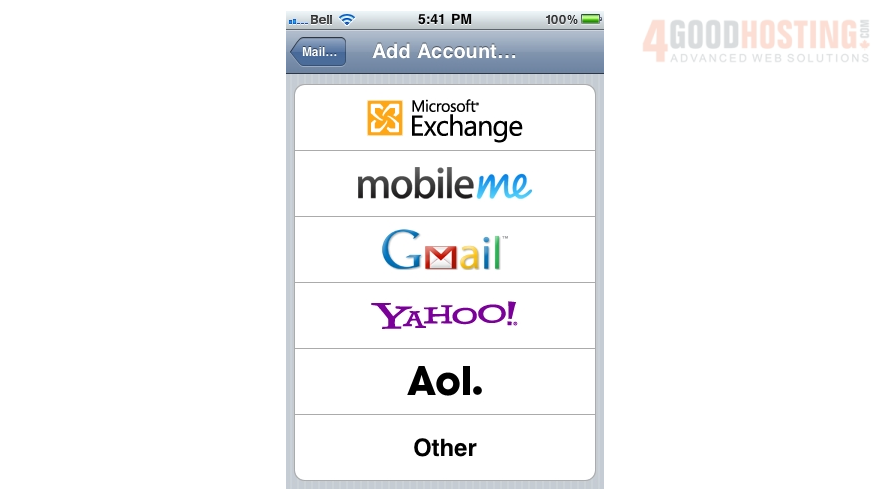
4) Then choose "Yahoo!".
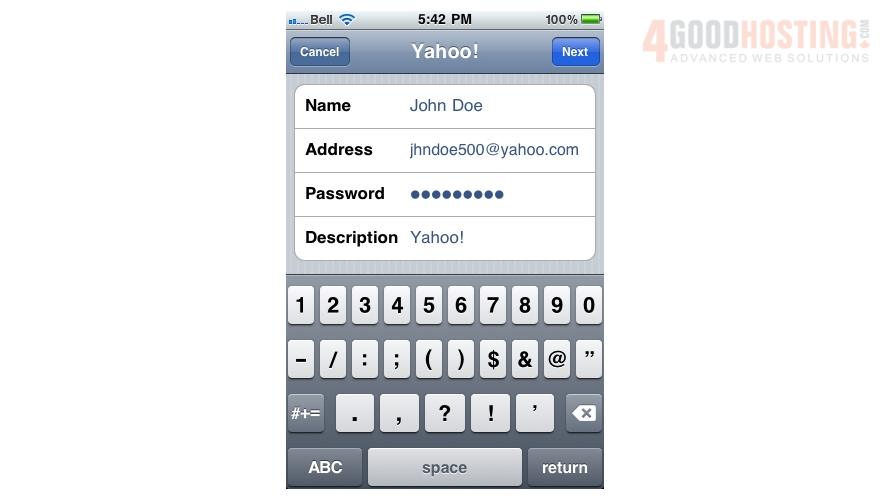
5) Enter the Name, Email address, and Email password of the Yahoo! email account you're adding.
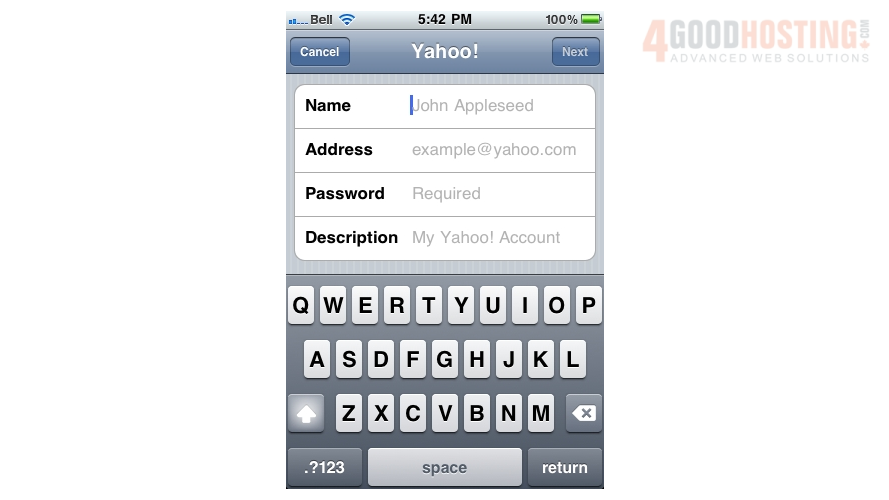
6) A "Description" will automatically appear, but you can change it if you like. When finished, press "Next".
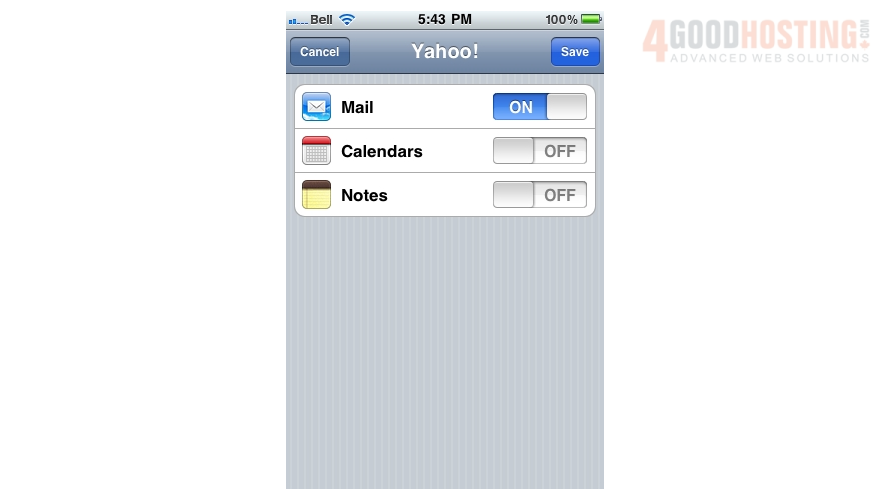
7) Press "Save".
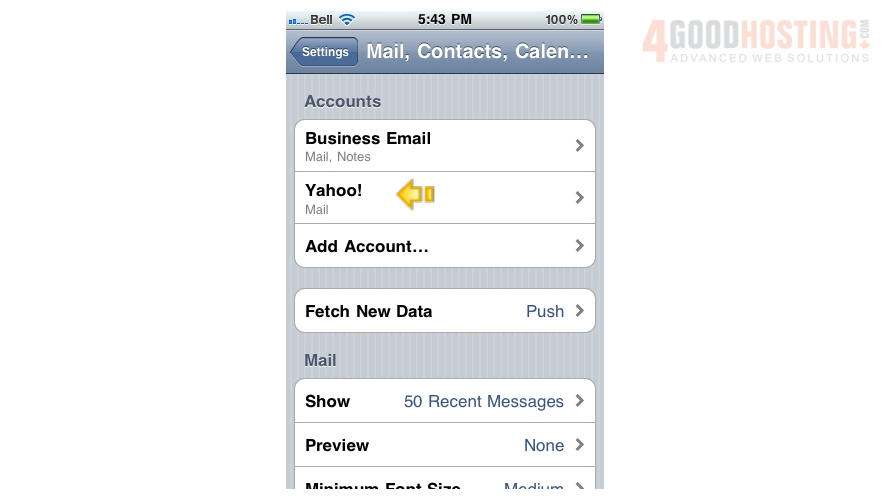
Success! The Yahoo! email account has been setup on the iPhone, and you can see it here listed under "Accounts".
8) Let's return to the home screen by pressing the Home button on the iPhone.
9) To check your email, press the "Mail" icon here (Note: the icon may be in a different location on your iPhone).
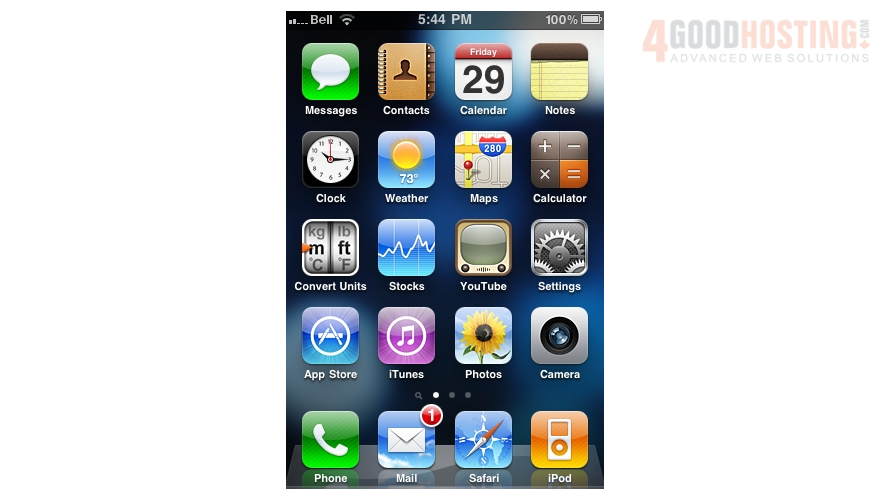
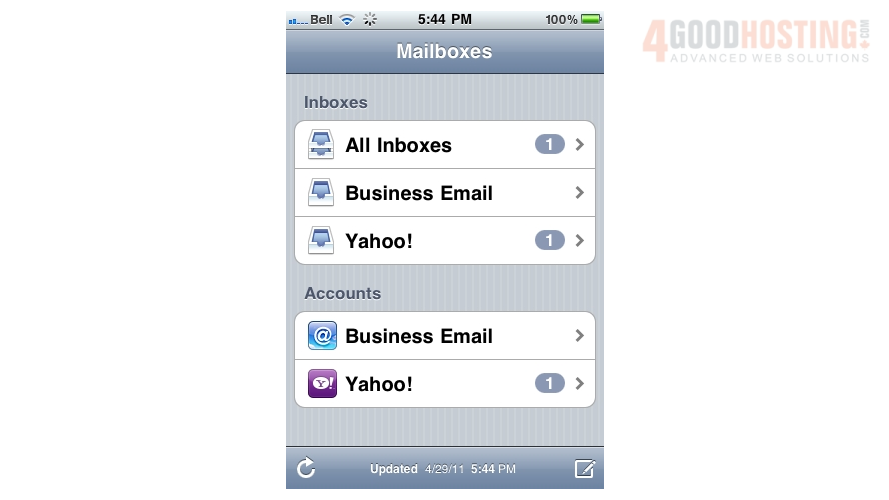
10) If you have multiple email accounts setup in your iPhone, they'll all be listed here. Select the Yahoo! account we just setup...
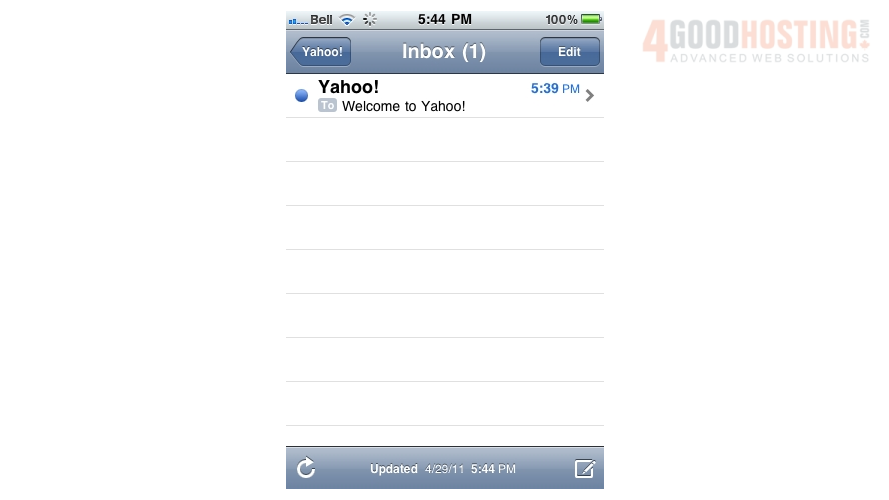
11) ... and any emails in your inbox will be displayed here. Click an email header to see the email.
That's it! You now know how to setup a Yahoo! email account on your iPhone.

 WGS AI Assistant