
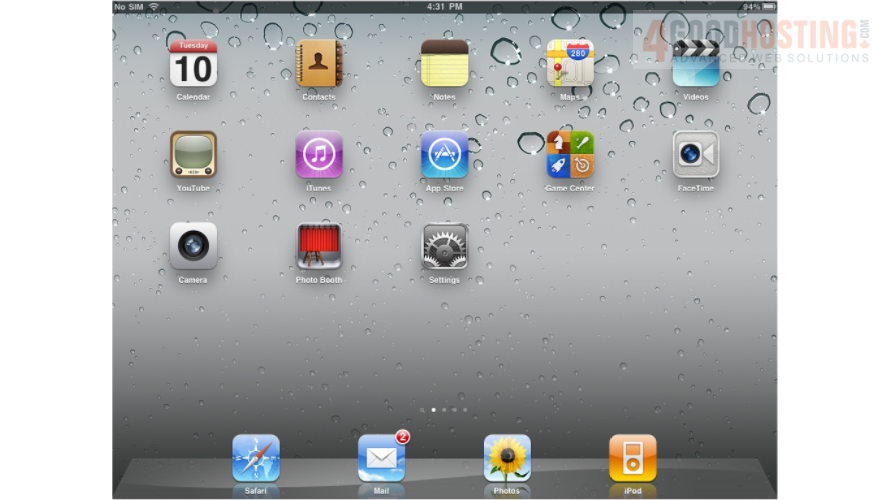
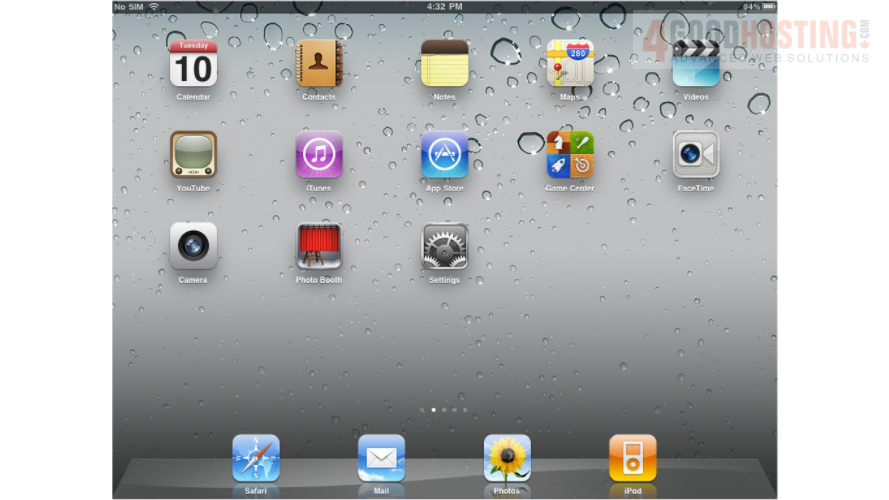
1) This tutorial will show you how to delete an email account on your iPad. First, locate and press the "Settings" icon. It may be on a different screen or in a different location than shown here.
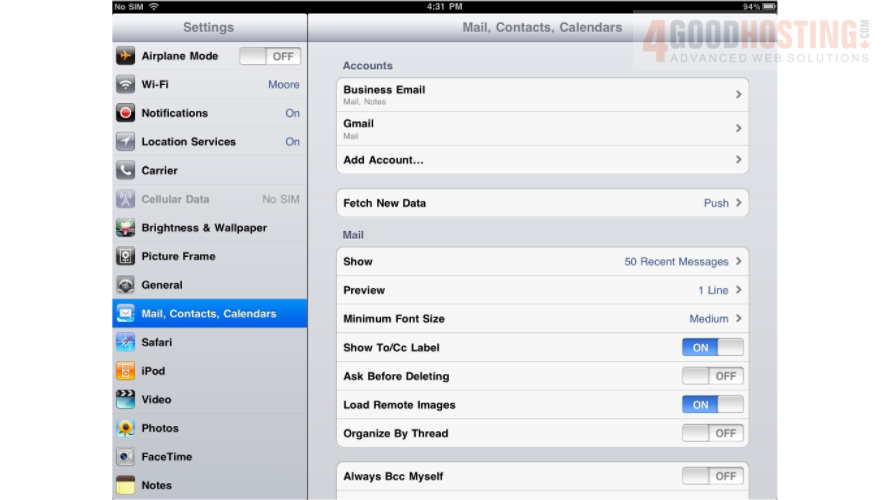
2) Then select "Mail, Contacts, Calendars"... and select the email account you want to remove from your iPad
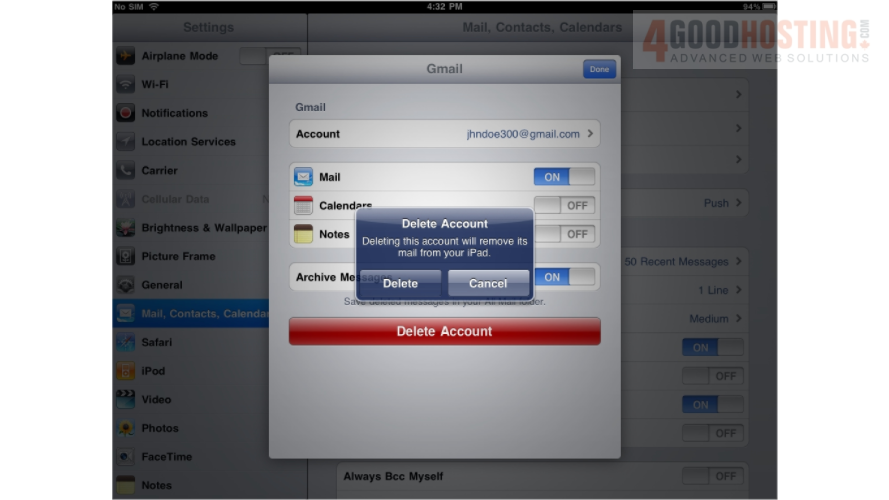
3) Then press the "Delete Account" button here.

4) Press here to confirm you want to delete the account. Note: Deleting an email account from your iPad will also remove all messages that were in your iPad.
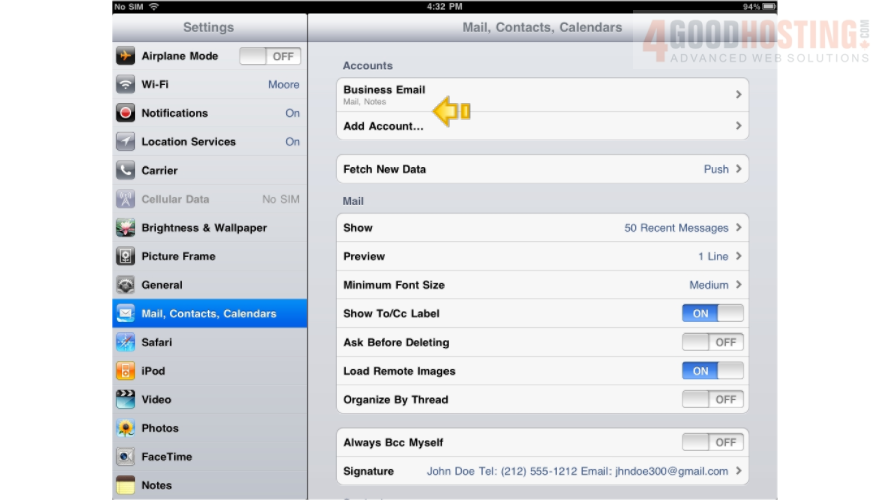
5) That's it! The email account has been deleted from the iPad, and it is no longer listed here.
6) Let's return to the home screen by pressing the Home button on the iPad
You now know how to delete an email account from your iPad.

 WGS AI Assistant